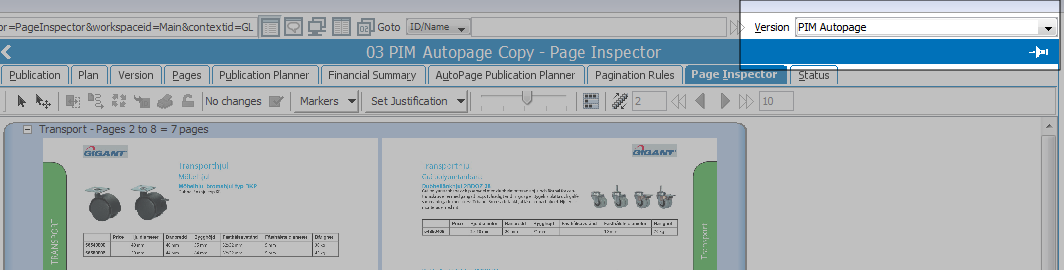
When the paginated DTP pages have been saved back to STEP, you can inspect and edit the pages on the Page Inspector tab and the AutoPage Publication Planner tab. You can inspect both single and multi-version autopaginated publications.
On the Page Inspector tab and AutoPage Publication Planner tab you can do the following:
Note: When you apply any of the actions Remount, Reflow, Update content, Apply changes or Justification, they apply to all versions of a publication, not just the selected version.
It is possible to open and edit a document directly in InDesign. You can make changes in InDesign and then save the document back to STEP. For more information, see the STEP'n'design User Guide.
It is possible to make a comma separated (CSV) file that contains the information that is shown in the AutoPage Publication Planner.
2017, Stibo Systems