 .
.You can remount one or more objects at a time for the paginated pages. This is useful, for example, if you have made changes to the template, if you want to resolve overset text, or if the product content has been changed.
.-OR-
If you only select one object, the system makes the change immediately. Otherwise, the system starts a background process.
You can reflow objects until the end of a page or the end of a section. This is useful if you want to optimize a limited number of pages, for example, if you have removed an object or have re-sequenced objects. In this case, it is recommended that you run a reflow instead of a complete auto-pagination.
 .
.-OR-
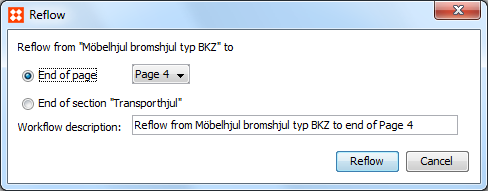
Select either End of page or End of section.
Click Reflow.
Note: If you have added products, new spreads will be added either at the end of the indicated page or at the end of the indicated section.
2017, Stibo Systems