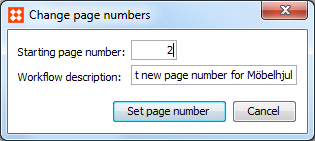
To ensure consecutive page numbering in sections, you can specify the starting page number as shown in the following example:
Section 1: pages 1 - 10
Section 2: pages 11 - 20
Section 3: pages 21 - 30
Click the AutoPage Publication Planner tab, and then click the publication, section or subsection you want to set page numbers for.
Note: It is recommended to set the page numbers at the section level.
A Change page numbers dialog box appears.
Select either Remount everything or Remount only the page furniture, and then click Remount.Remount everything is typically required, if different pagination rules exist for left and right pages. When you select Remount everything, all pages are remounted and all changes applied manually to the actual pages are lost. Click Remount
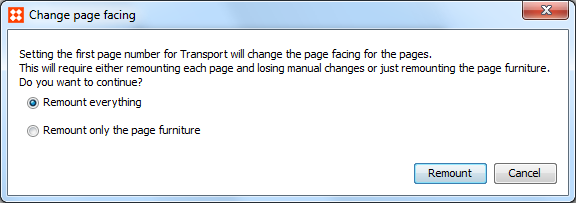
A request is sent to the InDesign server to update the page numbers of the actual pages in the section. The InDesign server saves a new version of the documents and actual pages to STEP.
2017, Stibo Systems