Open topic with navigation
You are here: AutoPage > Generating PDFs for Proof-viewing
Generating PDFs for Proof Viewing
When you have paginated and reviewed your pages, you can proof view the publication and paginated pages in a PDF to ensure that they look the way you want them to. It is not possible to make a multi-layered PDF document.
- In the Tree, expand the Publication hierarchy, and then expand the relevant publication.
- Right-click the relevant publication or section, and then choose Generate PDF. The Generate PDF dialog appears. Alternatively, click the AutoPage Publication Planner tab, select and right-click the preferred row, and then choose Generate PDF.
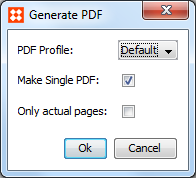
- From the PDF Profile list, select the preferred profile.
- Select Make single PDF if you want all documents to be included in one single PDF file. If not selected, a .ZIP file that includes a PDF of each single document is created.
- If you only want the PDF to include pages that have been completed in InDesign and saved back to STEP, check Only Actual Pages.
- Click OK. The Starting process Generate PDF message appears.

- Click Go to process to view the PDF or click Close.
Note: PDF profiles are system dependent. Therefore, the PDF profile is set to Default, if no special PDF profiles have been configured for the system. Please contact Stibo Systems if you need additional PDF profiles.
2017, Stibo Systems