A digital catalog output allows a user to submit products to a digitalized product catalog for one or multiple retailers to receive. Rather than submitting data to each retailer individually, the data is posted in an accessible web area with access granted to the retail partners to retrieve relevant products. It is necessary for the configured channel to have either 'multiple recipients' enabled or the 'enable single recipient for your output' option enabled with the 'Digital Catalog' recipient selected to display the Digital Catalog Tab for a channel. For more information on enabling recipients for a configured channel, refer to the Creating Configured Channels topic.
Note: Using digital catalog requires an add-on license. For questions, contact your Stibo Systems administrator.
Creating and Maintaining a Digital Catalog
Use the following steps to create and maintain a digital catalog.
-
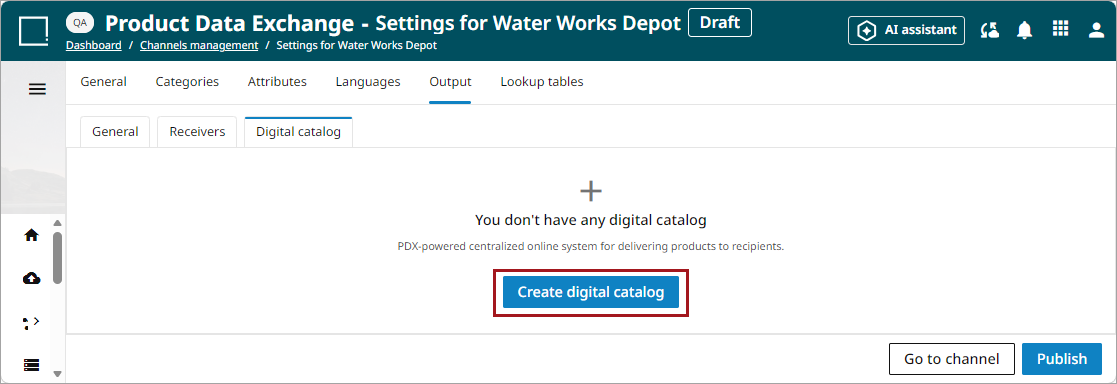
To create a new digital catalog for a channel or to update an existing one, navigate to the 'Digital Catalog' tab under the 'Output' tab for a configured channel.
-
To create a catalog in a new channel: Click the 'Create digital catalog' button.
-
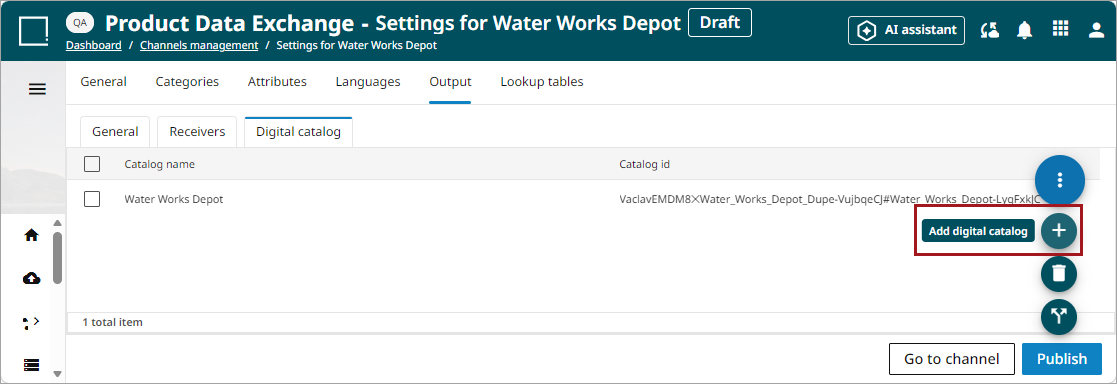
To add an additional catalog for a channel: Click the Add digital catalog button (
 ) in the kebab menu (
 ).
).
-
-
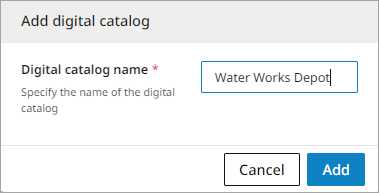
Enter the desired name for the Digital Catalog in the dialog and click the 'Add' button.
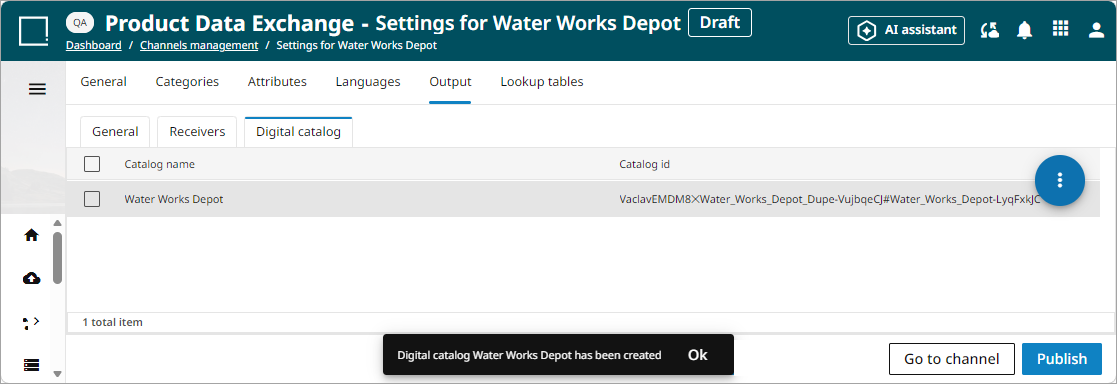
The Digital Catalog will now appear in the list in the Digital Catalog tab.
-
Click the 'Publish' button to save the configuration.
Digital Catalog Details
Select a digital catalog from the list to view the digital catalog details. Details include the catalog's name, ID (which is autogenerated), and control. The control toggle allows you to enable or disable a catalog from access. The catalog will not be deleted, but only the catalog owner can access the catalog's details if the catalog has been disabled.
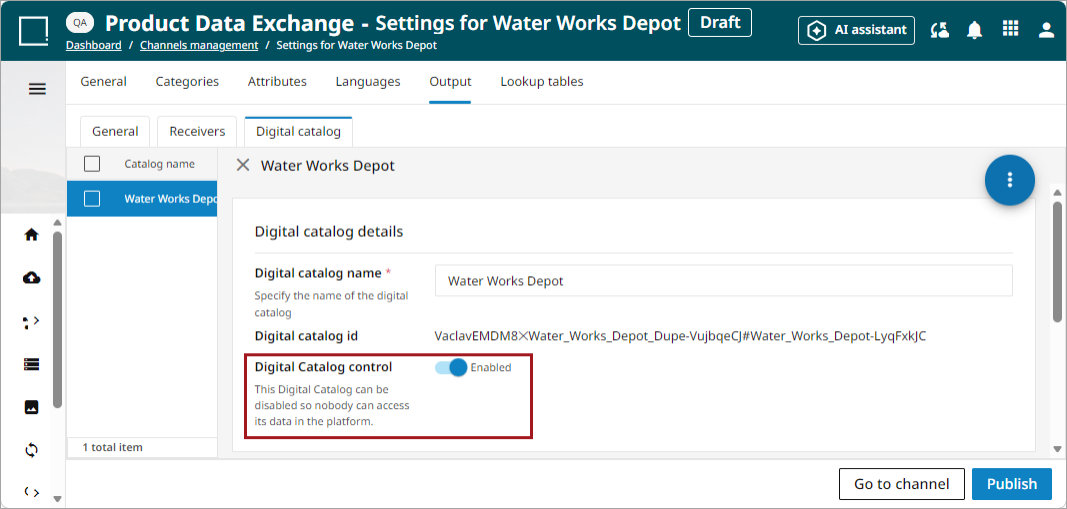
On the top right of the screen is a the kebab menu () that offers additional options. The additional options and their functions are as follows:
-
Add digital catalog button (
) allows a user to add a digital catalog to the channel.
-
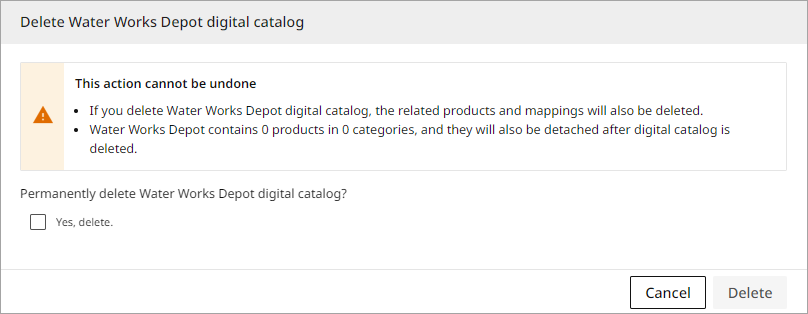
Remove digital catalog button (
 ) allows a user to remove a digital catalog from the channel.
 -
Selecting this option pulls up a confirmation dialog. Check the 'Yes, delete.' checkbox and click the 'Delete' button.
-
-
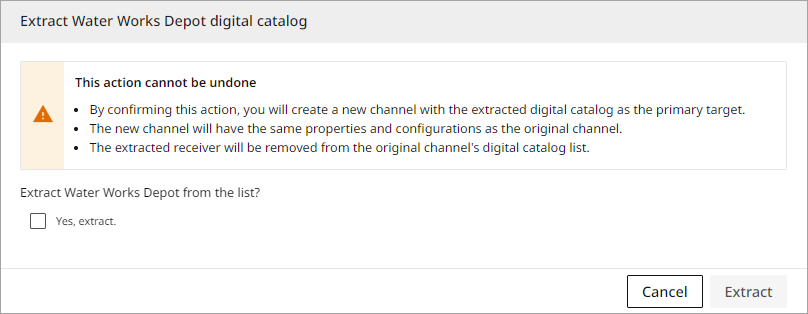
Extract digital catalog button (
 ) allows a user to extract a digital catalog from the original configured channel and migrate it into a new configured channel with the extracted digital catalog as the primary target.
-
Selecting this option pulls up a dialog. Check the 'Yes, extract.' checkbox and click the 'Extract' button.
-
User Management
This section allows the brand to invite a single representative from each retail partner to serve as the administrator of that retailer's account, with access to the relevant digital catalog. That administrator can then invite additional retail users to the account and, if needed, promote another user to administrator. This allows the brand to manage a small number of partner-level accounts and leaves each partner to manager its own internal users. The diagram below further illustrates process flow for a retail partner user. For more information on how a retailer admin manages digital catalog access, refer to the Retailer Partner: Digital Catalog Admin User Management topic.
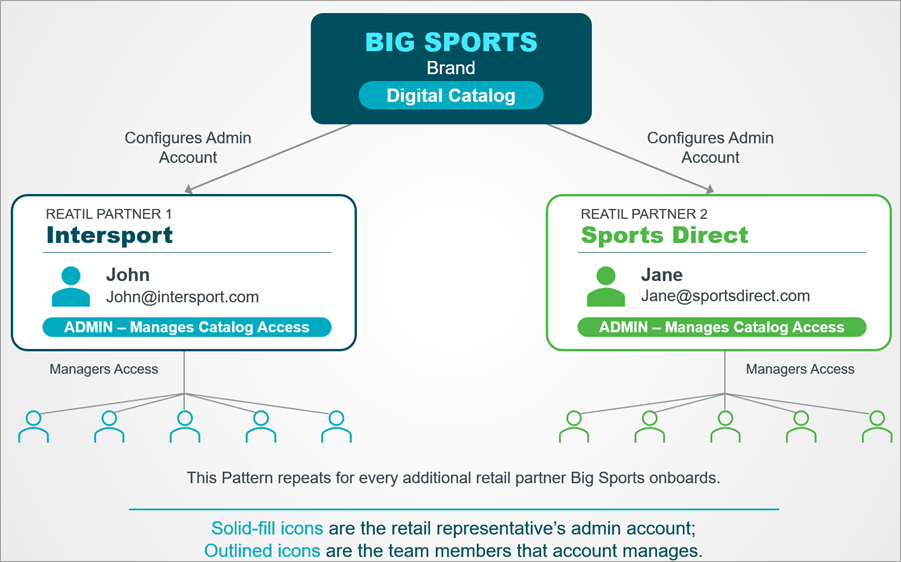
Before users can be added to the digital catalog, the catalog configuration must be published for a configured channel. For additional information on publishing a digital catalog receiver, refer to the Creating and Maintaining the Digital Catalog section above.
Once the catalog is published, invitations can be sent via emails to users. The user invited through PDX will be created as an admin user of the retailer's digital catalog account, with the ability to invite other users. For further information on how admin users manage user access directly from the digital catalog, refer to the Retailer Partner: Digital Catalog User Access topic. To invite a user through PDX, perform the following steps:
-
Navigate to the Digital Catalog tab in the Output Tab for a Configured channel and select the relevant digital catalog.
-
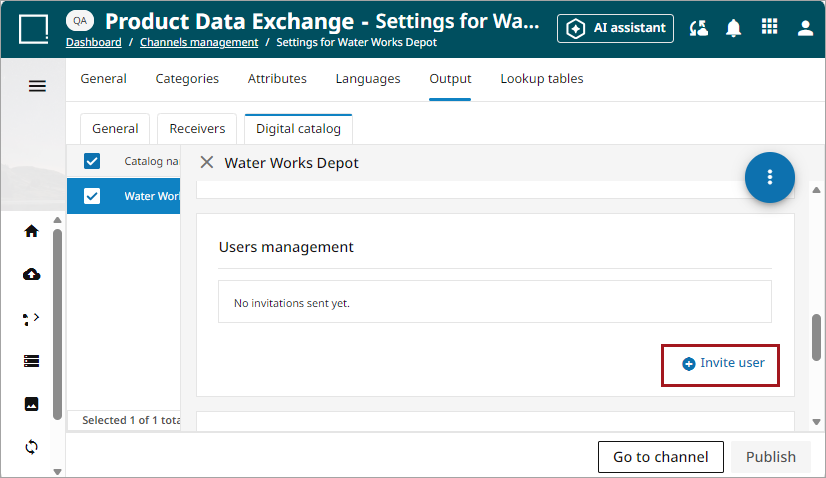
In the details, find the Users management section and select 'Invite user' in the bottom right corner.
-
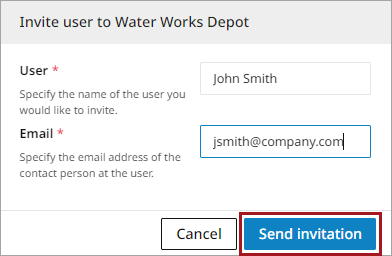
Enter the user information and click the 'Send invitation' button.
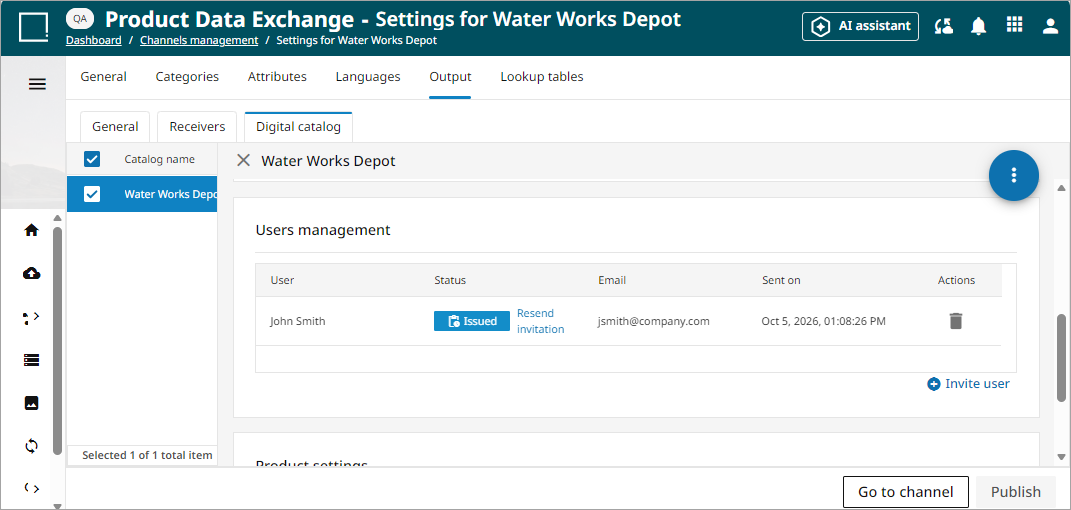
Admin user access can be viewed and managed in the Users management section. Once and invitation has been sent, the user will receive an email invitation to access the Digital Catalog. The status of these invitations can be viewed within the window and are as follows:
-
Accepted (
 ): An email invitation has been accepted.
 -
Expired (
 ): A user has not accepted the invitation within 14 days and will need to be reissued an invitation.
 -
Revoked (
 ): A PDX user has removed access for a user to use a digital catalog.
 -
Issued (
 ): An email invitation has been sent and is waiting for a response.
-
Digital Catalog Filters and Sorting
Many products can be made available for access in the digital catalog, and it may be necessary for a brand to define filters and search criteria to help the retail partner narrow down the listed products. The filters available in the digital catalog are defined in the General Tab under the Output Tab for a configured channel. For more information on filter configuration, refer to the Digital Catalog Filter Search section of the General Tab Page for Output topic. For more information for how the filters are used by the retail partner, refer to the Viewing and Exporting Products in Digital Catalog topic.