To obtain access to a digital catalog, retail partners will be sent an initial email invitation from the brand which establishes a retail partner administrator. This invitation is created and managed by the brand PDX administrator. The partner administrator then creates and manages other users. Refer to the Retailer Partner: Digital Catalog Admin User Management topic for more information on how the retail admin manages users.
Login Setup for a Brand New User
Every user who needs access to the digital catalog will need to perform these steps the very first time they are accessing a digital catalog.
-
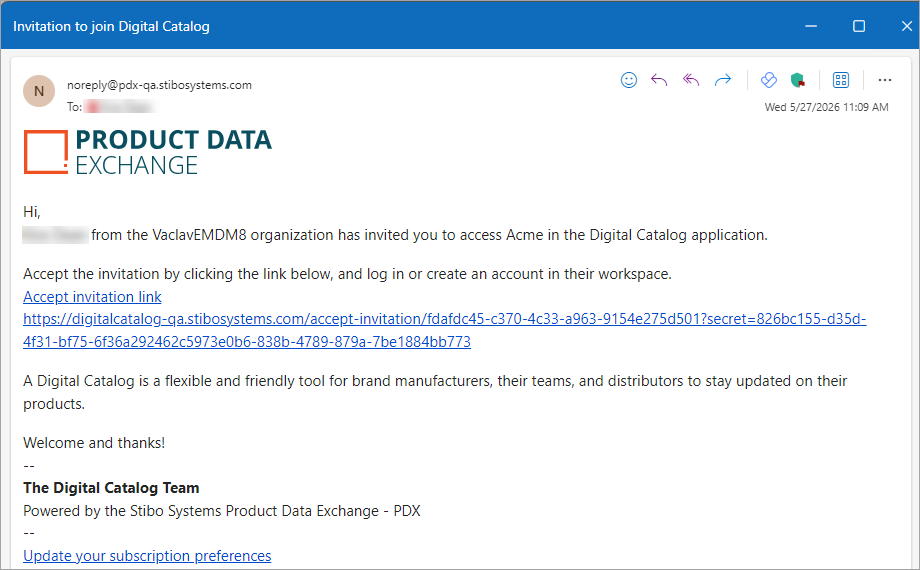
Click the link in the 'Invitation to join Digital Catalog' email. The email received by the retail partner will look like the below image:
-
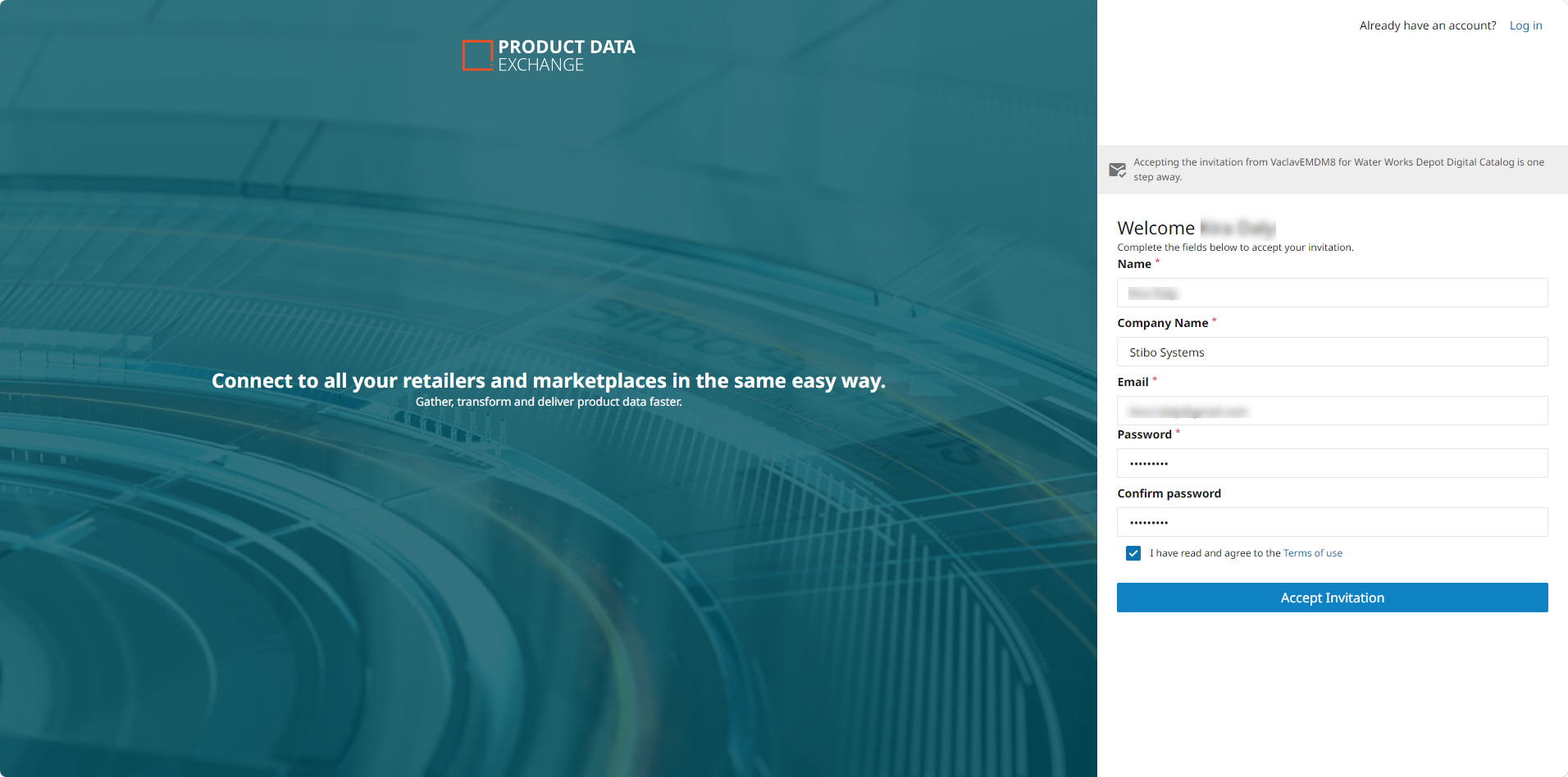
When logging into the digital catalog for the very first time, the retail user will be prompted to create an account. Fill out all the fields, read and check the Terms of user checkbox, and click the 'Accept Invitation' button.
-
Name: name of user accepting invitation
-
Company Name: company name of the retailer
-
Email: email address of the user accepting invitation
-
Password and Confirm password: enter the password for the user accepting invitation
-
-
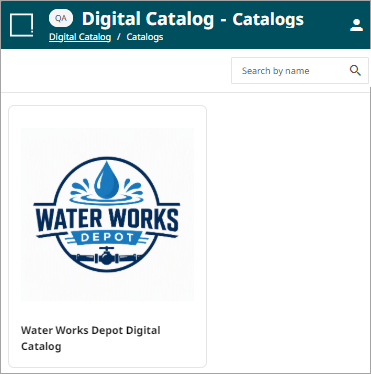
The new user can now access the digital catalog they accepted access to.
Login to a New Digital Catalog for an Existing Digital Catalog User
Retail partners can access the digital catalog of many brands. When establishing a login for a new brand perform the following steps:
-
Click the link in the 'Invitation to join Digital Catalog' email. The email received by the retail partner will look like the below image:
-
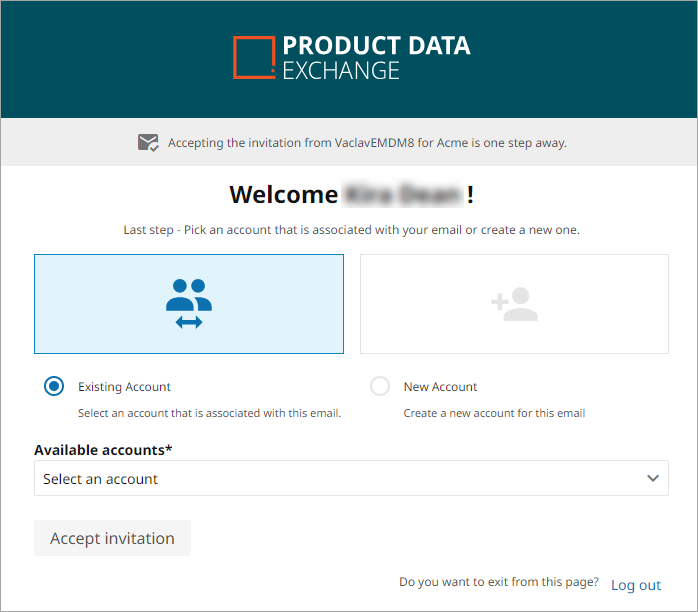
When logging into the new digital catalog for the first time, the retail user will be prompted to either add the catalog to the existing account or to create a new account. Make the appropriate selection.
-
Existing Account: Select this option to add a new digital catalog to an existing retail account. This option will allow a user to manage all the digital catalogs from one point. Select the existing account option from the drop down.
-
New Account: Select this option to create a separate account. This option forces a user to switch accounts to see the various digital catalogs.
-
-
Click the 'Accept invitation' button to save the account information.