This topic explains how retail partners can open a digital catalog to view available products, filter product listings, review product details, and export product data for use outside the catalog.
Viewing Products
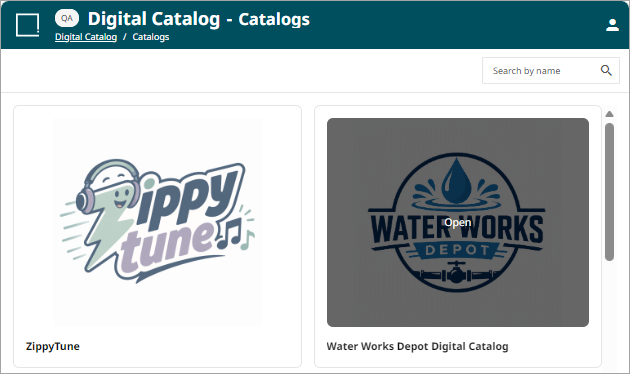
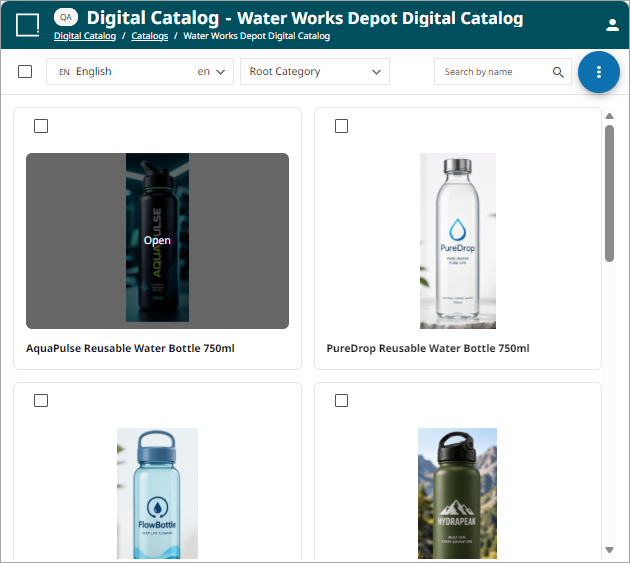
To access the products contained in a digital catalog, hover over the relevant catalog and click 'Open'.
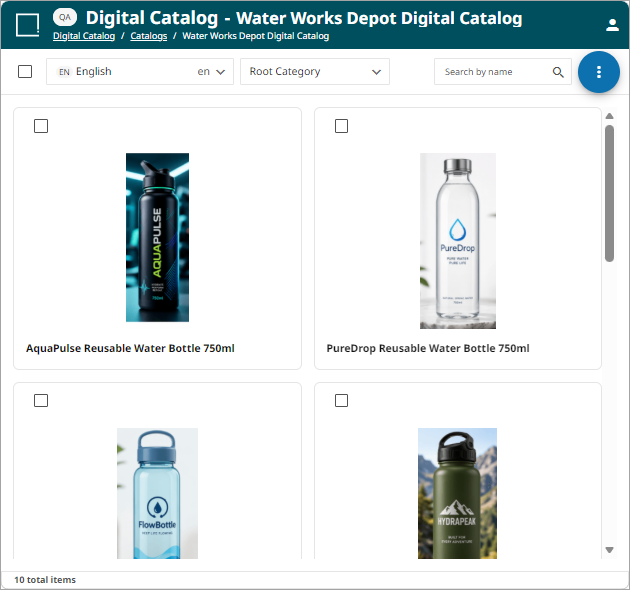
All products that have been successfully submitted to the digital catalog will appear.
Filtering Products
There are many ways for products within a digital catalog to be filtered. Any of these filters can be used together.
-
Search by name: users can search for products by entering an attribute value

-
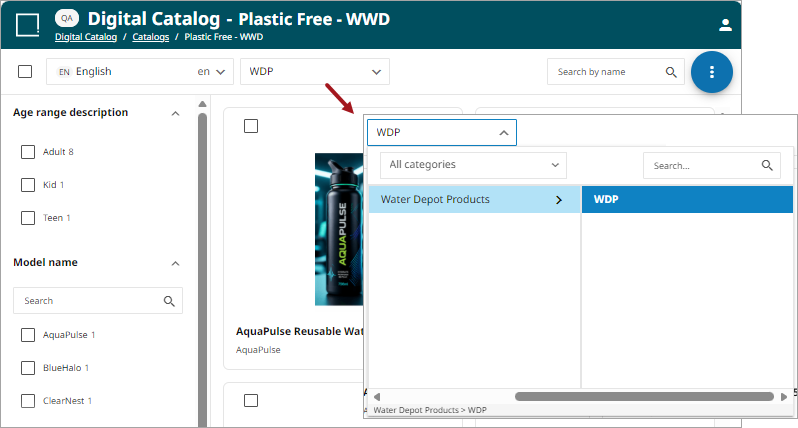
Category Filter: users can search for products by categories. Possible categories are listed in the dropdown.
-
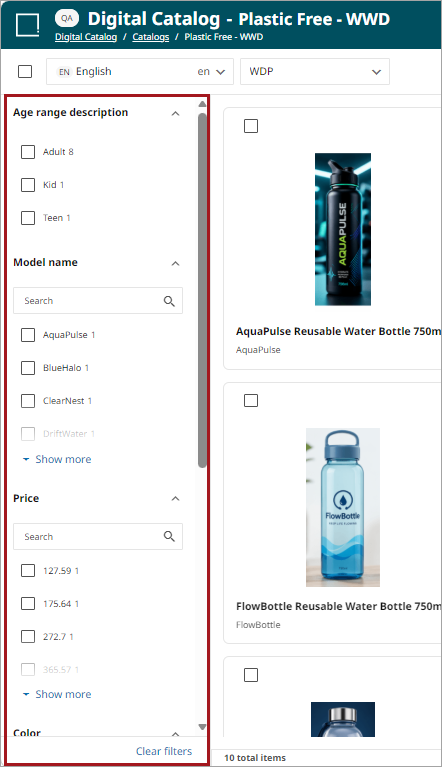
Filter by attributes: users can filter products using attributes selected from a list on the left-hand side of the screen.
Viewing Product Details
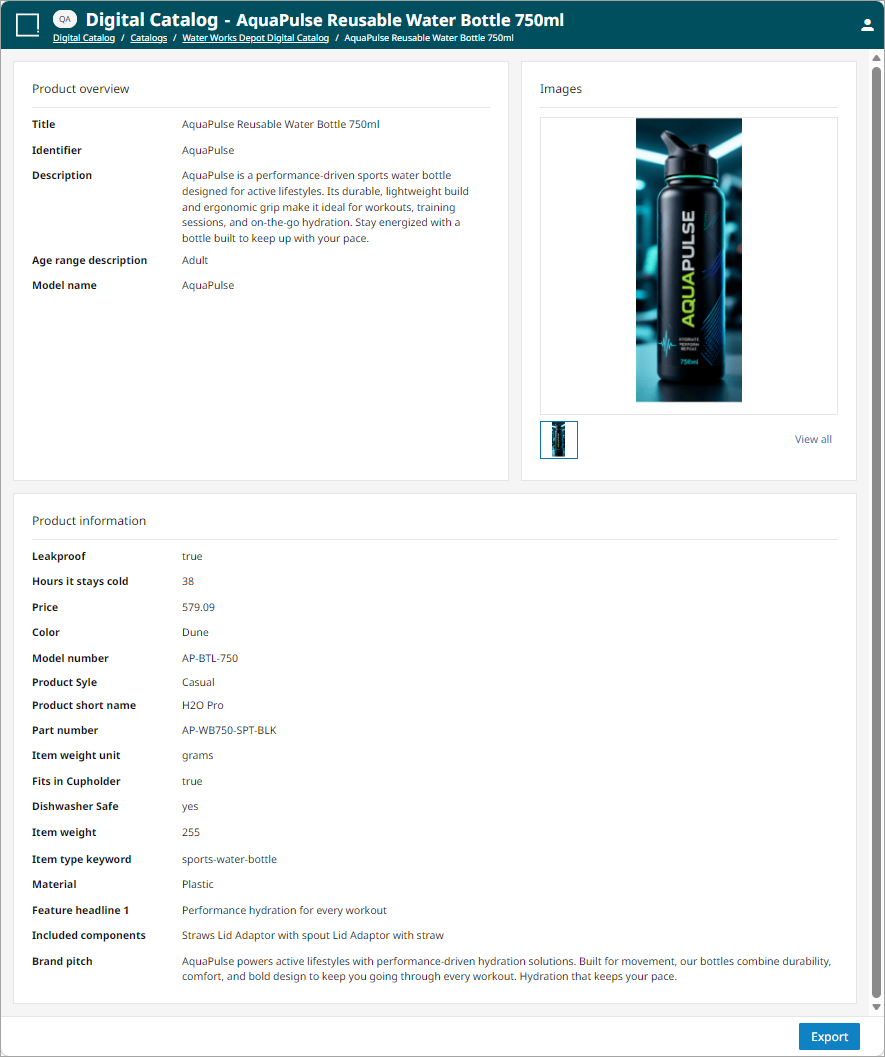
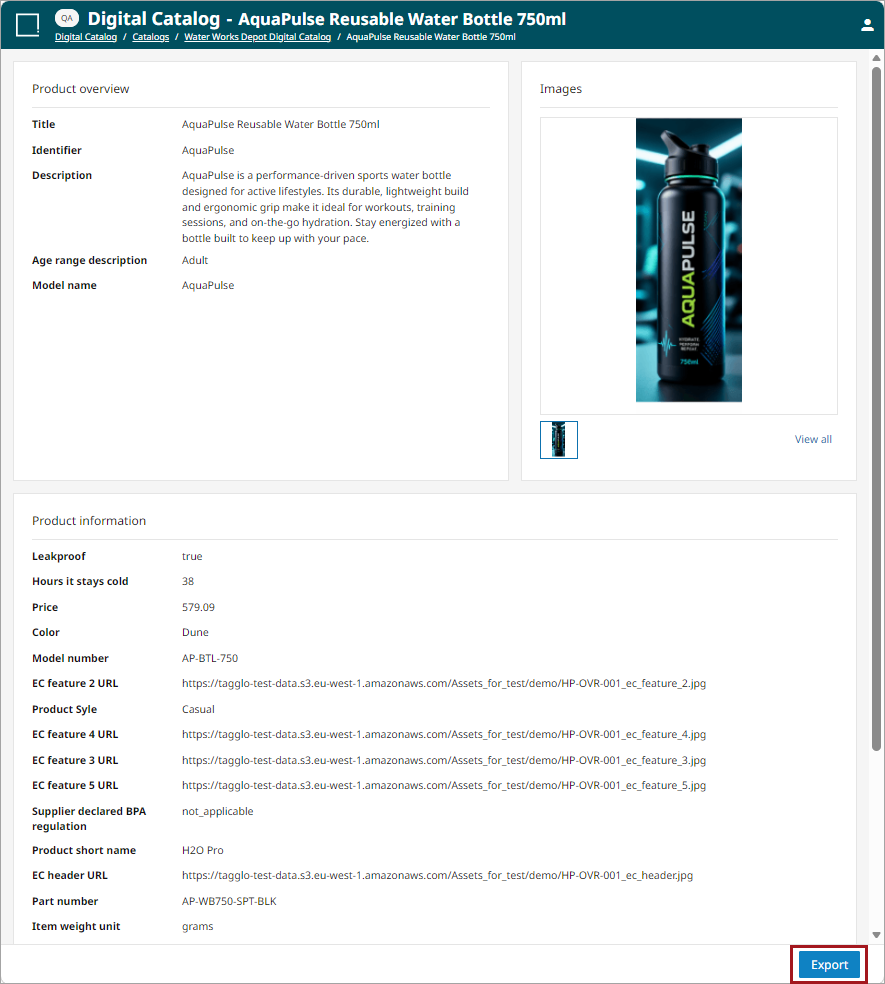
Hover over a product and click 'Open' to view the details published for the product.
The product details include the Product overview, Images, and Product information sections. Each section displays product information that is available for export.
Exporting Products
Retail partners can export selected products from the digital catalog to review or share product information.
-
Select an individual product by checking the check box in the top left corner of the product or click the check box in the top left corner of the screen to select all products. One or more products can be selected for export.
-
Click the export option (
 ) in the kebab menu (
 ) on the top right of the page to download the products and their attributes to a spreadsheet.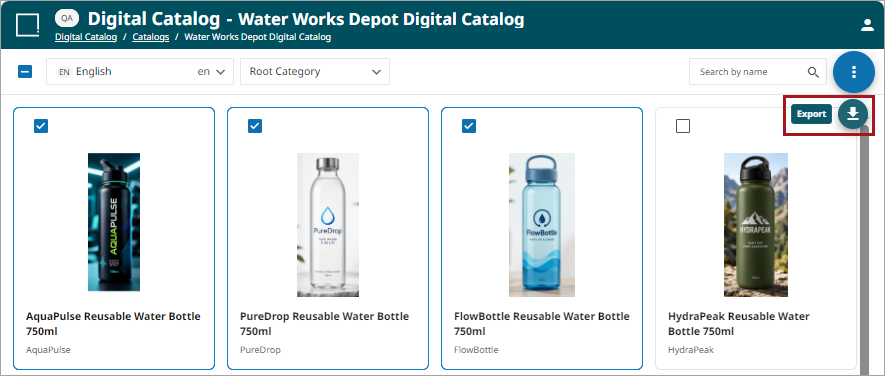
Additionally, an individual product can be exported while reviewing the product details. Navigate to the details page and click the 'Export' button on the bottom right of the page.
-
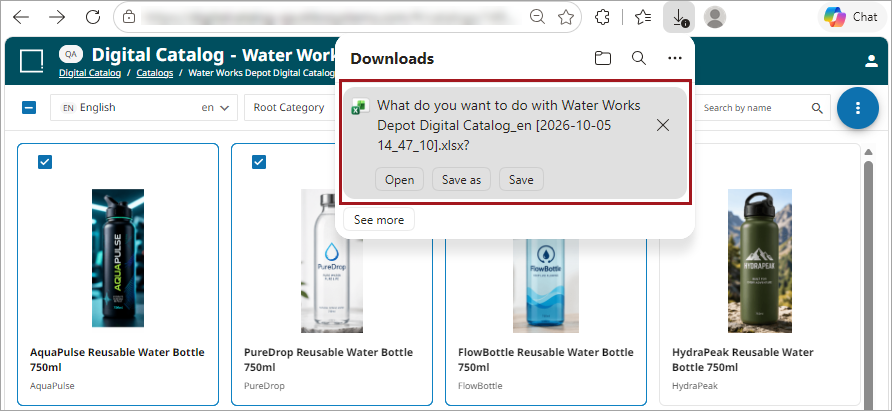
The products selected for export will be exported in an Excel spreadsheet that can be downloaded from the browser.