The General tab is the default tab when the Output tab is selected. The General tab contains three individual sections that can be configured: Template library, Receivers, and Digital Catalog filter search.
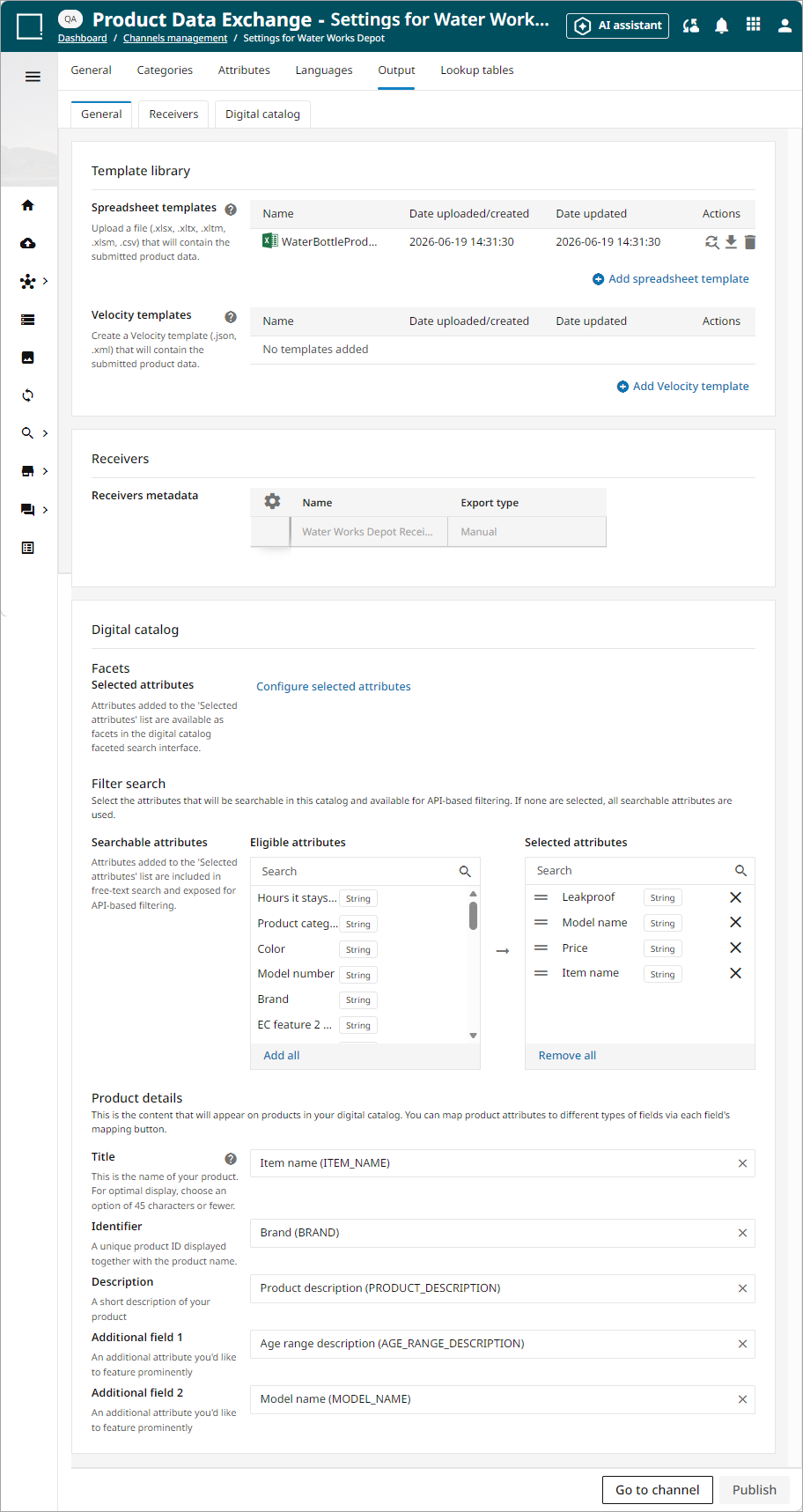
Template Library
The Template library is the section where Excel or Velocity templates can be added, replaced, extracted, or deleted. The library should contain all the different files needed for each receiver. The library will be used when the user selects a template in the receiver tab. A minimum of one template is required in the library before the channel can be used.

Excel Template
Excel templates can be added, downloaded, replaced, or deleted. The Excel template allows you to quickly send one or multiple objects into a polished Excel output. In order for PDX to export attribute values correctly into the file, you must insert attribute tokens into the row just below the header row of the template. These tokens represent how each attribute on the template is actually stored in PDX. For example, an attribute on a template might be called 'Product Name,' but in PDX, the attribute will be stored as 'PRODUCT_NAME' (attribute ID in PDX). An attribute token consists of the attribute ID appearing between two open curly brackets ( {{ ) and two closed curly brackets ( }} ).
-
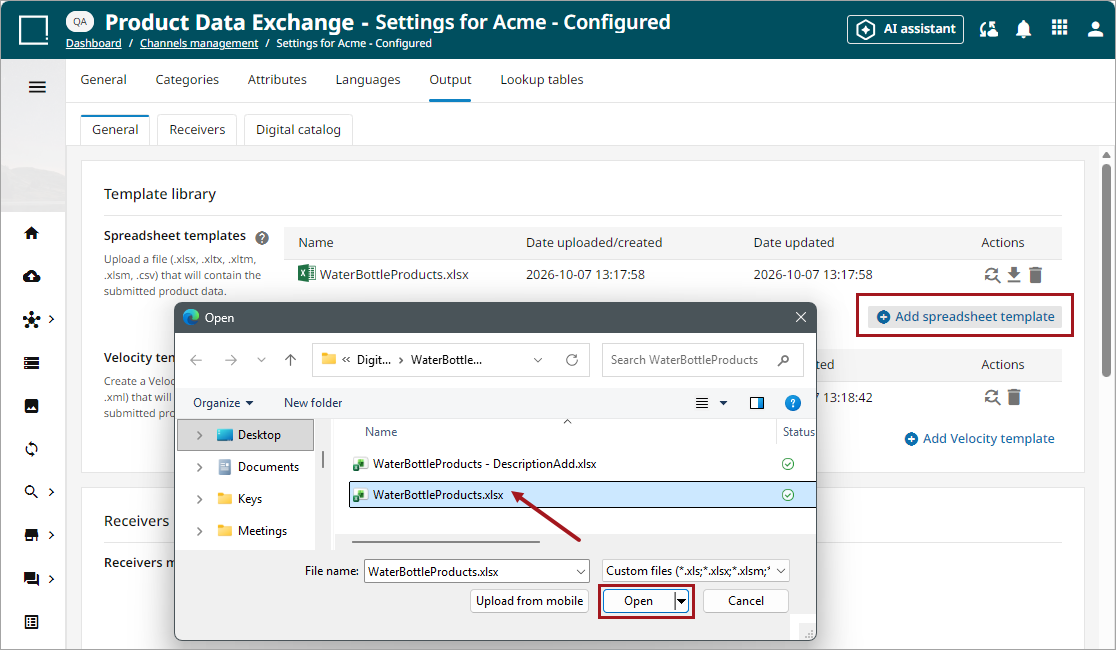
Add template: follow these steps to add an Excel template.
-
Click the 'Add Excel template' button on the bottom right of the Excel templates section.
-
Select the template from the file explorer window.
-
Click the 'Open' button. The template will now be listed in the Excel templates section.
-
-
Replace template: To replace one of the Excel templates, click the replace button (
 ) next to the template you wish to replace. Next, follow the steps from the 'Add template' instructions above. The new template will overwrite the old template.
 - Download template: click the download button (
 ) to download a template.
 - Delete template: click the delete button (
 ) to delete a template. This action cannot be reversed.
A user can also input tags into Excel templates in order to ensure a specific output when downloading products. For example, a user can utilize regular attribute tags, language-specific attribute tags, and tags for composite attributes.
-
Regular attribute: regular attribute tag including underscore for spaces
-
Language-specific attribute: #language code after attribute name
-
Composite attributes: period between linked attributes
The screenshot below provides an example of these tags.

Metadata Values and Keys
Excel templates can reference custom attribute metadata defined using the following format:
<AttribiteID>.METADATA.<Metadata Key>

Metadata values are then dynamically included in Excel output at the product level when submitted:

Velocity Template
Velocity templates can be added in Excel or JSON format. Actions that can be performed for these templates are create, edit, or delete.

-
Add template: a new template can be added / created in either JSON or XML format. Click 'Add Velocity template' to add a new template and fill out the fields. Click the 'Save' button to save any changes.
-
Template name: Enter template name, which is required prior to saving.
-
Add template: This dropdown allows you to select a JSON or XML template type. This selection will populate the content described in step 3. Click the
 icon to navigate to the template editor documentation (https://pdx.stibosystems.com/#/template-editor-documentation), which provides additional information on creating templates.
 -
Output template: This section will be populated with the body of the template.
-
Set template filename (optional). Click the question mark icon (
) for more information on setting the file name. A default name ({{CHANNEL_NAME}}-{{TIMESTAMP}}.xml) can be used. -
Beautify output (optional): this feature will automatically format the template for improved readability.

-
Receivers
This section allows you to add or manage metadata attributes for your existing receivers. For more information on creating receivers, go to the Receivers Tab Page for Output topic.


Digital Catalog Filter Search
This section allows the user to define settings user in the digital catalogs for the configured channel.
Note: Using digital catalog requires an add-on license. For questions, contact your Stibo Systems administrator.
Facet attributes
Facet attributes define the filters available in the digital catalog, providing a structured way for retailers to refine product listings by filtering specific attribute values, such as brand, screen size, or price range.
-
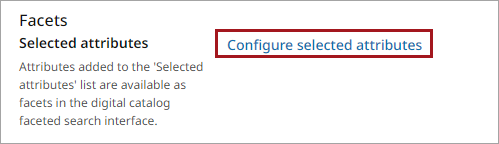
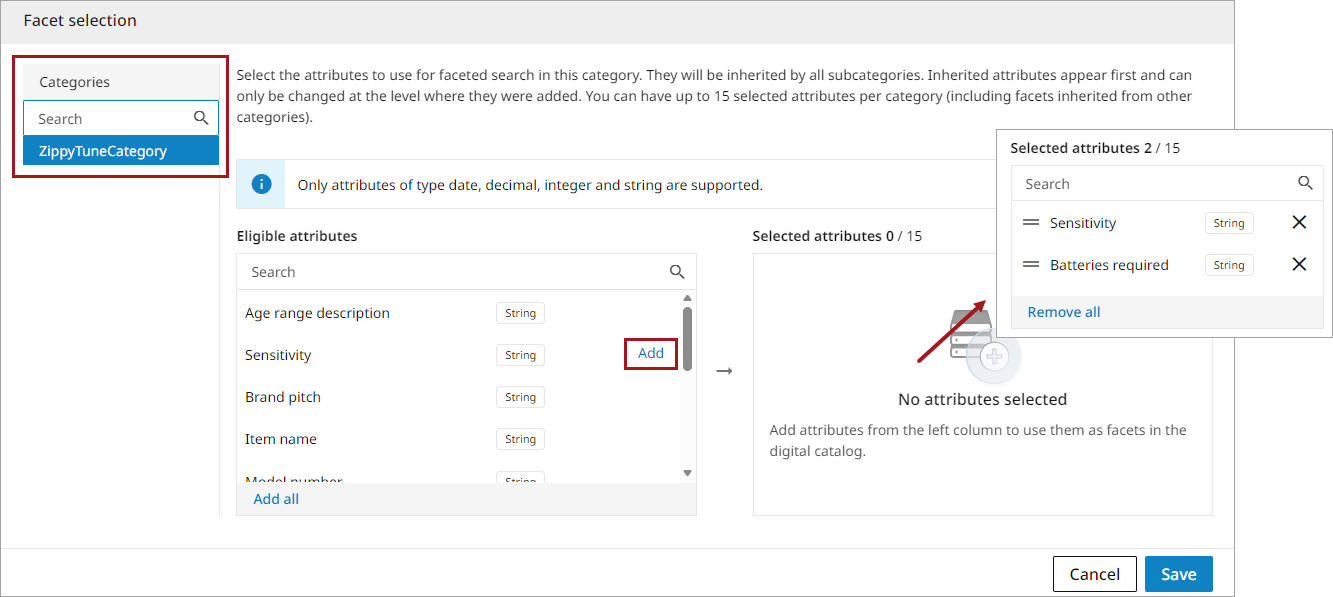
Click 'Configure selected attributes' to define the facets in the selection dialog.
-
Select the category on the left and click the 'Add' button next to the relevant eligible attributes to add them to the 'Selected attributes' column.
-
Save any changes by clicking the 'Save' button.
Filter Search
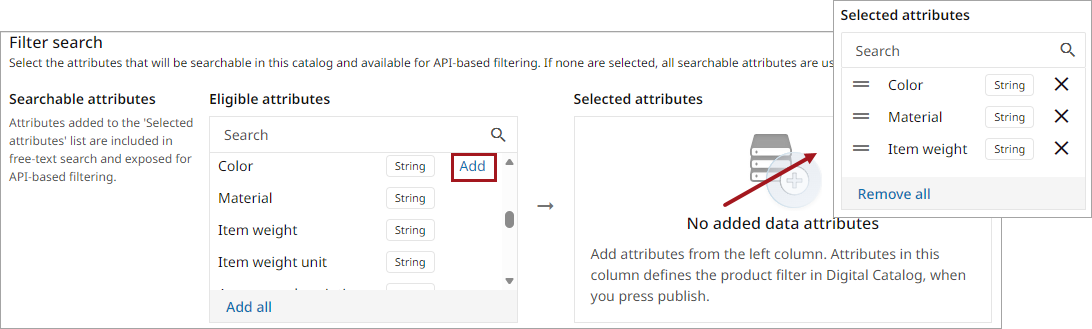
Attributes added to the 'Selected attributes' list are included in free-text search and exposed for API-based filtering. Searchable attributes define the product data that retailers can search using free-text queries, helping them quickly locate products based on keywords found in attributes like names, descriptions, features, or other relevant content.
-
Click the 'Add' button to the right of the eligible attributes to add them to the 'Selected attributes' column.
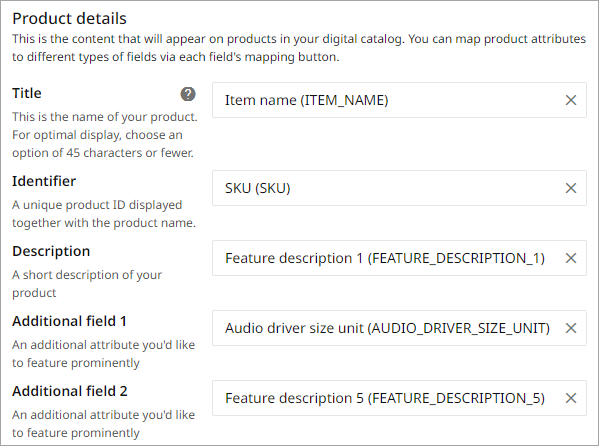
Product Details
Attributes mapped to these details will display for a selected product 'Product overview' section in the digital catalog. For further information on viewing the product details within the digital catalog, refer to the topic. Title, Identifier, and Description are all static attributes. Additional field 1 and Additional field 2 are configurable.