The 'All rules' view in the 'Match tuning UI' provides a complete, tabular overview of all rules generated from the current matcher configuration in a Matching Ruleset. It helps you analyze rules and understand their impact based on pair counts. For more information, refer to the topic Match Tuning UI.
From the 'All rules' view, you can work with decisions, validate rule behavior, export data for analysis, and activate the ruleset. The action buttons at the top of the view support these tasks:
-
Add decision - Define or update decisions for one or more rules, as described in the topic Add Decision.
-
Delete decision - Remove user‑defined decisions that are no longer valid, as described in the topic Delete Decision.
-
Sync & export pairs - Recalculate rule statistics and generate rule and pair exports for ruleset validation, including a configurable sample of golden record pairs per rule, as described in the topic Sync & Export Pairs.
-
Activate ruleset - Activate the ruleset so its decisions are applied during matching, as described in the topic Activate Ruleset.
All Rules Table
In the 'All rules' table:
-
Each column represents a configured matcher, such as Email or Address. Columns are sorted alphabetically by matcher name.
-
Each row represents a rule - a unique combination of matcher classifications, which can have a decision.
For each rule, the table shows:
-
Rule ID - A unique identifier for the rule.
-
Pair count - The number of golden record pairs that match the rule.
-
Decision - For example, 'Auto merge', 'Clerical review', or 'No action'.
-
Similarity matcher classifications - For example, 'Identical' or 'Nearly Identical'.
The table is automatically sorted by Pair count (descending) to highlight the rules with the greatest impact and displays a maximum of 5,000 rules.
Note: When a ruleset is activated, the pair count for Auto Merge decisions gradually decreases as the matching records are merged by the Matching Event Processor. Do not delete these decisions, so that future imported records are also auto merged.
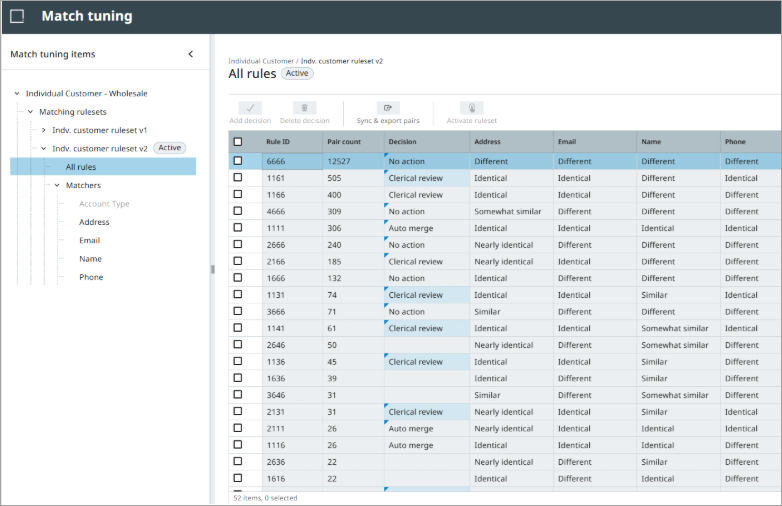
Note: The 'All rules' view does not support sorting and filtering and displays a maximum of 5,000 rules.
Decision status indicators
When a decision is added, the 'Decision' column and related indicators are updated after the page is refreshed to reflect the current decision state for each rule.
The following decision statuses are shown:
-
User decisions - Decisions added by the user (such as 'Auto merge', 'Clerical review', or 'No action').
-
Inferred decisions - Marked with an inherited triangle icon.
-
Clerical review - inferred (potential Auto merge) - Marked with a blue background.
-
Invalid decisions - Listed with an empty pair count.
-
No decision - Shown as a blank value.
-
Conflicting decisions - Highlighted with a red background.
Inferred decisions
Inferred decisions are automatically derived from user decisions. They reduce the need to define decisions for every rule by extending user decisions to other applicable rule combinations.
The following inferred rules apply:
-
Auto merge - inferred
A rule is inferred as 'Auto merge' when all matcher classifications in the rule are less than or equal to the classifications of an 'Auto merge' user decision.
-
Clerical review - inferred
A rule is inferred as 'Clerical review' by evaluating it against multiple 'Clerical review' user decisions using upper and lower boundary logic.
-
Clerical review - inferred (potential Auto merge)
This inference is used when no upper boundary exists. This inferred result is overridden by an 'Auto merge' inference.
-
No action - inferred
A rule is inferred as 'No action' when all matcher classifications in the rule are greater than or equal to the classifications of a 'No action' user decision.
Pending synchronization indicators
The column header indicates the synchronization status of the matcher:
-
New - The matcher is enabled, but the 'Sync & export pairs' action has not been run.
-
Disabled - The matcher is disabled, but the 'Sync & export pairs' action has not been run.
-
Missing - The matcher is missing from the 'Matching Ruleset Configuration'. Add it to the 'Matching Ruleset Configuration' in the workbench, or disable it in the 'All rules' view.
For more information, refer to the topic Match Tuning Configurations and Functionality.
The image below shows a missing phone matcher, indicated by 'missing' after the matcher title.
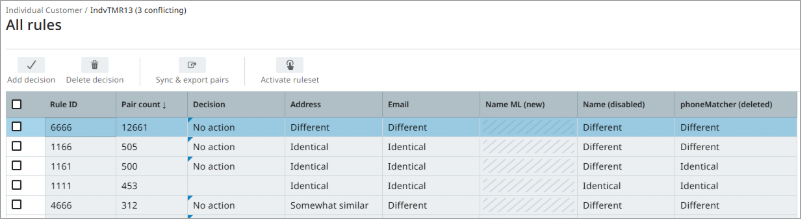
Note: If a matcher is deleted from the configuration but is still enabled in the ruleset, the header continues to show ‘deleted’ even after synchronization.
Invalid decisions
Invalid decisions are shown at the top of the table. They cannot be made valid again unless matchers are enabled / disabled to align with the matchers in the decisions. It is recommended to create a new ruleset and re‑add the decisions based on the updated set of enabled matchers.
To delete an invalid decision, select is using the checkbox in the 'All rules' view and click Delete decision. Invalid decisions cannot be deleted by manually entering a Rule ID.