The bulk update functionality allows a user to easily update a large number of objects in a single operation.
To perform a bulk update:
-
Determine the data that should be updated.
-
Use one of the following methods to select data to be updated and launch the Bulk Update wizard.
-
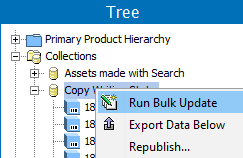
Run on all objects in a single collection or multiple collections: In Tree, select one or more collections, right-click and choose Run Bulk Update.
-
-
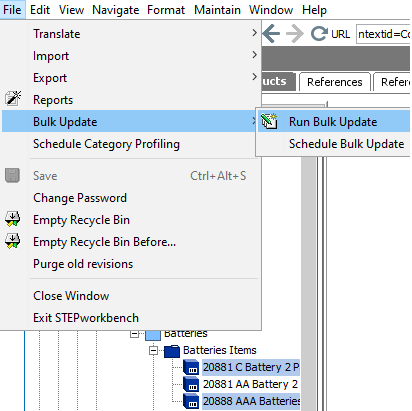
Run on a single or multiple selected objects in Tree or System Setup: Select one or more of the objects defined in the following table, then from the menu choose File > Bulk Update > Run Bulk Update.
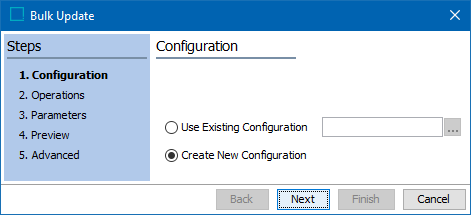
Note: To run a saved bulk update configuration (which loads the operations and settings) first start the wizard, and then choose the existing configuration on the Configuration step shown below.
Tree Objects System Setup Objects - Assets
- Classifications
- Collections
- Configurations
- eCatalogs
- Entities
- Index Words
- Products
- Publication groups
- Publication object sections
- DTP documents in the publication hierarchy
- Match Codes and Matching Algorithms
- Outbound Integration Endpoints
- Tables
- Tags
- Units
- Users and Groups
- Web UIs
- Workflows
- Workflow Profiles
- Reference types / link types
- Object type & structures (asset, classification, publication, setup group, etc.)
- Context -Dimension points
-
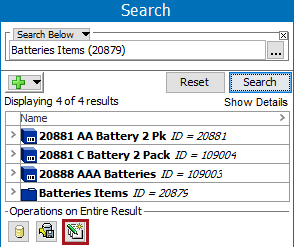
Run on search results: Perform an advanced search, and click the Bulk Update button (
 ).
). For more on the Advanced Search tab in the workbench, refer to the Advanced Search topic in the Getting Started documentation.
-
The Bulk Update wizard displays and can involve the following steps:
-
Bulk Update Configuration allows you to choose a previously saved configuration or create a new one.
-
Bulk Update Operations allows you to choose one or more operations that will run during the update.
-
Bulk Update Parameters allows you to supply any required parameters.
-
Bulk Update Preview allows you to review the expected results of the update.
-
Bulk Update Advanced allows you to set the required options and start the background process that runs the bulk update.
-