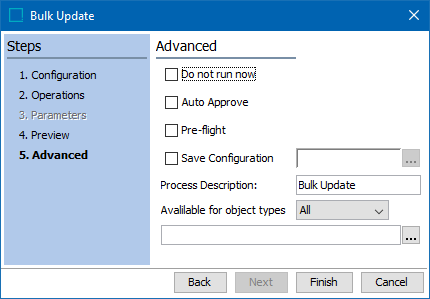
In the final step, select one or more of the available options.
-
Set the following parameters as necessary:
-
Do not run now runs the bulk update later, and not immediately when the wizard is finished. This allows a user to save the configuration. When checked, the Auto Approve and Pre-flight parameters are disabled.
-
Auto Approve partially approves updates made by the bulk update and displays them in the approved workspace when the update succeeds.
Note: Auto Approve is not supported when the Run Business Rule Operation is used for the bulk update.
For example, if the bulk update runs on a product attribute and the value is updated, but other changes have been made to the product outside of the bulk update, partial approval is applied only to the bulk-updated value, not to the entire product. However, if the only change(s) on the product are made by the bulk update, the bulk update auto approve changes result in a full approval.
-
Pre-flight performs a test run of the update. When the user clicks 'Finish', the test runs in a background process. Selected operations are applied and then rolled back. An execution report and an impact report is generated. Temporary collections are created for the objects where the operations were successfully applied, and another for the object that generated errors. The availability of this option depends on the user's system setup.
Important: Since there is no 'undo' functionality for bulk updates. It is recommended to run a Pre-flight and/or to apply operations to a small set of objects before updating a large number of objects.
-
Save configuration allows you to save a configuration to be used again. Click the ellipsis button (
 ) to display the 'Save Operation Configuration' dialog. To name a new configuration, select a folder and type a name in the Name parameter, and click Create. To overwrite an existing configuration, select the configuration and click Select.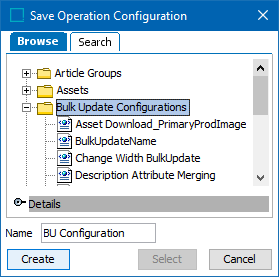
-
Process Description displays the name for the background process.
-
Available for object types limits the object types and nodes affected by the bulk update operations. Select an object type from the dropdown and then click the ellipsis button (
) to select the nodes to update. 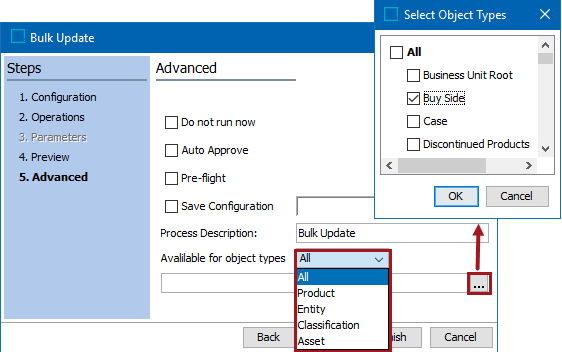
-
-
Click Finish to complete the bulk update configuration and start the operation(s) in a background process.
Monitor the bulk update as defined in the Monitoring Bulk Updates topic.