Open topic with navigation
Search Overview
The Search tab in combination with the Search Result Profiling page offers extensive methods for locating objects in STEP quickly and efficiently.
Generally there are two approaches to performing searches:
- If you know specific details about the object you wish to find, using the Search tab you can find, for example, all Products where the value for the attribute Weight is less than '5 kg', the object is located below the Product Folder 'Office Chairs' and is not of the Object Type 'Item'.
- If you do not know the details, you can start with a broad search and then narrow it down using the Search Result Profiling.
Note: Objects within the Recycle Bin are not searched and will not display in search results.
Search Elements
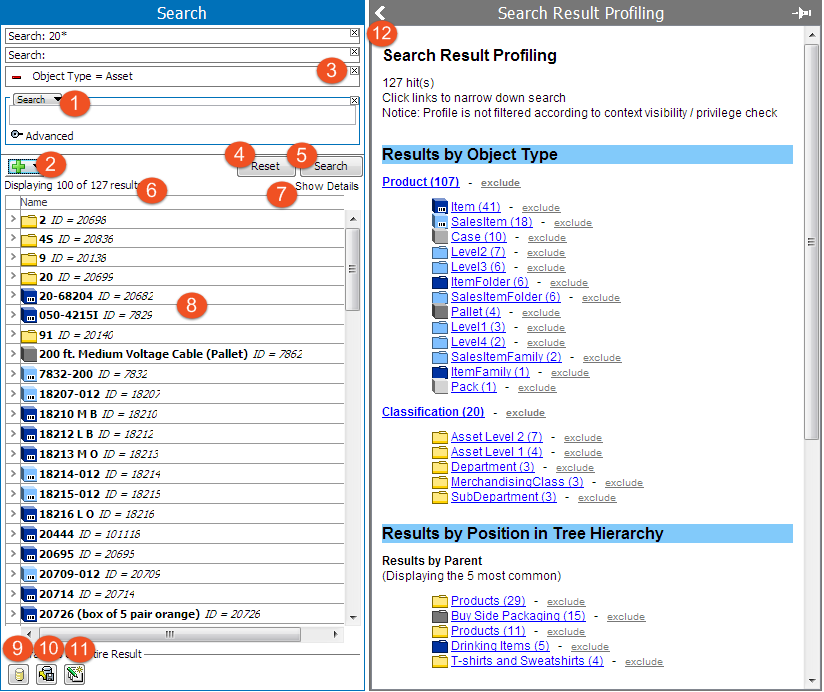
- Search Criteria Type Selector - Click the text / triangle icon to display a list of available search criteria options. See Basic Search Criteria and Functionality within the Search Overview documentation for more information here.
- Add Criteria / Operator Button - Click the button to add a new Standard Search Criteria. The type can be changed for each search criteria. If you hold down the mouse button, you can choose an OR operator or an Exclude operator. See Basic Search Criteria and Functionality within the Search Overview documentation for more information here.
- Remove Search Criteria Button - Clears the criteria from the search. Click the Search button to refresh the Results Area.
- Reset Button - Clears all results and search criteria from the Search tab and Search Result Profiling page.
- Search Button - Runs the defined search.
- Search Result Counts - The number of items currently displayed and total number of items found by the search. If the search finds objects not visible in the current Context or objects that you are not privileged to see, a message is displayed and the objects are not displayed in the search result.
- Show Details / Hide Details Toggle - Hyperlink shows or hides search result details. The details view displays asset thumbnails. If the search is under a classification folder and if there are assets, only then will the asset thumbnail be displayed and similarly, if the search is for the products and if the product is linked with an asset then the thumbnail will be displayed. If not then the thumbnail will be displayed as 'No Primary Image.'
- Search Results List - When a search has been executed, the result is shown in a list below the search box. Clicking one of the results will open the object editor for that particular object in the Search Results Profiling pane while continuing to display the Search Results list. It is also possible to make multi-selections from this list.. A maximum of 100 results are displayed in this area. The complete result set can be viewed, exported or updated using the Operations on Entire Result options.
- Save as Collection Button - Click to open the Save as Collection dialog which allows you save the entire result set as a Collection. Collections are available on the Tree tab. See Search Operations within the Search Overview documentation for more information here.
Note: The maximum results displayed can be adjusted via the configuration property 'DrillDownSearch.Maxresults.' However, it is not advisable to adjust the number more than 100+ as this will hit the system performance as the number increases.
There are only 3 operations that are abailable on the Entire Result: Export Button, Bulk Update Button, and Searcj Result Profiling Page.
- Export Button - Click to open the Export Manager wizard which allows you to export the entire result set to a specified file type. See Search Operations within the Search Overview documentation for more information here.
- Bulk Update Button - Click to open the Bulk Update wizard which allows you to modify a variety of elements on each item in the entire result set. See Search Operations within the Search Overview documentation for more information here.
- Search Result Profiling Page - Page displays profiling information about the search including categories and provides a convenient way to further refine the search. See the Search Result Profiling Page section within the Search Overview documentation for more information here.
Search Dropdown Options
When performing a search on the Search tab, there are a number of options that a user can select from the dropdown menu to start their search. These search options are described in greater detail in the topics that follow.
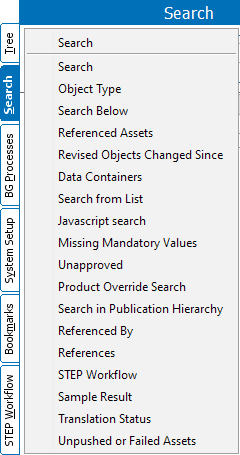
- Object Type (here)
- Search Below (here)
- Referenced Assets (here)
- Revised Objects Changed Since (here)
- Data Containers (here)
- Search from List (here)
- JavaScript Search (here)
- Missing Mandatory Values (here)
- Unapproved (here)
- Product Override Search (here)
- Search in Publication Hierarchy (here)
- Referenced (here)
- Referenced By (here)
- STEP Workflows (here)
- Sample Results (here)
- Translation Status. See the Searching for Translation Status topic in the Translation documentation (here).
- Unpushed or Failed Assets (here)
2018, Stibo Systems