
This topic addresses how to search for an object's translation status (Up to date, Re-Translation Needed, etc.) using the advanced search functionality. By reading through this topic, a user should be able to search for and locate an object's translation status in the STEP workbench.
STEP enables users to quickly search for the translation status of a given object using the Advanced Search capabilities located on the Search tab. Using either object type, target language, or the translation status as the search filter, users can find out not only whether an object's translation into a target language is Up to Date, but, for example, how many products in the Danish context are in Re-translation Needed status.
This functionality may prove useful in a number of common scenarios. For instance, if you know that some products were updated after the translation export was sent for French translation, you may want to alert the translation vendor so they know to expect updates for those products. To do this, you could run a search of all relevant products translating from English to French, that are in Re-Translation Needed status. This would provide you with a reliable list of all products to query with your translation vendor.
Below is a step-by-step description of how to initiate an advanced search for objects by their translation status.
Correct selection of context is important because it restricts which languages can be searched as you continue to build the search. More on this in the description for step five.
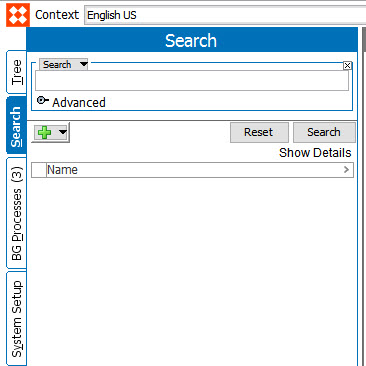
 ), and select Translation Status from the dropdown.
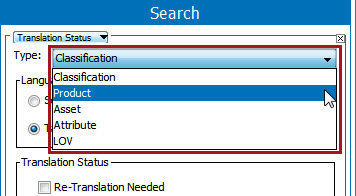
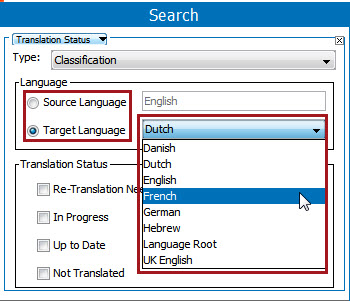
| Status | Description |
|---|---|
|
Re-translation Needed |
Master language has been changed since last translation. |
|
Up to Date |
Master language has not been changed since last translation. |
|
In Progress |
Translation has been exported, but not yet imported. |
|
Not Translated |
Object has never been translated. |
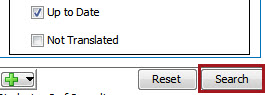
 ).
).
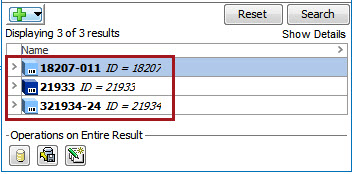
For more information on the search functionality, see the Search Overview documentation in the Getting Started guide
2018, Stibo Systems