Workflow

With the Workflow search criteria you can search for and monitor STEP workflows. Selecting a specific workflow from the dropdown list will show all items associated with the workflow. You can also specify the workflow state to narrow your search.

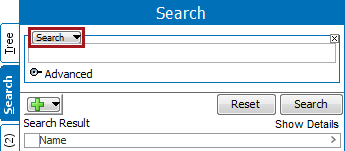
  1. Navigate to the side Search tab and click on it. A small dropdown bar will appear. Click on the dropdown bar and select Workflow.

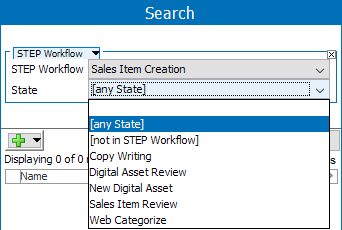
  1. A new dropdown bar will appear with a number of options to select from (options will vary depending on client search needs). For the purpose of this example, 'Sales Item Creation' will be used for the STEP Workflow search field.

  1. Specify the State you wish to search within from the State dropdown list.

  1. Selecting the '[any State]' state option allows you to search the entire workflow, if you prefer not to choose a specific state. For the purposes of this example, '[any State]' will be used for the search.
  2. Click the green plus sign to add additional search criteria. (Optional)
  3. Click on Search to run the search and view results.

If this is still not as refined as needed, keep adding search boxes by pressing the green + symbol and typing in further information.

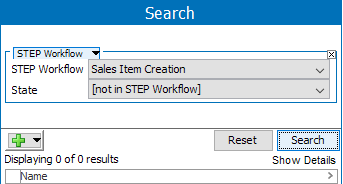
Note: It is possible to search products which are not present in the selected workflow. Select the specific workflow, select ‘State’ as “[not in STEP workflow]” and click on search as illustrated in the below image.
2018, Stibo Systems