Open topic with navigation
STEP Workbench UI
The screenshot below shows a basic view of the STEP Workbench. Though system customizations and variable access permissions may result in a slightly different view, the basic elements appearing in this view of the workbench's Main Window will be present for most users. Nine of those basic elements are numbered in the screenshot below and labeled in the list appearing below the screenshot. Each item is covered in detail in separate topics, with links to those topics below.
Main Window - Basic Elements
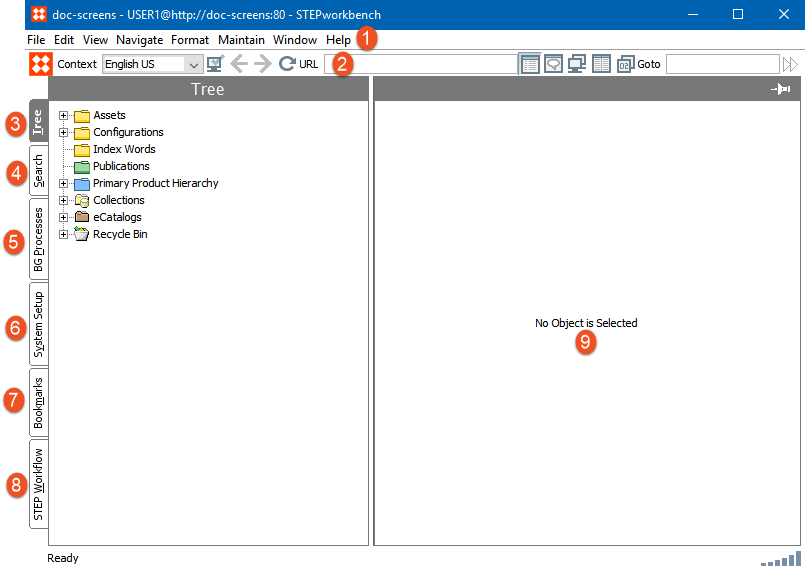
- Menu Items
- Toolbar
- Tree Tab
- Search Tab
- Background Processes Tab
- System Setup Tab
- Bookmarks Tab
- STEP Workflow Tab
- Object Editor
Main Window - Other Elements
Other elements appearing in this view of the STEP workbench that are useful to understand but do not require their own topic are numbered in the screenshot below. An additional list appears below the screenshot that names these elements and provides additional information.
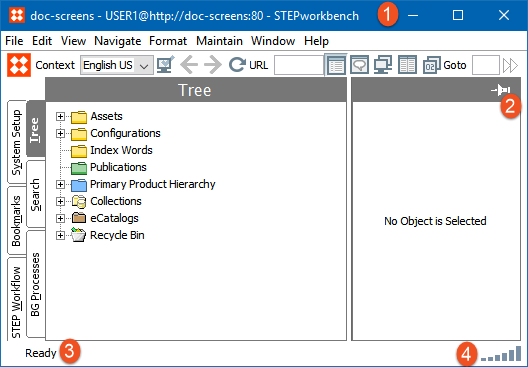
- System Information. At the very top of the STEP window, important information about the user's STEP system is listed. The first element displayed is the name of the STEP system, then the user ID, followed by the URL of the STEP system being accessed.
- Thumbpin. Clicking this icon activates the "pin" which, when engaged, allows the user to navigate in the hierarchy (left panel) while keeping the object details displayed in the right panel static.
- STEP connection status. Displays the status of STEP's connection to the internet. When the connection is strong and STEP is ready to run normally, the status will read 'Ready'. Other statuses that may appear are:
- Reading. STEP is requesting information from the database.
- Lost Connection to. STEP has lost connection to the server.
- Reconnected to. STEP has reconnected to the server after a lost connection. May alternate with the Lost Connection to status if the connection to the internet is lost for a significant period of time.
- Connection strength. A small graph illustrating the connection strength between the user and the server, also know as the 'Network Latency'. If a user hovers their cursor over the graph, a hover-over display will appear showing how fast data is traveling between the server and the user as measured in milliseconds.
2017, Stibo Systems