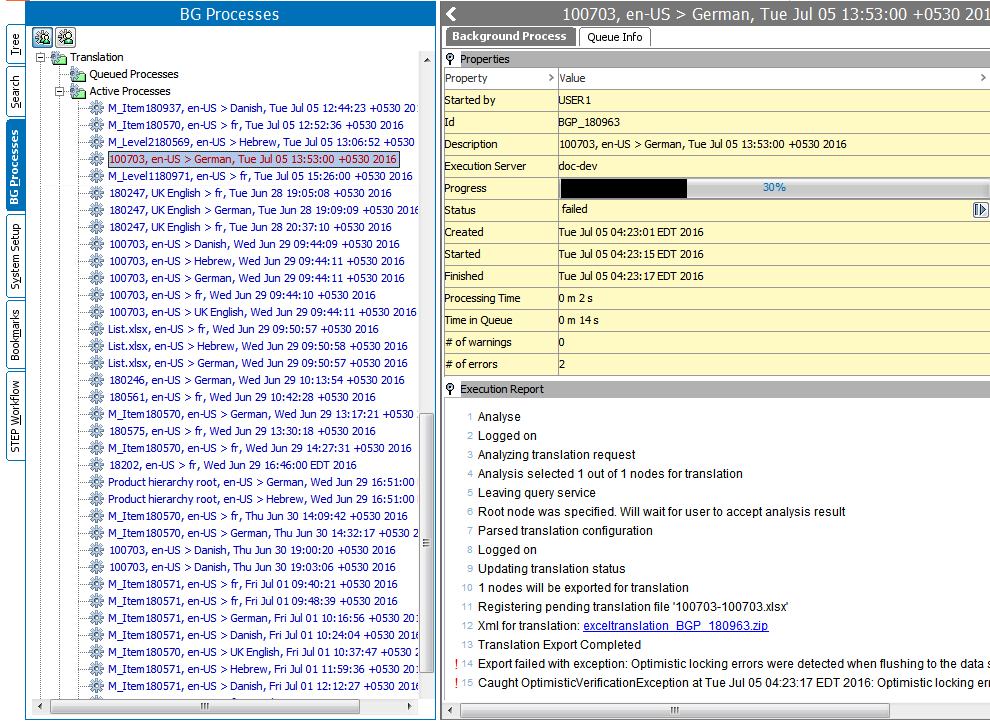
The Background Processes tab shows all active and non-active processes in STEP. Each time there is any activity such as imports, exports, bulk-update, creating collections, etc, there is a background processes, BGP, which generates the logs and lets the users know if the process was successful. In the event of an unsuccessful background process, an error message is displayed showing the reason for failure.
Based on the type of activity being generated, there are many different kinds of background processes. A few are mentioned below:
In the Background process tab, there are two option for viewing BGPs. A user logged in can choose to see only the BGPs that they have initiated or the user could choose to see all the BGPs run by everyone. These two options can be selected by clicking on either the 'One Man and Gear' button or the 'Two Men and Gear' button.
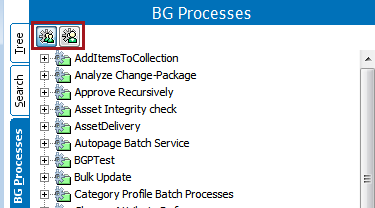
One Man and Gear: This icon,  , will display the background process run by the user who has logged into the STEP system.
Two Men and Gear: This icon,  , will display the background process run by all users of the STEP system. To have this privilege available, the 'View Background Processes of Other Users' setup action must be added for the users who need access to this feature.
Fore each background process started, there are four states that it could enter. Below each state is described in detail:
This shows the list of processes which are currently being executed. If there are any processes which failed, then those processes will still be in the active process node, but highlighted in Red color.
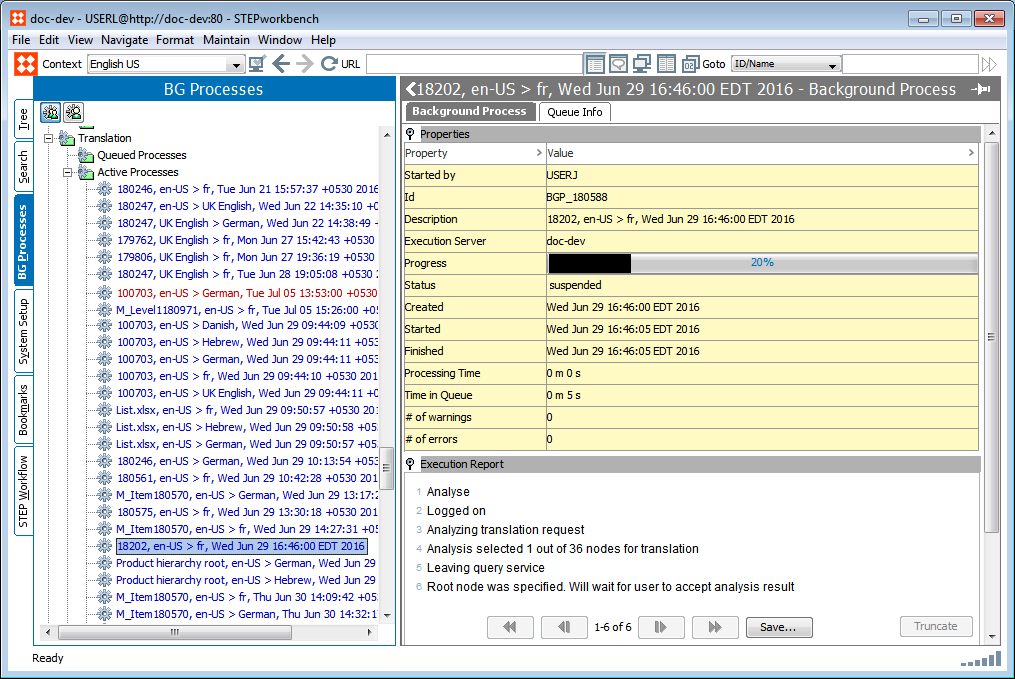
This shows the list of processes which are in queue. Once the active processes are complete, the queued process moves to the active process.
This shows a list of processes which are completed, but with a few errors. The minor errors are displayed with the details, but the one’s which can be processed will eventually complete.
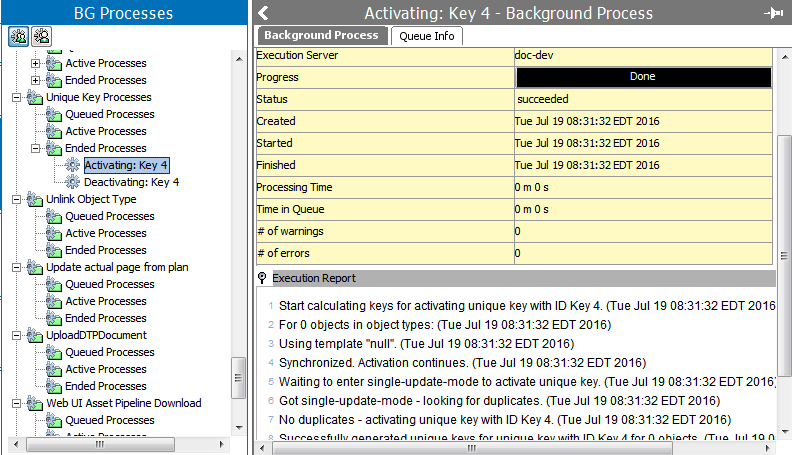
This displays a full list of all the processes which have been processed without any errors.
2017, Stibo Systems