Open topic with navigation
STEP Workflow Tab
The STEP Workflow tab has 2 sub tabs (Tasks and Profile).
Tasks
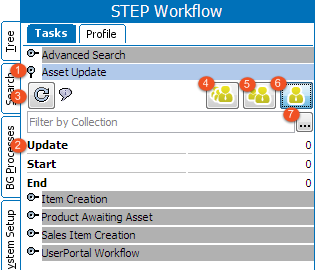
The Tasks sub tab is the primary interface for working with workflows in the STEP Workbench.
- Each workflow has a flipper that can be opened to display details about the workflow.
- Administrators can configure which states are displayed for each workflow. The number of tasks for the state are displayed.
- The Refresh button updates the data displayed for number of tasks in the workflow.
- Clicking the Show All Items button displays all tasks in all displayed states, regardless of the assignee. Only users with the STEP Workflow Administrator privilege have access to this button.
- Clicking the Show All Items assigned to me or any group I am a member of button displays tasks directly assigned to the user or any group that the user is a member of.
- Clicking the Show All Items assigned to me button displays only tasks that are directly assigned to the user.
- Clicking the ... (ellipsis) button allows users to filter the list of displayed tasks based on a Collection. For example, if a user wanted only to see objects in the workflow where the Color Attribute = Blue, they can first perform an Attribute search on the Search tab, then save the result as a Collection, and use that Collection to filter the objects to display only those where Color is Blue.
Profile
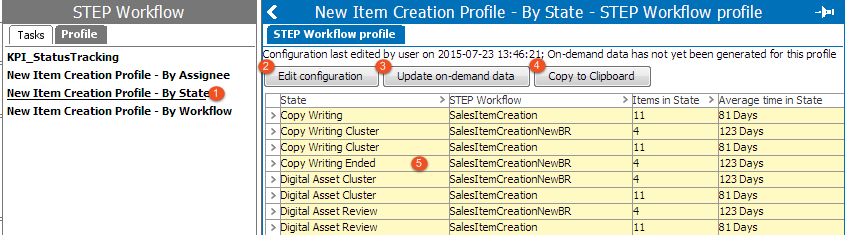
- Click a Profile link to see details of the configuration.
- The Edit Configuration button allows you to modify the data being profiled.
- The Update on-demand data button runs the profile and updates the data displayed.
- The Copy to Clipboard button saves the data displayed to your computer's clipboard
- Once saved to the Clipboard, this data can be pasted into Excel for further analysis.
2017, Stibo Systems