Before data owners can perform match tuning in the 'Match tuning UI', a super user must complete the required configurations in the workbench. These configurations are described in this topic.
For more information, refer to the topics Match Tuning Using Matching Rulesets and Match Tuning UI.
Matching Ruleset Configuration
The 'Matching Ruleset Configuration' defines which matchers and attributes are available to data owners for matching. You can also configure a setup group for new matching rulesets.
All matchers are evaluated into classifications, such as Identical, Nearly Identical, and Similar, using thresholds defined in the Match tuning UI, as described in the Matchers topic.
To define the 'Matching Ruleset Configuration', in the workbench, navigate to the relevant matching algorithm and open the ‘Matching Ruleset Configuration’ tab.

Add matchers
Add matchers to define how records are evaluated and to make them available in the 'Match tuning UI'. Data owners can then enable or disable the matchers in the UI as required.
To add a matcher:
-
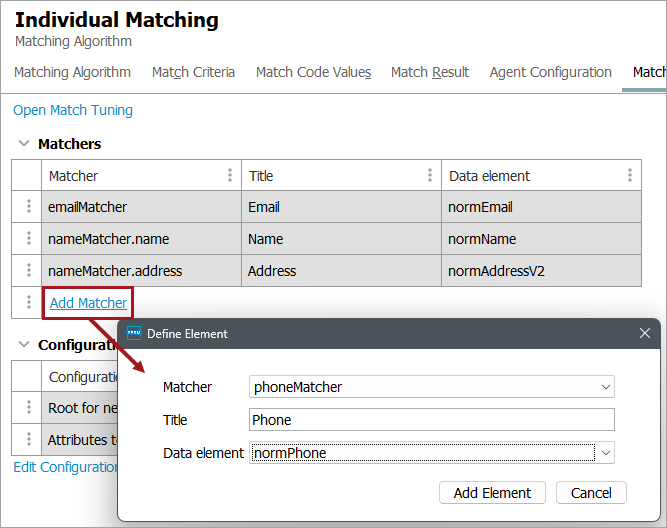
Open the 'Matchers' section and click the ‘Add Matcher’ link.
-
In the 'Define Element' dialog that opens, configure the following:
-
Matcher: Select an available matcher (e.g., nameMatcher or addressMatcher).
-
Title: Enter a descriptive name, such as 'Name' or 'Address'.
-
Data element: Select a data element (based on the configuration on the 'Match Criteria' tab). For more information, refer to the topic Matchers.
-
-
Click Add Element to save the configuration.
Each matcher can be added only once. An exception applies to ML matchers, where individual sub-scores (e.g., Name or Address) can be added separately.
Remove matchers
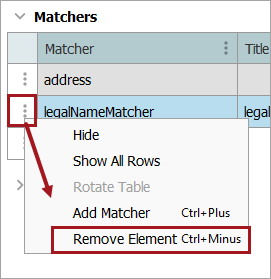
To remove a matcher from the list of matchers, click the ellipsis button ( ) next to the matcher and select ‘Remove Element’.
Note: Data owners can disable matchers in the 'Match tuning UI', so removing matchers from the configuration is not required unless they should no longer be available for tuning.
Configure a setup group for new matching rulesets
Optionally, configure a setup group for new matching rulesets. New rulesets created in the Match tuning UI will be placed under this setup group. If no setup group is configured, they are placed under the parent of the assigned matching algorithm. Duplicated rulesets are created under the same parent as the source ruleset.
To configure a setup group for new matching rulesets:
-
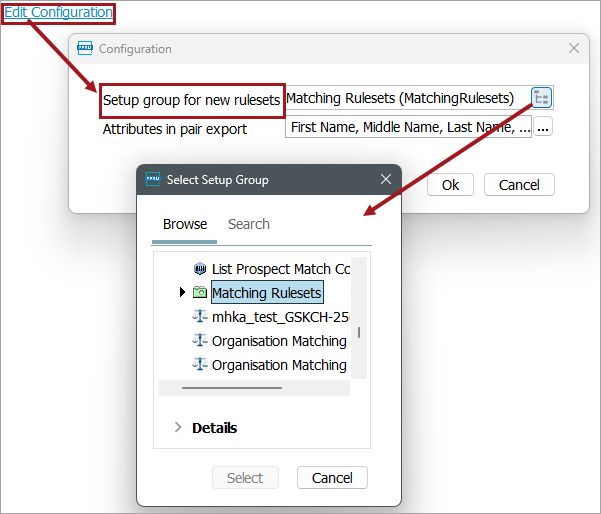
Open the ‘Configuration’ section and click ‘Edit Configuration’.
-
In the ‘Configuration’ dialog, select ‘Setup group for new rulesets’ and click the selector button. In the ‘Select Setup Group’ dialog, browse or search for the group, and then click Select.
-
Click Ok to save the configuration.
Configure attributes to export
Configure the attributes to include when data owners export record pairs from the 'Match tuning UI' for tuning and statistical analysis.
To configure attributes to export:
-
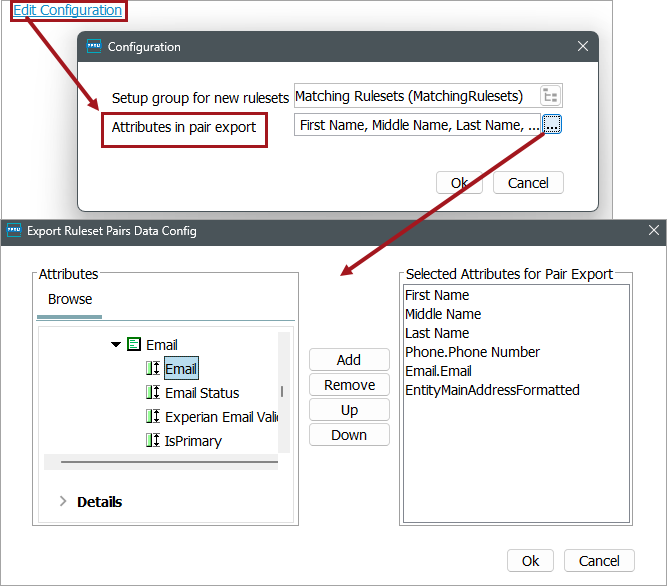
Open the 'Configuration' section and click ‘Edit Configuration’.
-
In the ‘Configuration’ dialog, select 'Attributes in pair export' and click the ellipsis button. In the ‘Export Ruleset Pairs Data Config’, select the attributes and move them to the ‘Selected Attributes for Pair Export’ list.
-
Click Ok to save the configuration.
Only selected attributes are included in the match tuning export.
Note: To add attributes on a data container, select the attribute within the data container. The attribute is displayed using dot notation (e.g., ‘Email.Email Field’), as shown in the image above.
After completing the configuration, perform the following steps:
-
Right-click the matching algorithm and run the ‘Maintain Ruleset Tuning Data’ process. The process generates pairs and calculates matcher scores.
-
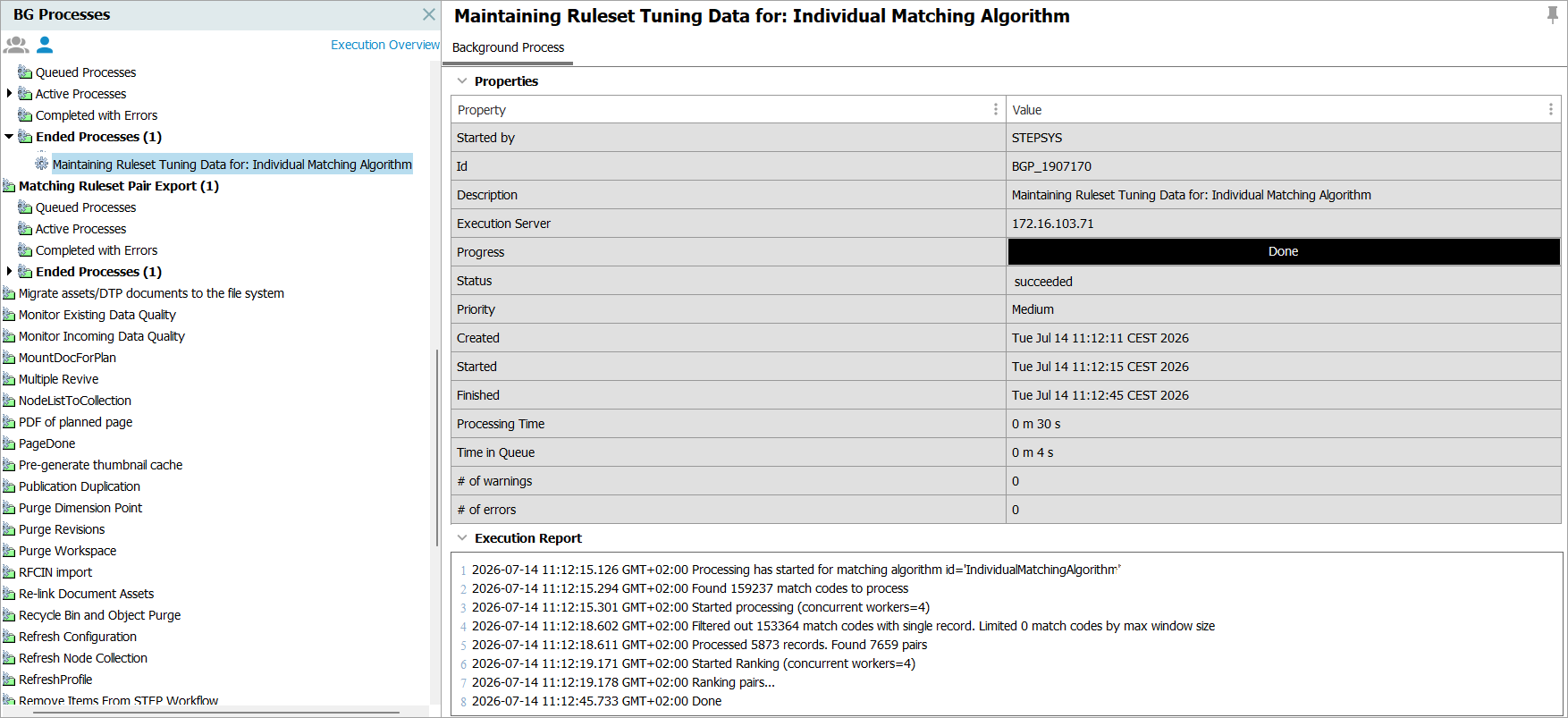
Monitor the process in 'BG Processes' – ‘Matching Ruleset Maintain Tuning Data’ to confirm that it completes successfully.
-
Notify the data owner to enable the added matchers and run ‘Sync & export pairs’ in the 'Match tuning UI' to update the ruleset statistics.
Maintain Ruleset Tuning Data
Based on the 'Matching Ruleset Configuration', the ‘Maintain Ruleset Tuning Data’ background process calculates the matcher scores for all records that share the same match code to make them available for the Matching Rulesets in the 'Match Tuning UI'.
Note: With large datasets, the process can take many hours to complete.
To run the 'Maintain Ruleset Tuning Data' process:
-
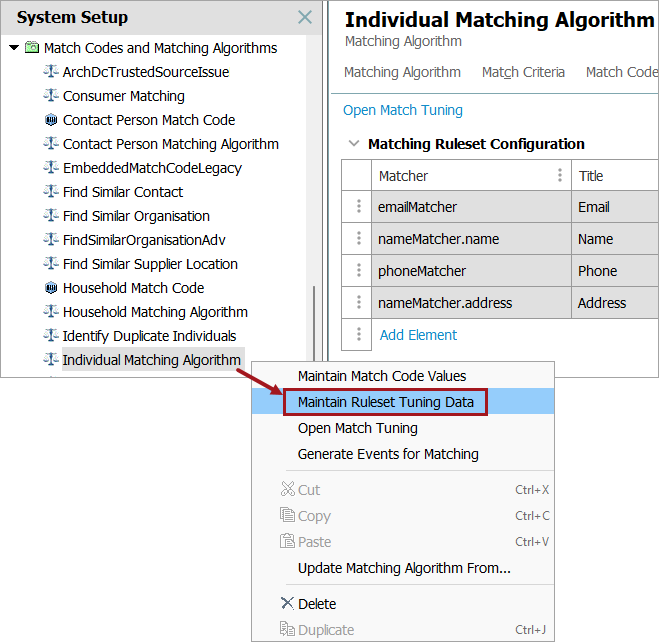
In the workbench, navigate to 'System Setup' and locate the matching algorithm.
-
Right-click the algorithm and select ‘Maintain Ruleset Tuning Data’.
-
In the ‘Start Maintaining Ruleset Tuning Data’ dialog, click OK to start the process.
-
When the process completes, the 'Execution Report' summarizes key metrics, such as identified match codes, processed records, and generated record pairs.
Important: Always re-run ‘Maintain Ruleset Tuning Data’ after changing matcher configurations or underlying data to ensure that rules and statistics reflect the latest data.
Note: Matching rulesets are created and maintained in the Match tuning UI. For more information, refer to the Match Tuning UI and Maintain Matching Rulesets topics in the Matching, Linking, and Merging documentation.