Data owners can use the 'Match tuning UI' to create and maintain matching rulesets, including activating, duplicating, renaming, and deleting them. These actions are described in more detail below.
For more information, refer to the Match Tuning UI topic.
View Ruleset Result
The 'Ruleset result' shows coverage statistics for a matching ruleset before it is activated. These statistics show how synchronized record pairs are distributed across matching outcomes, such as Auto merge, Clerical review, No action, and No decision.
Use the statistics to evaluate the impact of activating a ruleset, monitor tuning progress, identify record pairs that rely on fallback decisions, and determine whether sufficient decisions have been made to activate the ruleset.
To view the 'Ruleset result' for a ruleset, select the ruleset in the tree of the Match tuning UI.
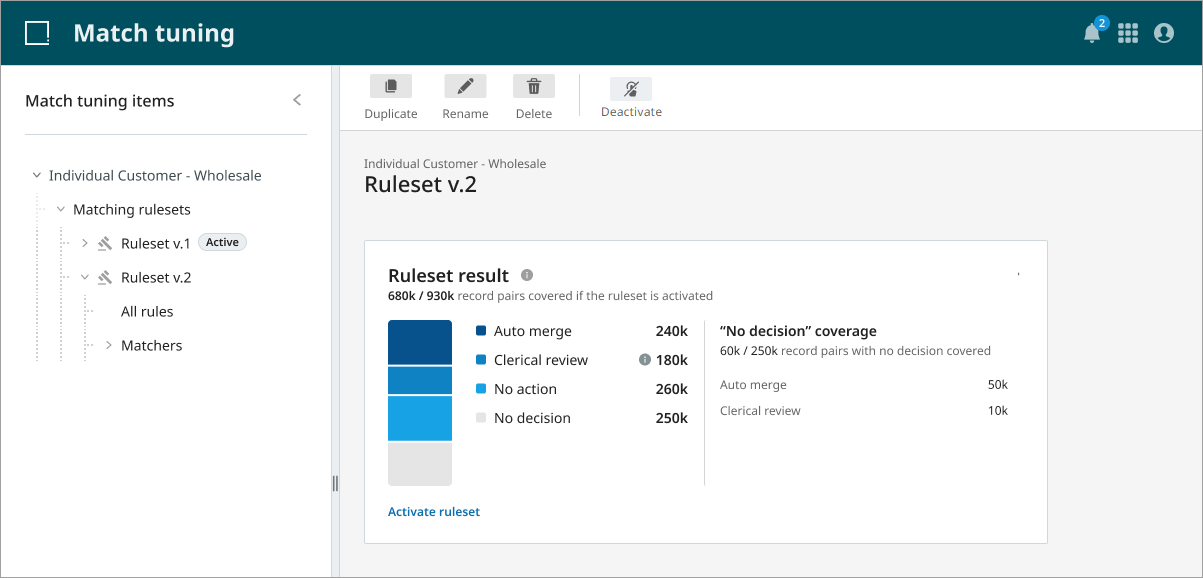
The following metrics are available:
Auto merge: Record pairs that will be automatically merged when the ruleset is activated.
Note: When a ruleset is activated, the pair count for Auto merge decisions gradually decreases as the Matching Event Processor merges matching records.
Clerical review: Record pairs that require manual review before a merge decision can be made.
Clerical review, Potential Auto merge (tooltip): Record pairs currently assigned to clerical review that may become auto merges when additional decisions are created.
No action: Record pairs that will not trigger a matching action.
No decision: Record pairs that are not covered by a ruleset decision.
'No decision' coverage (rely on fallback decisions):
Auto merge: Record pairs without a ruleset decision that will be resolved by the fallback rules on the matching algorithm and result in an automatic merge.
Clerical review: Record pairs without a ruleset decision that will be resolved by the fallback rules on the matching algorithm and require clerical review.
Note: Invalid decisions do not prevent the 'Ruleset result' from being displayed.
Create a Ruleset
Create a ruleset to start match tuning for a matching algorithm. You can create a new empty ruleset or duplicate an existing one. A duplicated ruleset includes the matcher configuration, enabled and disabled matchers, thresholds, and decisions from the source ruleset.
To create an empty ruleset:
-
On the matching algorithm landing page, click 'Create ruleset'.
-
In the 'Create ruleset' dialog, select 'Create empty ruleset'.
-
Enter a name for the ruleset.
-
Select Create.
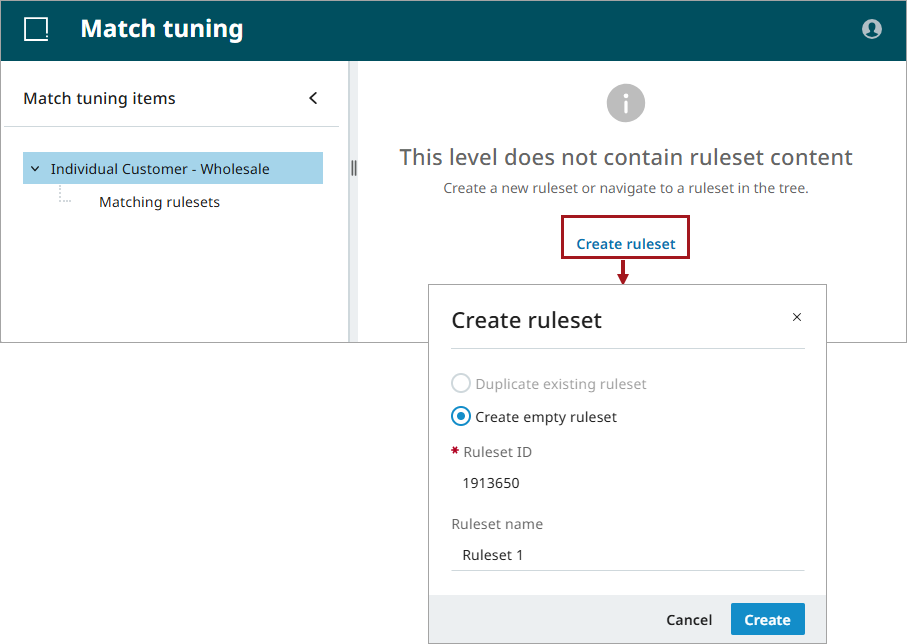
To duplicate an existing ruleset:
-
On the matching algorithm landing page, select 'Create ruleset'.
-
In the 'Create ruleset' dialog, select 'Duplicate existing ruleset'.
-
From the ‘Duplicate from’ dropdown, select the ruleset to duplicate. The active ruleset is selected by default.
-
Enter a name for the ruleset.
-
Select Create.
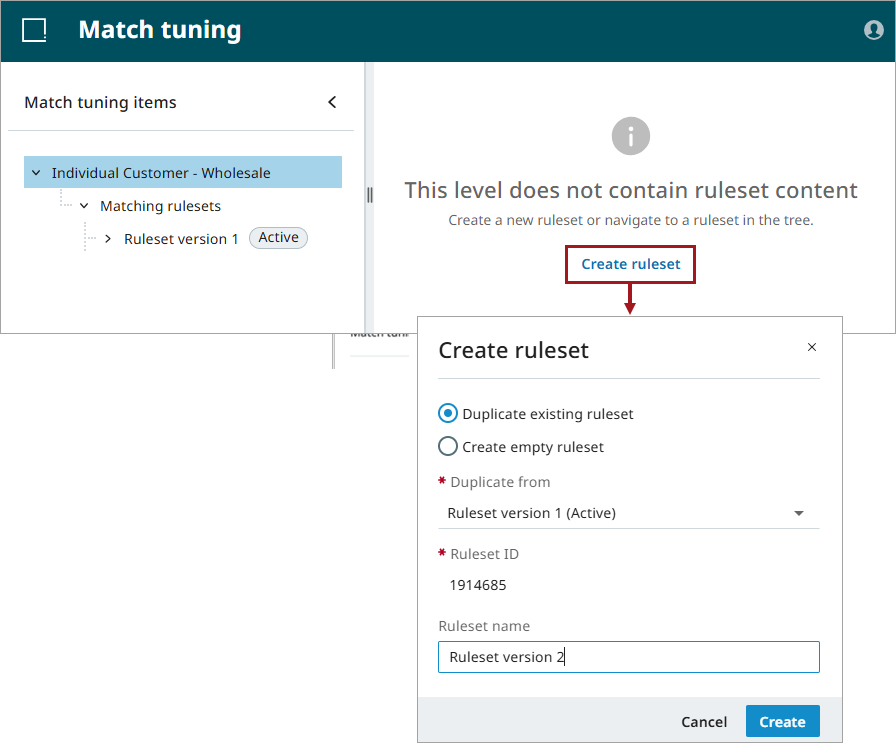
Note: You can also duplicate a ruleset by selecting it in the tree. For details, refer to Duplicate a ruleset.
Activate a Ruleset
A matching ruleset must be activated before its decisions become authoritative and are used during matching.
To activate a ruleset:
-
Select the ruleset in the tree, and then select Activate ruleset.
-
In the 'Activate ruleset' dialog, select Activate.
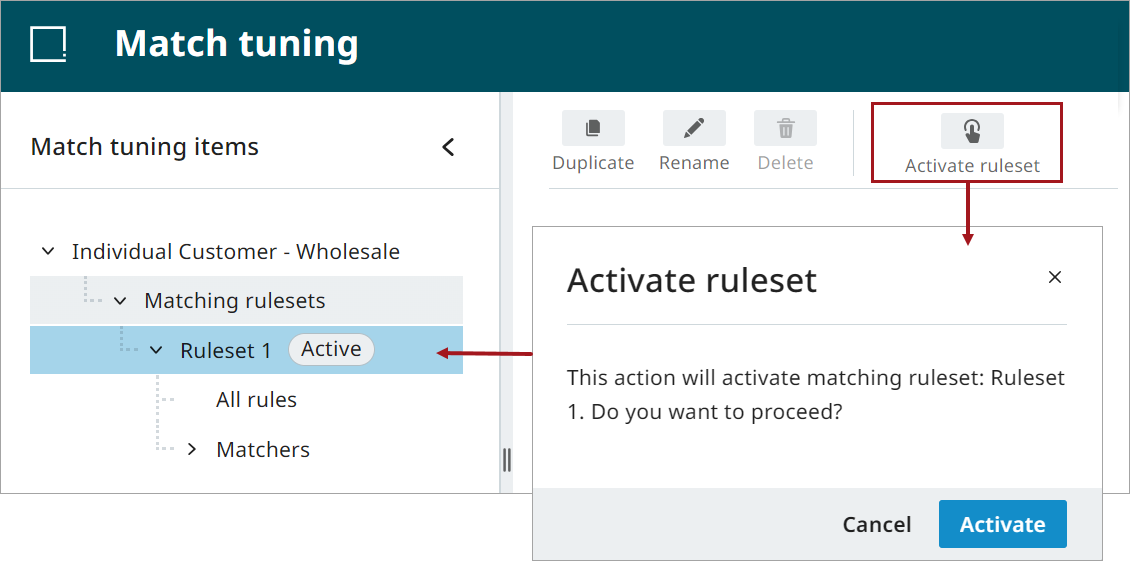
The ruleset is then indicated as active. While active, the ruleset is read-only and cannot be modified or deleted in the Match tuning UI. If another ruleset is currently active, it is automatically deactivated, as only ruleset can be active at a time.
Activation is blocked if decisions are conflicting or invalid, or if required matchers are missing from the configuration.
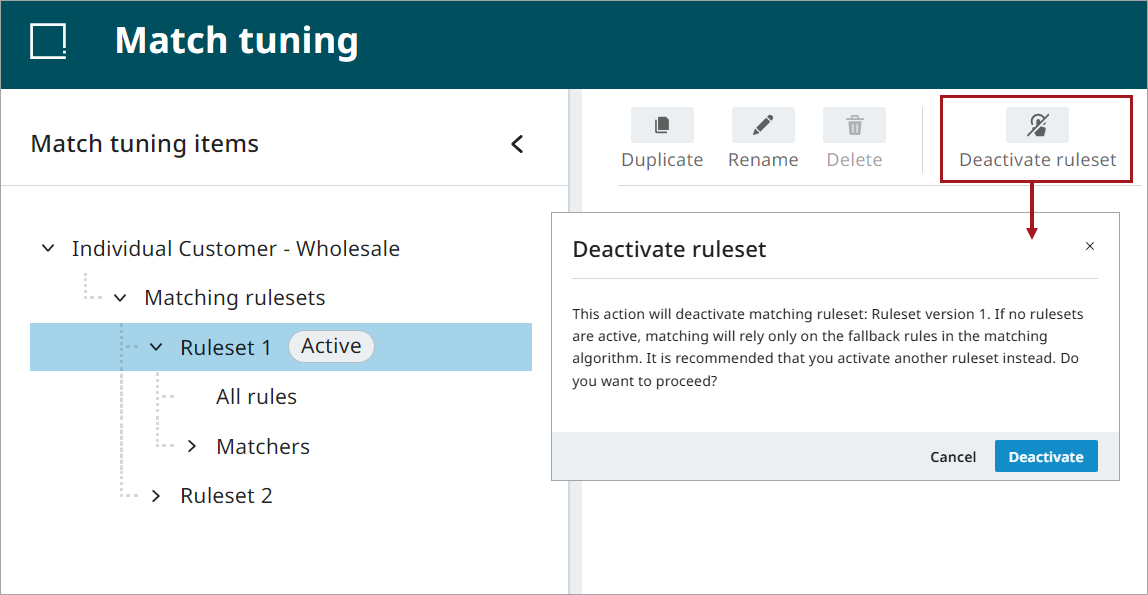
Deactivate a Ruleset
You can deactivate an active ruleset. When a ruleset is deactivated, it is no longer used for matching. If no other ruleset is activated, the matching algorithm relies solely on the match criteria rules defined on the matching algorithm.
To help avoid unintended matching behavior, it is recommended to activate another ruleset instead of leaving no ruleset active.
To deactivate a ruleset:
-
Select the ruleset in the tree, and then select Deactivate ruleset.
-
In the 'Deactivate ruleset' dialog, select Deactivate.
Duplicate a Ruleset
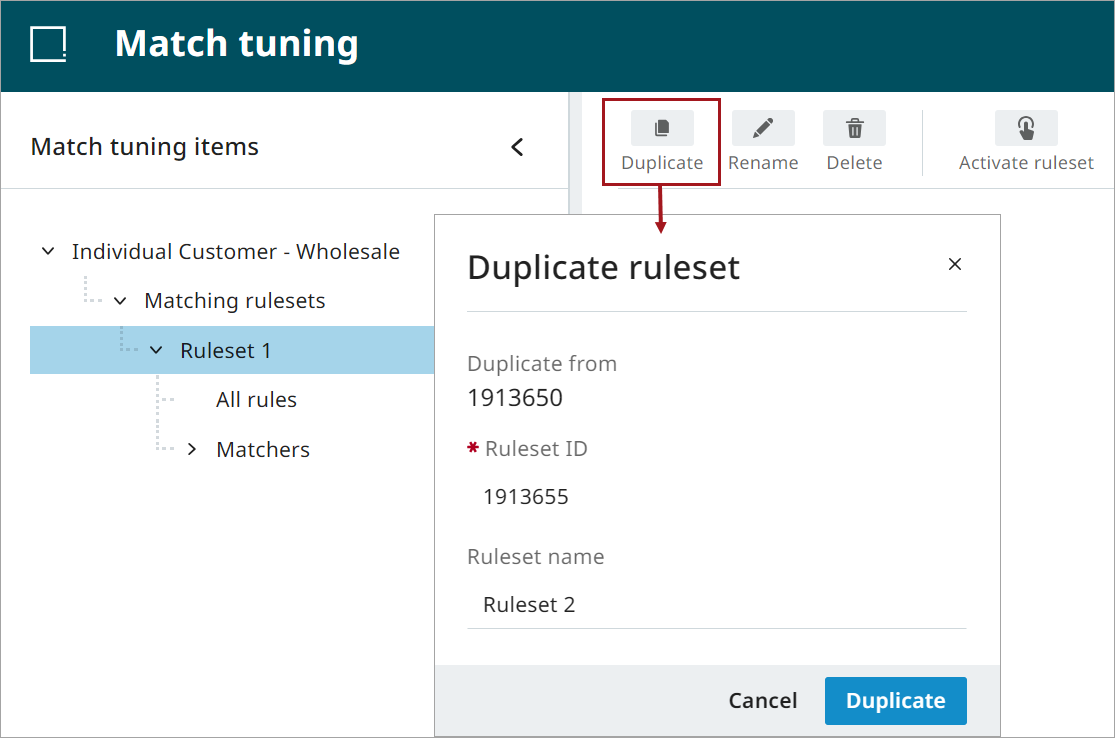
Duplicate an existing ruleset, typically the active ruleset, to reuse its configuration, thresholds, and decisions. This enables you to tune and test the changes without affecting the active ruleset.
To duplicate a ruleset:
-
Select the ruleset in the tree, and then select Duplicate.
-
In the ‘Duplicate ruleset’ dialog, enter a name.
-
Select Duplicate.
Rename a Ruleset
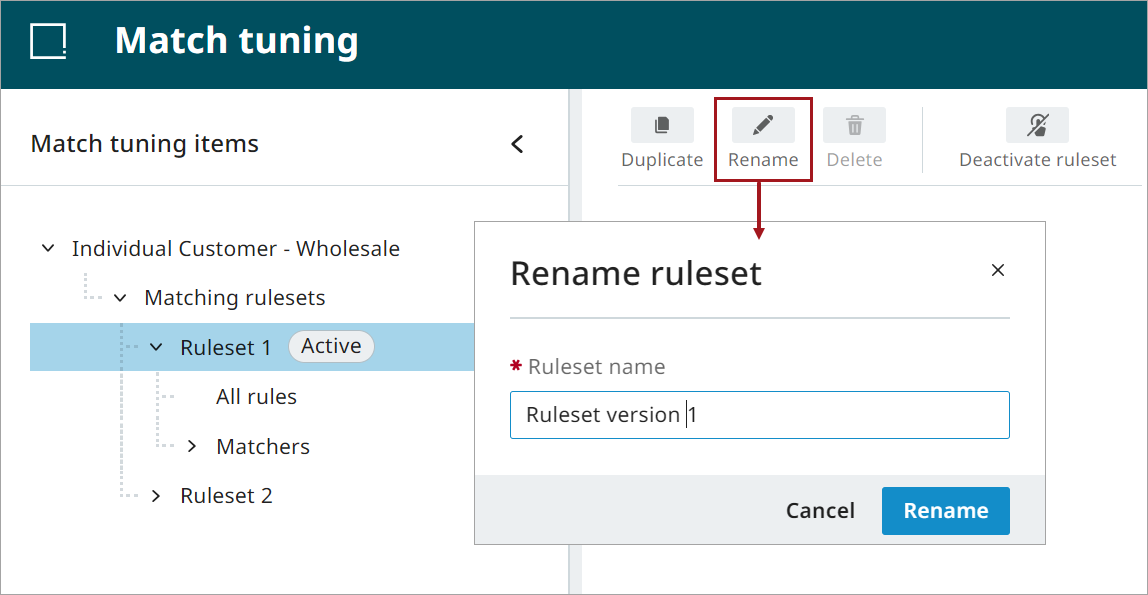
You can rename a ruleset, even if it is active. Renaming a ruleset changes only its display name. The ruleset ID is not affected.
To rename a ruleset:
-
Select the ruleset in the tree, and then select Rename.
-
In the ‘Rename ruleset’ dialog, enter a new name.
-
Select Rename.
Delete a Ruleset
You can delete a ruleset that is no longer needed.
To delete a ruleset:
-
Select the ruleset in the tree, and then select Delete.
-
In the ‘Delete ruleset’ dialog, select the checkbox to confirm the deletion.
-
Select Delete.
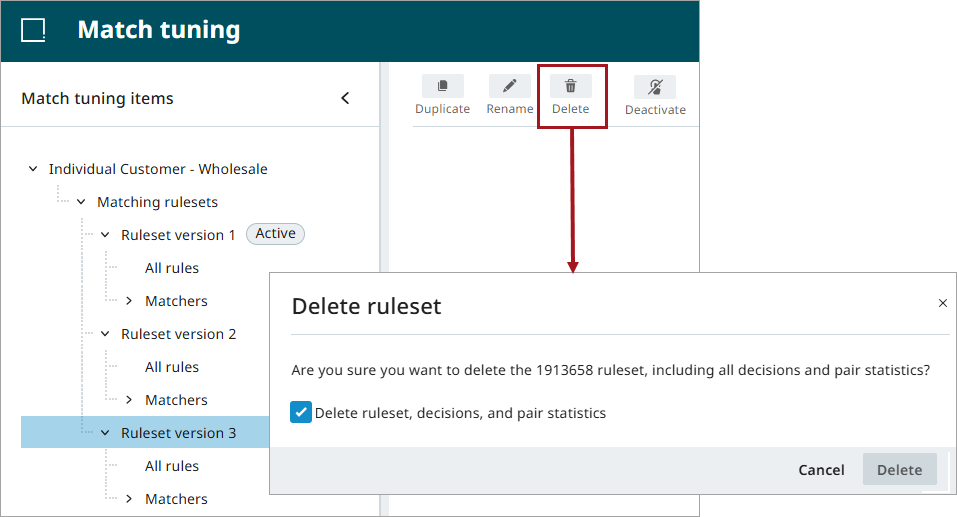
Deleting a ruleset removes it from the tree, but the underlying setup entity and related data are retained. It is moved to theRecycle Bin in the workbench, where it can be purged or revived. (Refer to the Recycle Bin for System Setup topic in the System Setup documentation.)If the ruleset is revived, refresh the Match tuning UI to display it again. The ruleset decisions are also restored with the ruleset.
Note: You cannot delete an active ruleset. Before deleting it, activate another ruleset or deactivate the current ruleset.