The 'Match tuning UI' is an application that provides a dedicated interface for creating and tuning matching rulesets.
For details, refer to the topic Match Tuning Using Matching Rulesets.
Prerequisite
To access the Match tuning application and its user interface, you must have the 'Access Match Tuning' privilege, as described in the topic Initial Configurations.
Open the Match Tuning Application
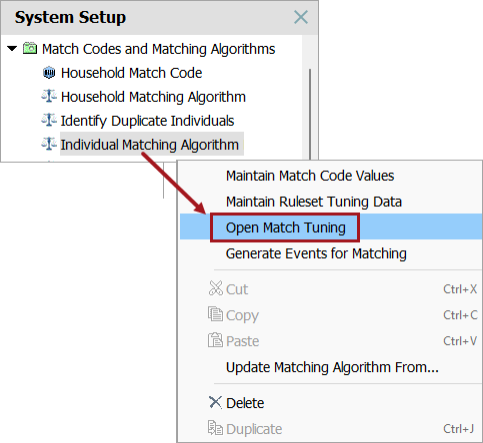
To open the Match tuning application, right-click the matching algorithm and select 'Open Match Tuning'.
Match Tuning UI Overview
The 'Match tuning UI' provides a collapsible navigation tree for managing matching rulesets.
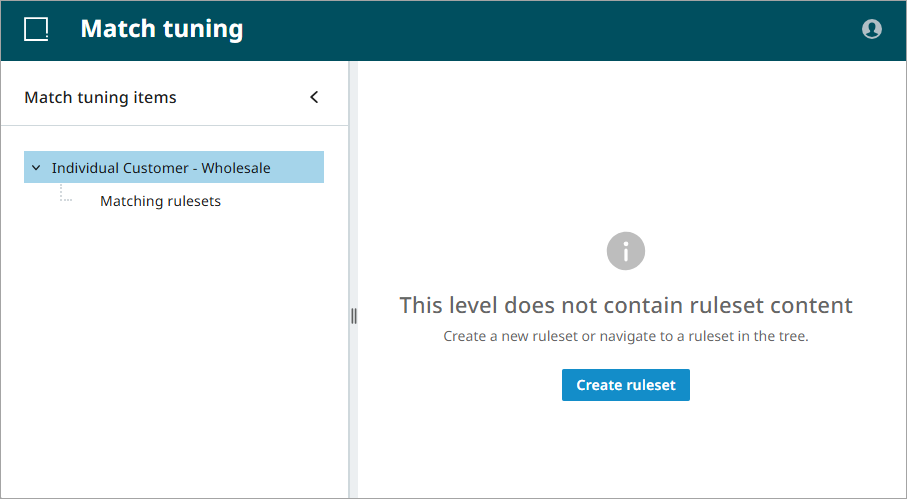
From the matching algorithm landing page, you can create your first ruleset using ‘Create ruleset’ or, if rulesets already exist, duplicate an existing ruleset or continue working on a non-active ruleset. For more information, refer to Maintain Matching Rulesets topic in the Matching, Linking, and Merging documentation.
The navigation tree organizes the tuning options:
-
The top level displays the currently opened matching algorithm.
-
Under 'Matching rulesets', all associated rulesets are listed.
-
Selecting a ruleset opens its home screen, where you can duplicate, rename, delete, and activate the ruleset.
-
Expanding a ruleset provides access to two views:
-
All rules
-
Matchers
-
Rules in the 'All rules' view are created by enabling or disabling classifications and adjusting thresholds in the 'Matchers' view. Each unique combination of matcher classifications forms a rule. Changes to matchers or thresholds directly affect how record pairs are classified.
The 'All rules' view is populated by running the ‘Sync & export pairs’ action. Refresh the page in your browser to display the results.
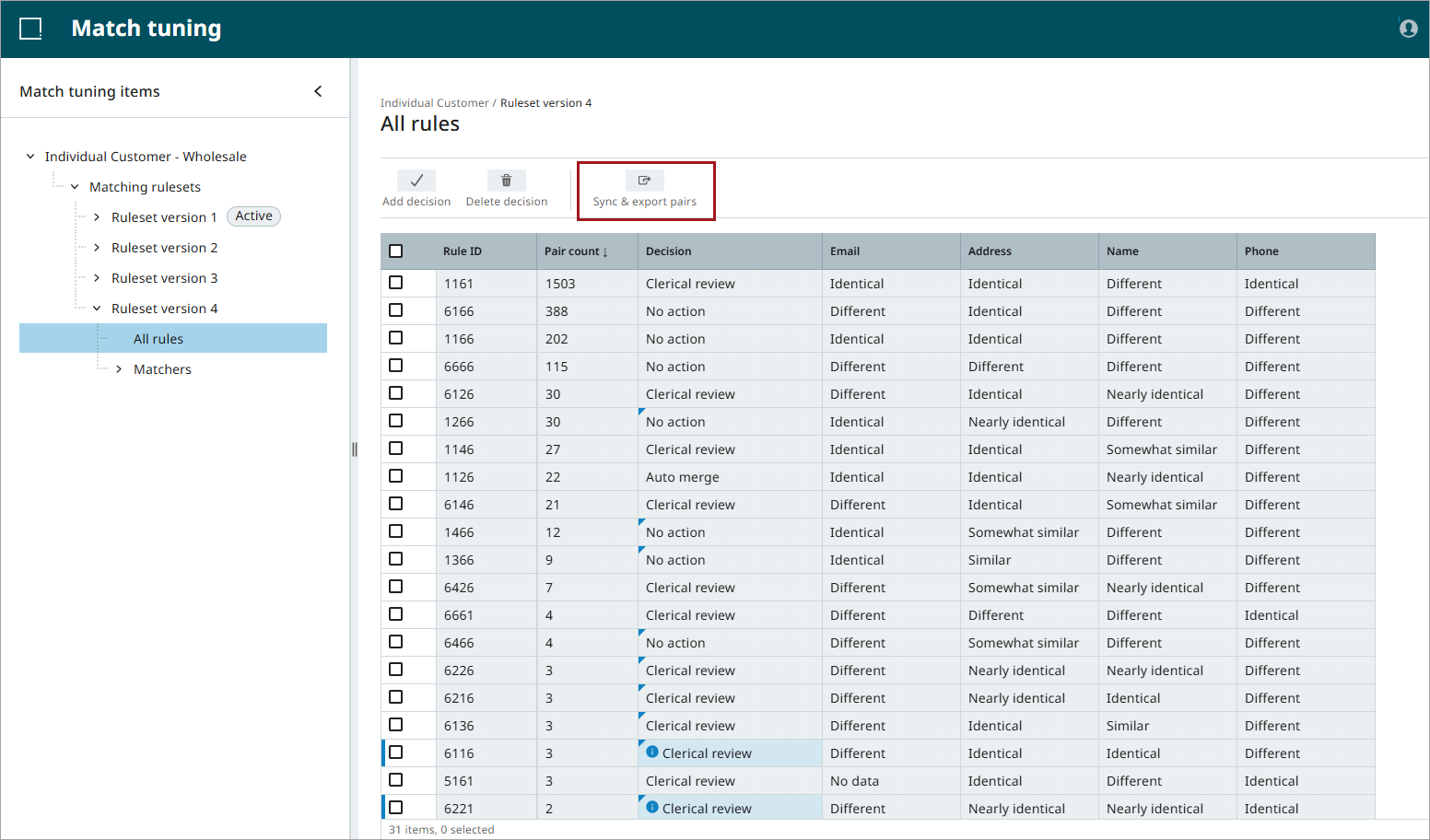
The 'Matchers' and 'All rules' views, and their configuration options, are described in the topics Matcher Configuration and All Rules.
Monitor Background Processes and Notifications
The Match tuning UI provides notifications about the start, progress, and completion of Sync & export pairs background processes, enabling you to monitor process status and download the generated pair export ZIP file.
To view notifications, select the Notifications icon (bell) in the upper-right corner of the UI. A badge indicates that a process or notification requires attention.
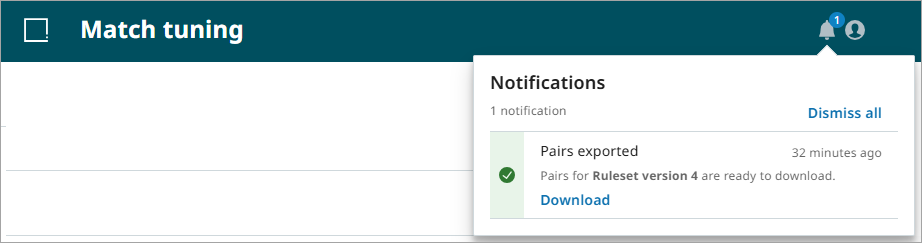
Currently running background processes are indicated by 'Active processes'. To stop a process, hover over it and click Cancel.
You can also monitor background processes from the workbench > Background Processes.