Before data owners can perform match tuning in the 'Match tuning UI', a super user must complete specific foundational configurations in the workbench. These configurations are described in this topic.
For more information, refer to the topics Match Tuning using Matching Rulesets and Match Tuning UI.
Matching Ruleset Configuration
The 'Matching Ruleset Configuration' defines which matchers are available for the data owner in the matching process.
To perform the 'Matching Ruleset Configuration':
-
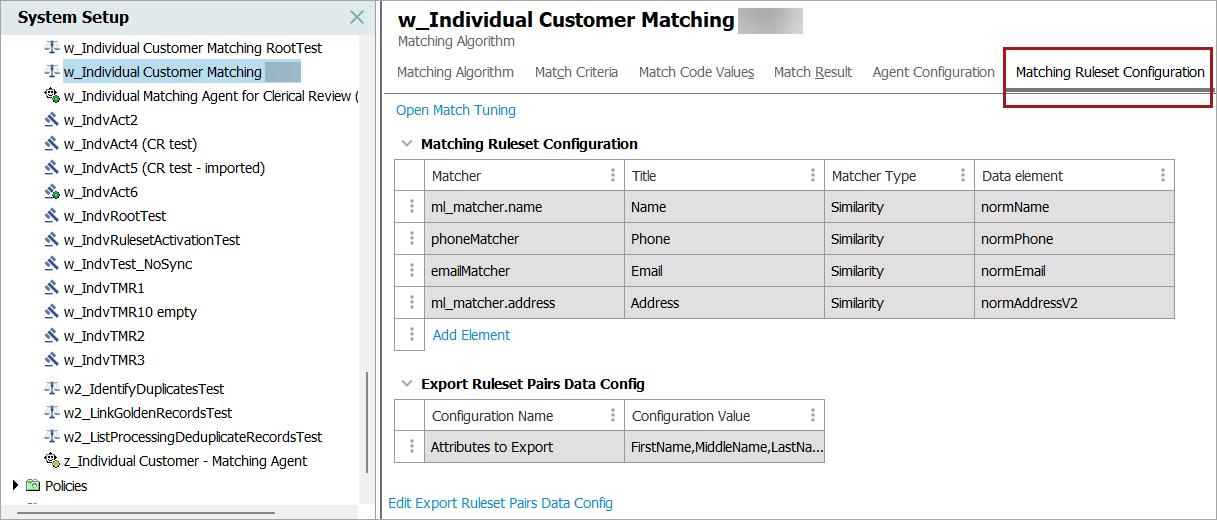
In the workbench, navigate to the relevant matching algorithm and open the ‘Matching Ruleset Configuration’ tab.
-
Maintain the table by adding or removing matchers that are available to the data owner in the 'Match tuning UI'.
Add matchers
Add matchers to define how records are evaluated and to make them available in the 'Match tuning UI'. Data owners can then enable or disable the matchers in the UI as required.
To add a matcher:
-
Click the ‘Add Element’ link.
-
In the dialog that opens, configure the following:
-
Matcher: Select an available matcher (e.g., nameMatcher or addressMatcher).
-
Title: Enter a descriptive name, such as 'Name' or 'Address'.
-
Data Element: Select a data element (based on the configuration on the 'Match Criteria' tab). For more information, refer to the topic Similarity Matchers.
-
-
Click Add Element to save the configuration.
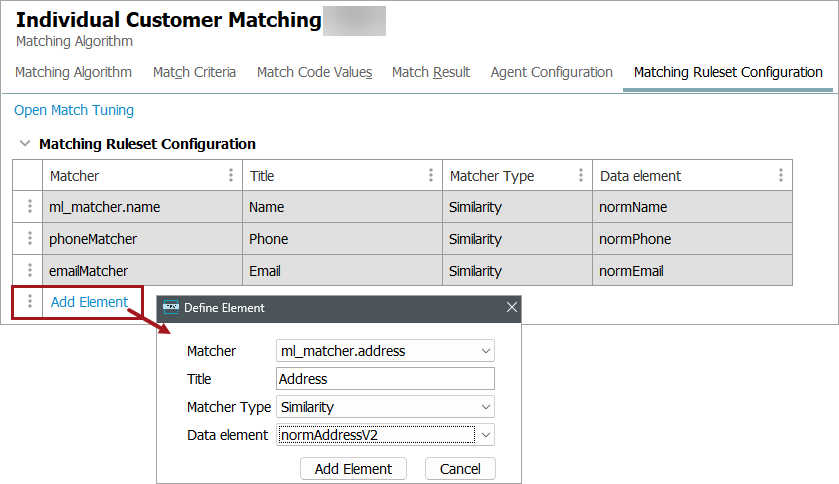
Each matcher can be added only once. An exception applies to ML matchers, where individual sub-scores (e.g., Name or Address) can be added separately.
After adding matchers, perform the following steps:
-
Start the ‘Maintain Ruleset Tuning Data’ process to populate the matcher scores.
-
Monitor the process in 'BG Processes' – ‘Matching Ruleset Maintain Tuning Data’ to confirm successful completion.
-
Notify the data owner to enable the matcher and run ‘Sync & export pairs’ in the 'Match tuning UI' to update the ruleset statistics.
Remove matchers
To remove a matcher from the list of matchers, click the ellipsis button next to the matcher and select ‘Remove Element’.
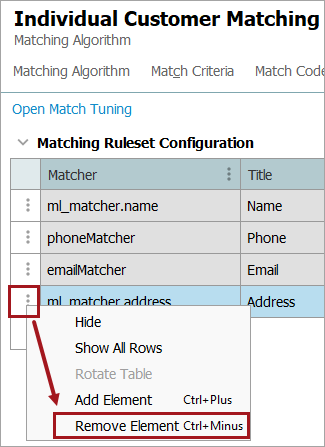
Note: The data owner can disable matchers in the 'Match tuning UI', so removing matchers from the configuration is not required unless they should no longer be available for tuning.
Configure Attributes to Export
Configure the attributes to include when the data owner exports record pairs from the 'Match tuning UI' for tuning and statistical analysis.
To configure attributes to export:
-
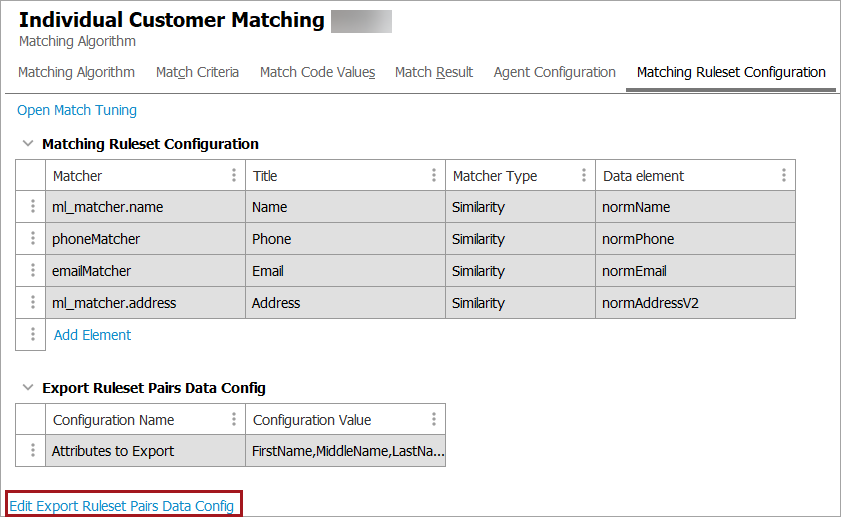
Click ‘Edit Export Ruleset Pairs Data Config’.
-
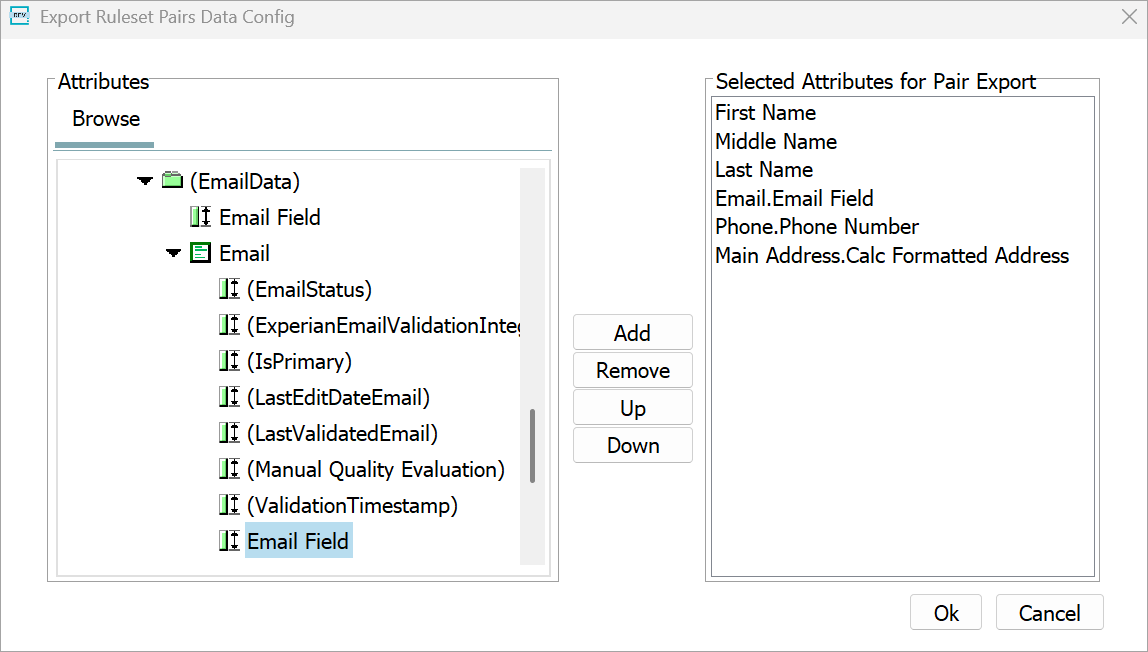
In the ‘Export Ruleset Pairs Data Config’ dialog, select the attributes and move them to the ‘Selected Attributes for Pair Export’ list.
-
Click Ok to save the configuration.
Only selected attributes are included in the match tuning export.
Note: To add attributes on a data container, select the attribute within the data container. The attribute is displayed using dot notation (e.g., ‘Email.Email Field’), as shown in the image above.
Maintain Ruleset Tuning Data
Based on the 'Matching Ruleset Configuration', the ‘Maintain Ruleset Tuning Data’ background process calculates the matcher scores for all records that share the same match code to make them available for the Matching Rulesets in the 'Match tuning UI'.
Note: With large datasets, the process can take many hours to complete. The progress bar does not update during execution and should not be used to track progress.
To run the 'Maintain Ruleset Tuning Data' process:
-
In the workbench, navigate to 'System Setup' and locate the matching algorithm.
-
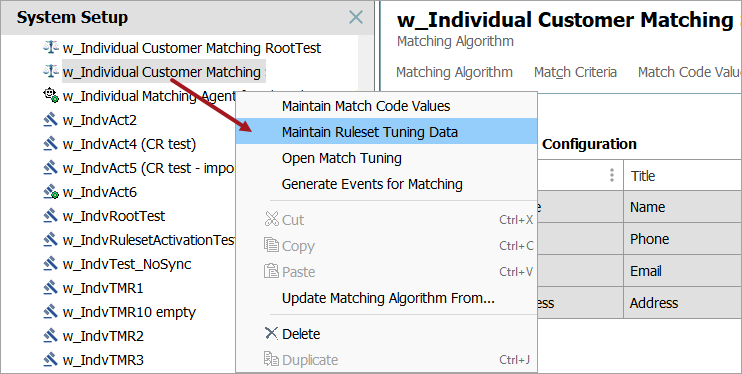
Right-click the algorithm and select ‘Maintain Ruleset Tuning Data’.
-
In the ‘Start Maintaining Ruleset Tuning Data’ dialog, click OK to start the process.
-
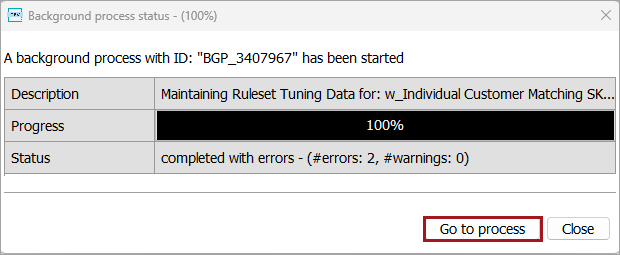
Monitor the background process by clicking Go to process.
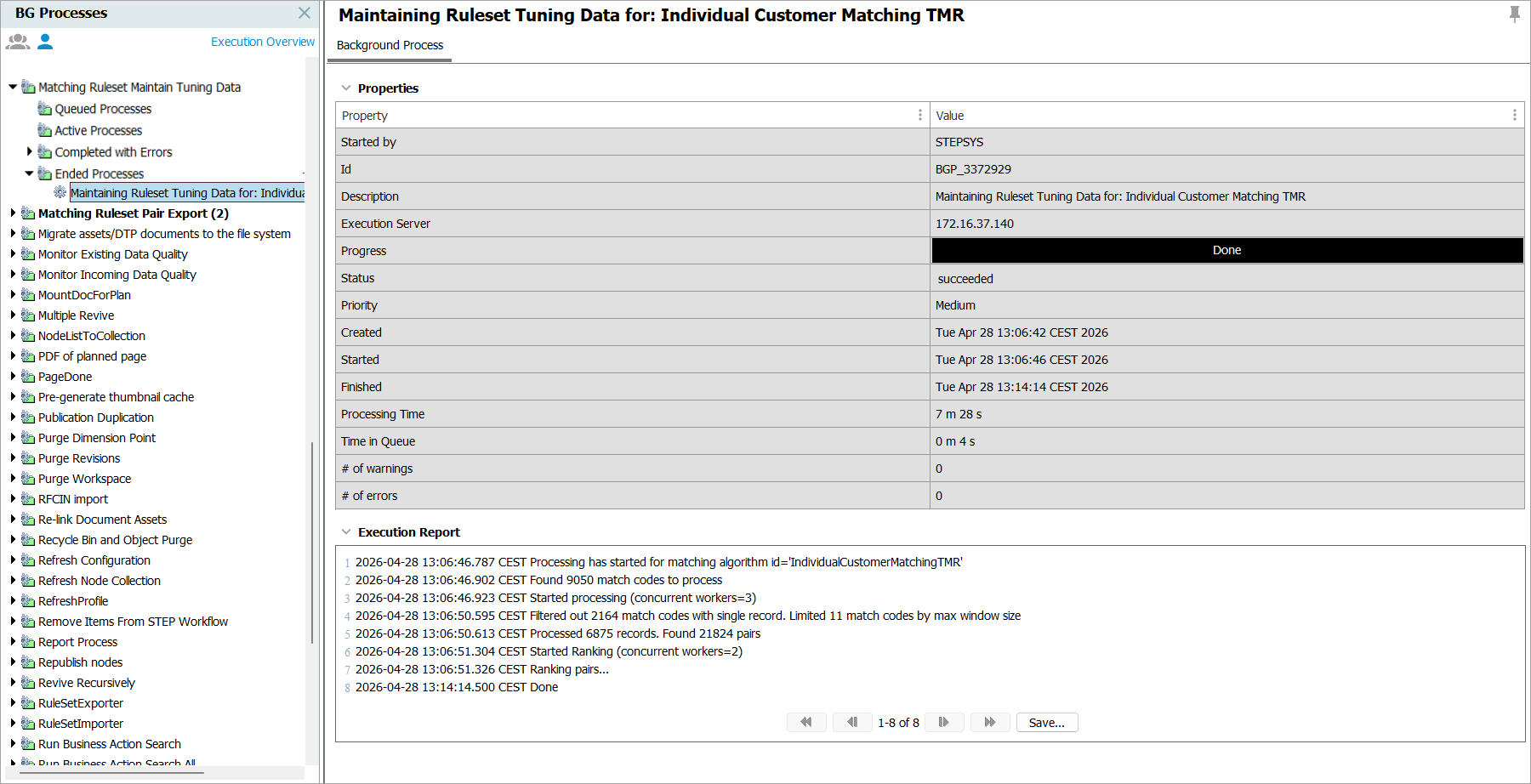
When the process completes, the 'Execution Report' summarizes key metrics such as identified match codes, processed records, and generated record pairs.
Important: Always re-run ‘Maintain Ruleset Tuning Data’ after changing matcher configurations or underlying data to ensure that rules and statistics reflect the latest data.
Create Matching Ruleset
To create a Matching Ruleset:
-
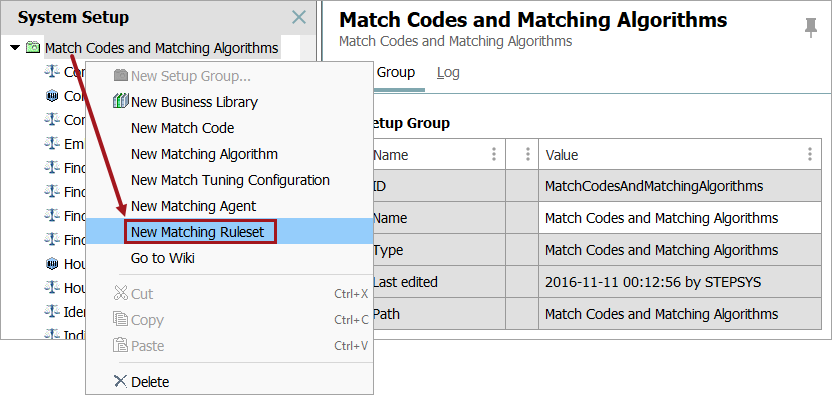
In the workbench, navigate to 'System Setup' > 'Match Codes and Matching Algorithms'.
-
Right-click the matching algorithm and select ‘New Matching Ruleset’.
-
Enter a unique ID and name for the ruleset.
-
Select the matching algorithm to associate with the ruleset.
-
Click Create.
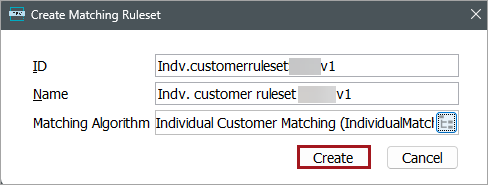
The Matching Ruleset is created and is ready for configuration.
Note: You can create multiple Matching Rulesets for a single matching algorithm. This is useful for versioning and comparing different rule configurations.
Duplicate Matching Ruleset
You can duplicate a Matching Ruleset in the workbench by right-clicking the ruleset and selecting ‘Duplicate’. This creates a new ruleset based on an existing, validated baseline.
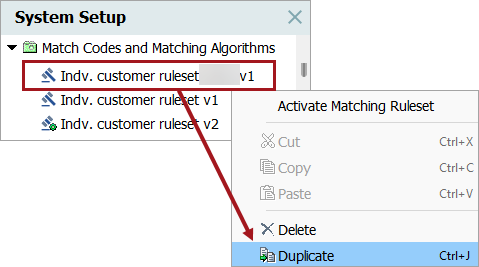
The duplicate includes the matching algorithm, matcher configuration (enabled matchers, classifications, and thresholds), and all decisions (e.g., 'Auto merge', 'Clerical review', or 'No action').
Note: To be able to view the decisions in a duplicated ruleset in the 'Match tuning UI', you must run the ‘Sync & export pairs’ process.