This is one of the recommendations for performing analysis on business rule to improve performance. The full list is defined in the Business Rule Analysis topic here.
Business rules are units of business logic that are stored as objects in System Setup. Business rules are used for many different purposes in STEP and come in three variants:
|
|
Input |
Output |
Side effects allowed |
|---|---|---|---|
|
Business actions |
Current object, current event batch, etc. provided by the context in which the action is executed. For more on business actions, see the Business Actions topic here. |
None |
Yes |
|
Business conditions |
Current object, current event, etc. provided by the context in which the condition is evaluated. For more on business conditions, see the Business Conditions topic here. |
Boolean result of evaluating the condition and a message for the user |
No |
|
Business functions |
Input parameters defined by the function and provided by the functionality evaluating the function. For more on business functions, see the Business Functions topic here. |
Result of evaluating the function |
No |
A fourth type of business rule, business library, allows users to define JavaScript library functions that can be called from other JavaScript-based business rules. For more information on business libraries, see Business Libraries topic documentation here.
For more information on differentiating between scenarios where one business rule is more useful than another, see the Business Rule Use Cases topic in the Business Rules documentation here.
Using Business Rules in STEP
Wherever business rules are used within STEP, they are always tested or executed in relation to one object at a time, and in a specific context / workspace. The most common places to use business rules are included in the list below.
- Approvals - Conditions can be tested when approval is attempted on an object under revision control, and the condition can allow or prevent the approval. Actions executed on approval and can modify data in STEP (typically data on the object being approved), send emails etc. related to the approval.
For more information, see Business Rules on Approval documentation here.
- Automatic Classifications - Actions can be executed to automatically classify objects, and can be applied, for example, on approval, during an import, or as a part of a workflow.
For more information, see Using Automatic Classification with Business Actions documentation here.
- Bulk Updates - Conditions can be tested as a precondition for executing an action. Actions can be executed.
For more information, see Run Business Rule Operation documentation here.
- Conditional Attributes - The JavaScript business action 'Conditionally Invalid Values' bind resolves to a set of all values.
For more information, see Business Rules with Conditional Attributes documentation here.
- Data Profiles - Conditions can be tested against all objects in a category (for example, a part of the Product hierarchy), and the result of the tests can be displayed on the Profile Dashboard.
For more information, see Business Conditions in Data Profiling documentation here.
- Event Processors - Actions can determine when and how to act upon the events from the event processor. This is useful when changes occur on objects and custom actions need to occur.
For more information, see Execute Business Action Processing Plugin Parameters and Triggers documentation here or Execute Business Action for Event Batch Processing Plugin Parameters and Triggers documentation here.
- Gateway Integration Endpoints - Accessed from JavaScript in business rule conditions and actions, the bind can work with a variety of the REST methods.
For more information, see the Gateway Integration Endpoint Bind documentation in the Resource Materials online help here. Gateway Integration Endpoints (GIEPs) will not always use the REST plugin; The Gateway Integration Endpoint Bind topic only applies for GIEPs that use the REST plugin.
- Imports and Inbound Integration Endpoints - Conditions can be tested during imports, and the condition can allow or prevent the creation or update of objects. Actions executed during import can modify the objects being imported, apply actions to objects being imported, send emails, and start workflows, etc.
For more information, see Business Rules in an Import Configuration documentation here.
- Matching, Linking, and Merging - Actions and Conditions can be used to normalize the data for comparison to identify the duplicate products in STEP. Actions can also be used in relation to Golden Records Survivorship Rules.
For more information, see Matching, Linking, and Merging JavaScript Binds documentation or Golden Records Survivorship Rules documentation.
- Outbound Integration Endpoint - Conditions can be used as event filters for an event-based OIEP. Actions can be executed via a pre-processor for any OIEP, or as a event generator to generate derived events to export or publish for an event-based OIEP.
For more information, see OIEP - Event-Based - Event Triggering Definitions Tab documentation (here) or OIEP - Pre-Processor - Business Action documentation (here).
- Web UI - Actions can be executed using ‘Run Business Action’ component to update the object. Conditions can be evaluated using the ‘Run Business Condition Action’ component.
For more information, see Business Conditions in Web UI documentation here.
- Workflows - Conditions can be tested within workflows to allow or prevent transitions from one state to another. Actions can be executed when entering a state, when leaving a state, when performing a specific transition, and when a deadline is met. Actions can also modify the object being tracked by the workflow, modify other objects in STEP, modify the workflow behavior, send email, start other workflows, etc.
For more information, see Business Rules in Workflows documentation here.
Test & Time Business Rule
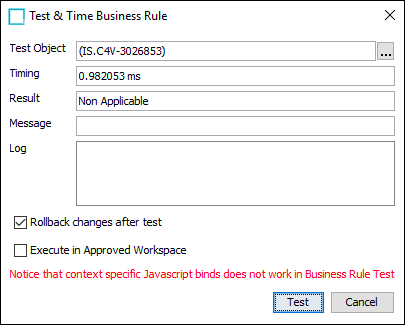
Use the 'Test & Time Business Rule' dialog, as defined in the Testing a Business Rule topic of the Business Rules documentation here. This option gives a first indication of the performance of the business rule for a certain item.
Test a business rule multiple times against objects that will either fail or pass and analyze the performance timing.
Test a long-running business rule to verify the performance timing.
For example, the business rule shown below took about 0.98 milliseconds to complete for the selected object. The same business rule may take more or less time for other objects.
Business Rules Statistics
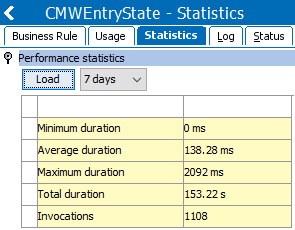
Use the business rule 'Statistics' tab, as defined in the Maintaining a Global Business Rule topic of the Business Rules documentation here. This tab shows the performance of the business rule over time.
The minimum, maximum, average, and total duration of the business rule, as well as the number of invocations per selected period are displayed. The period can be configured to be between an hour up to a week.
For example, the image below shows the same business rule was invoked more than 100 times during the last 7 days. That average duration was about 138 ms. Click on the maximum duration of about 2092 milliseconds to show which item the business rule took longest to execute.
Admin Portal Business Rule Activity Dashboard
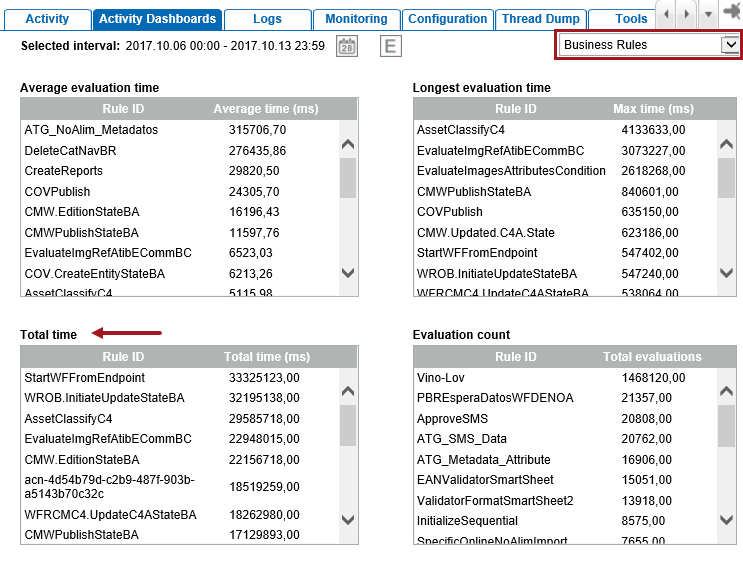
Use the Admin Portal 'Activity Dashboards' tab to display business rules information, as defined in the Activity Dashboards topic of the Administration Portal documentation here. This option allows you to track and trace the most demanding business rules performance over a given period.
The dashboard shows the top business rules over the configured period, with the longest average evaluation time, the longest maximum evaluation time, the longest total time, and the number of invocations.
Start with the 'Total time' section to review the business rules with the longest average evaluation time and the most number of invocations.
Admin Portal Business Rule Tracing
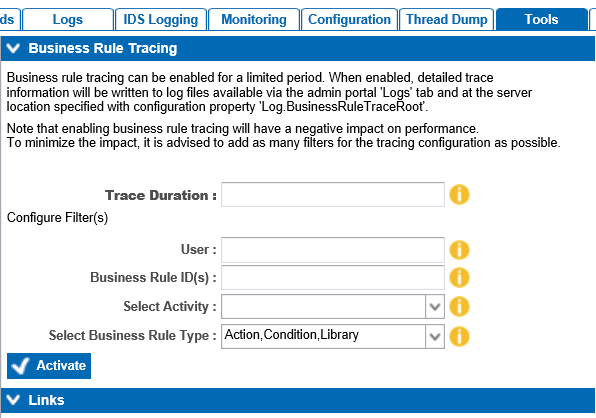
Use the Admin Portal 'Tools' tab to run the Business Rule Tracing functionality. When enabled, business rule tracing writes to log files.
Important: Enabling business rule tracing has a negative impact on performance. To minimize the impact, leave it enabled for a limited time and add as many tracing configuration filters as possible.
Define the location of the tracing log files by setting the case-sensitive property Log.BusinessRuleTraceRoot in the sharedconfig.properties file.
To enable business rule tracing, click the yellow information icon next to each parameter for a description of the parameter / filter. Supply the relevant information and click the Activate button. Then within the 'Trace Duration' time frame, from workbench, trigger the business rule(s) being traced.
Tracing stops when the system is stopped or restarted, and when the Trace Duration expires. Once a trace is activated a stop button ( ) is displayed, which allows a user to manually stop tracing.