Background Processes and Queues
Background processes (BGPs) allow system actions to run in the ‘background’ while giving users the ability to continue working in the user interface. Most standard background process queues display on the 'BG Processes' tab in workbench, and can be accessed there.
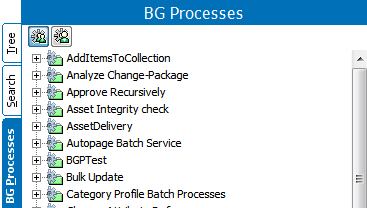
A background process queue is a way of prioritizing system processes that ensures high-level system performance. BGP queues can be named and configured to control which processes run on which server and how many may run at the same time on each server. Background processes that share a queue also share the number of simultaneous processes that can be run for a given application server.
Information related to these aspects of background process functionality can be found in this topic:
- Background Process Queue Multi-Threading Properties
- Understanding config.properties Settings
Prerequisites
It is expected that anyone dealing with background process queues is familiar with the BG Processes Tab topic in the Getting Started / User Guide documentation here.
Additional Information
For more information regarding Background Processes and Background Process Queues, see the following topics:
- BG Processes States (here)
- Default Configuration for Background Process Queues (here)
- Modifying Background Process Queue Configuration (here)
- Managing Background Processes (here)
- Scheduled Process Properties (here)
- Deleting a Scheduled Data Export (here)
Note: Deleting a user who is responsible for a BGP will result in errors. For more information, see the Working with Users topic in the System Setup / Super User Guide documentation here.
Background Process Queue Multi-Threading Properties
Configuration properties provide multiple options to admin users to help manage system behavior for a wide range of functionality. One of those functions is management of background processes.
The following config.properties file settings define how a background process is handled:
- Size: The number of BGPs that can run at the same time in the same queue. As an example, for data profiling setting the size = 0 on one server and setting size = 1 on another server forces all data profiling to be handled by a specific server. Recommended practice is to use one server to handle background processes and another to handle ad-hoc user requests, which can give users improved system responsiveness.
Use the BackgroundProcess.Queue.[Name].Size=[number] property where the [Name] designation is replaced with the actual name of the queue for which the setting applies and the [number] designation determines how many concurrent background processes can run.
For more information, see the Default Configuration for Background Process Queues section referenced below, the Monitoring an IIEP via Background Process topic (here), and the Monitoring an OIEP via Background Process topic (here) in the Data Exchange documentation.
- Parallel: The following BGP types support the parallel option, which makes the same BGP use multiple CPUs on the server in order to finish faster:
- Data Profiling
- Match and Merge Import
- Exports
- Bulk Updates
- Imports
- Policy evaluation
- Matching and Linking
- Experian Email Validation
Use the BackgroundProcess.Queue.[Name].Parallel=[number] property where the [Name] designation is replaced with the actual name of the queue for which the setting applies and the [number] designation determines how many CPUs are used.
Note: The parallel queue property's underlying implementation varies significantly based on the background process type. When starting 'X' number of jobs, you use at least 'X' times as many resources, which come from other processes and could impact performance. As such, thorough performance testing with production-level hardware and peak traffic conditions is highly recommended.
- ProcessType: This property is used to rename the default queue for a specific type of background process which allows the administrator to control the processes that run on each server.
Use the BackgroundProcess.ProcessType.[Process Type ID].Queue=[Name] property where the [Process Type ID] and the [Name] designations are replaced with the actual type ID and the actual name of the queue for which the setting applies.
For steps to change your configuration, see the Modifying Background Process Queue Configuration topic here.
Single Application Server Example
Consider the following config.properties settings for a single server called appserver1:
BackgroundProcess.Queue.DataProfilerParallel.Parallel=4
BackgroundProcess.Queue.DataProfilerParallel.Size=4
BackgroundProcess.Queue.In.Parallel=8
BackgroundProcess.Queue.In.Size=1
Combined with these workbench parameter settings:
- The match and merge IIEP has 'Queue for endpoint processes=IN'
- The bulk update IIEP has 'Queue for endpoint processes=IN'
Result
A configuration with these settings results in the following activity on the single server:
- A 'Match and Merge IIEP' background process will not run simultaneously with a 'Bulk Update' background process. Both use the IN queue, which has size 1, limiting it to only one (1) background process at a time.
- A 'Match and Merge IIEP' background process will use up to 8 cores in the CPU due to the parallel setting of 8 for the IN queue.
Two Application Servers Example
In addition to appserver1 described above, add a second application server (called appserver2) with the following config.properties settings :
BackgroundProcess.Queue.DataProfilerParallel.Size=0
BackgroundProcess.Queue.In.Size=0
Result
A configuration with these settings results in the following activity on the two servers:
- appserver1 runs up to four (4) data profiling processes in parallel. Data profiling process number five (5) remains in queue until one of the first four is complete.
- appserver2 never runs 'Match and Merge IIEP' background processes nor 'Bulk Update IIEP' background processes because this server has a size of 0 for IN queue, and both of these background processes use the IN queue.
- Since all BGPs run on appserver1, high BGP load does not adversely impact users because appserver2 is reserved for actions in the user interface.
Understanding config.properties Settings
Configuration properties provide system administrators with options for controlling system behavior, logging, processing, storage of information on the application server(s), and many other things. Configuration properties are specified in the config.properties or sharedconfig.properties files on the application server(s). There is one config.properties file per application server so a clustered environment may have multiple config.properties files, with each containing settings local to a particular application server. Conversely, the sharedconfig.properties file is global so there will be only one file per setup, with all settings being applicable to all application servers. Most properties are set in the sharedconfig.properties file, with the config.properties file being used only for those properties that expressly require it.
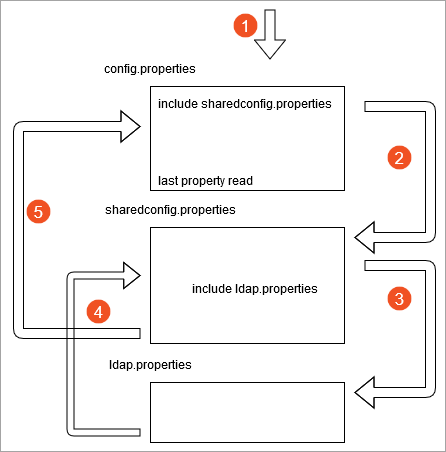
The config.properties file is read first, line-by-line, until the first 'include' statement—typically the sharedconfig.properties file as shown below.
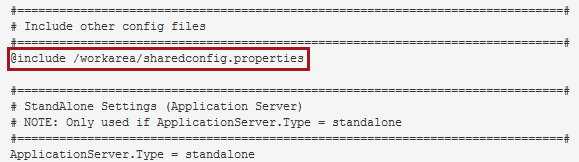
When an 'include' statement is found, the included file is read line-by-line (and any 'include' statements in those files are also read) before reading is continued in the config.properties file. A property can exist more than once in the properties files and the last value read is the only active value. This allows properties in the config.properties that come after an 'include' statement to overwrite the same properties in the sharedconfig.properties file.
For more information on config.properties settings, see the Configuration topic in the Administration Portal documentation here.