STEPXML Comparison Tool Prerequisites
Typically this type of work requires a STEP Super User to carry out the task. The user would require in depth knowledge of STEPXML, System Setup, and how to use export and import manager.
Accessing the System Compare Tool
To access the STEP System Administration data, the user must have Super Users privileges, i.e., be an administrator of the system. The user will require all the privileges necessary to make the updates the imported XML requires.
Important: A lot of memory is required to run this tool, therefore the STEPXML Comparison Tool has been superseded by the change packages functionality and may be removed in a future release. It is recommended that users transition to using change packages, which are described in the Change Packages section of the Configuration Management documentation here.
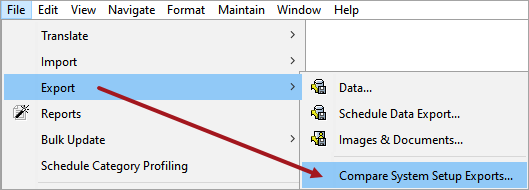
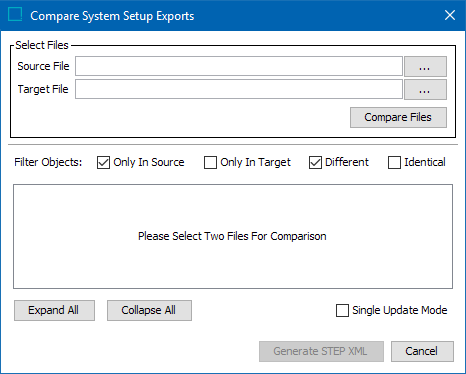
Go to File > Export > Compare System Setup Exports... to display the Compare System Setup Exports dialog.
Moving configuration without using the STEP comparison tool
It is possible to move configuration from one STEP instance to another without using the comparison tool.
This process will only add / modify configuration loaded onto a target system. If you then need to identify what is different from the source and target machines the comparison tool will need to be used.
Move all configurations from one STEP system to another
- Back-up target system
- Export XML from Source system excluding assets, classifications, products, and entities
- Run a Cross Context export if configuration is stored in more dimension points, i.e., LOVs, attribute names, etc.
- Import onto target system
- Check execution report for errors and resolve
What configuration can be moved from one system to another?
Before a user can use the comparison tool the STEP export manager needs to be used to export STEPXML from the source and target systems.
When configuring the export the following will need to be selected:
- Add the parent node for configuration files being which need to be moved from the source to the target
If this is not done the import will fail on import the configuration files as the folder it resides in will not exist - Select the STEP configurations that need to be exported
All parameters available in the Export Manager are defined in the STEPXML Outbound Parameters topic in the Data Exchange documentation here. The Global Settings, Data Objects, and Publishing options are not valid for the STEPXML Comparison Tool.
Only the Configuration parameters in Export Manager for the STEPXML format are available for comparison with this tool as shown in the following section.
Configuration
|
Configuration Parameter |
Description |
|---|---|
|
Include Action Sets |
Select No or Yes to control output of a list of all actions applied to each action set. For more information, see Action Sets in the System Setup / Super User Guide here. |
|
Include Asset Push Event Queues |
Asset push event queues are exported as follows:
|
|
Include Asset Push Configurations |
Asset push configurations are exported as follows:
|
|
Include Attributes |
For attributes, the validation base types, dimension dependencies applied units, applied LOV hierarchy filters, calculated templates, and so on, are exported as follows:
For more information, see Attributes in the System Setup / Super User Guide here. |
|
Include Attribute Groups |
For attribute groups, the view definitions and settings applied to attribute groups are exported as follows:
For more information, see Attribute Groups in the System Setup / Super User Guide here. |
|
Include Attribute Transformations |
Select No or Yes to control output of attribute transformations and their configurations. For more information, see Attribute Transformations in the System Setup / Super User Guide here. |
|
Include Bulk Update Configurations |
Assets saved as bulk update configurations are exported as follows:
For more information, see Bulk Updates here. |
|
Include Business Rules (Global) and Libraries |
For global business rules and libraries, the ID, name, links, on approve setting, dependencies, valid object types, and templates are exported as follows:
Templates are exported in Base64 and can only be imported without modifications into another STEP system. For more information, see Business Rules here. |
|
Include Collection Definitions |
Select No or Yes to control output of collections groups and collections, including search URLs. The exported file will not contain products, classifications, or assets included in a collection. For more information, see Collections in the Getting Started / User Guide here. |
|
Include Component Models |
Select No or Yes to control output of details of component models, including ID, name, object types and links. The Component Model node in System Setup displays all available component models on your system. For more information, see the Component Models topic in the System Setup / Super User Guide here. |
|
Include Contexts |
Select No or Yes to control output of dimensions, dimension points, contexts, applied dimension points, and locale settings. For more information, see Contexts in the System Setup / Super User Guide here. |
|
Include Context Qualifiers |
Select No or Yes to control output of a list of qualifiers used in exported data. When used in combination with export of product, classification, or asset data, controls qualifier IDs and dimension point IDs. For more information, see Contexts in the System Setup / Super User Guide here. |
|
Include Data Container Definitions |
Data container types are exported as follows:
For more information, see Data Containers in the System Setup / Super User Guide here. |
|
Include Derived Event Types |
Select No or Yes to control output of objects created in System Setup as Derived Event Type. For more information, see Derived Events in the System Setup / Super User Guide here. |
|
Include eCatalogs |
Select No or Yes to control output of eCatalog configurations and price lists. Does not include product selection lists. For more information, see eCatalogs here. |
|
Include Event Processors |
Control output of event processor information, including ID, name, links, and configuration.
For more information, see Event Processors in the System Setup / Super User Guide here. The configurations are exported in Base64 and can only be imported without modifications into another STEP system. |
|
Include Event Queues |
Select No or Yes to control output of event queues and applied message templates, output formatting, and triggering definitions. |
|
Include Export Configurations |
Assets saved as export configurations are exported as follows:
For more information, see Maintaining a Saved Export Configuration in Data Exchange here. |
|
Include Image Conversion Configurations |
Image conversion configurations are exported as follows:
|
|
Include Import Configurations |
Assets saved as import configurations are exported as follows:
For more information, see Maintaining a Saved Import Configuration in Data Exchange here. |
|
Include Integration Endpoints |
Control output of integration endpoint ID, name, and configurations. The configurations are exported in Base64 and can only be imported without modifications into another STEP system.
For more information, see the integration endpoint topics in Data Exchange here. |
|
Include Key Definitions |
Select No or Yes to control output of definitions of objects created as keys. For more information, see the Unique Keys in the System Setup / Super User Guide here. |
|
Include Link, Reference and Object Types |
Important: Handle reference types and object types with an ID that start with stibo. carefully since they are fundamental objects. System specific object types, link types, and system specific reference types are exported as follows:
For more information, see Reference and Link Types in the System Setup / Super User Guide here. Note: Edge types are identified with either 'PA' (product to attribute link type) or 'CA' (classification to attribute link type). |
|
Include List of Values |
LOV definitions and values in LOVs, including applied meta attributes, validation base types, and applied units are exported as follows:
For more information, see List of Values (LOVs) in the System Setup / Super User Guide here. |
|
Include Match Codes |
Select No or Yes to control output of match code information, including ID, name, links, setup group, valid entity hierarchies, and valid object types. For more information, see the Matching, Linking, and Merging documentation here. |
|
Include Matching Algorithms |
Control output of matching algorithms, including ID, name, links, and configuration. For more information, see the Matching, Linking, and Merging documentation here.
The configurations are exported in Base64 and can only be imported without modifications into another STEP system. |
|
Include Setup Entities |
Control output of setup entities including ID, name, links, and configuration. The configurations are exported in Base64 and can only be imported without modifications into another STEP system.
|
|
Include Setup Groups |
Control output of setup groups that are defined in system setup to hold integration endpoints, Web UI configurations, STEP workflows, and business rules.
For more information, see Setup Groups in the System Setup/ Super User Guide here. |
|
Include Status Flags |
Workflow status flags are exported as follows:
For information, see the Status Flags topic in Workflows documentation here. |
|
Include System Settings |
Select No or Yes to control output of the following default settings defined on the Users and Groups root node:
For more information, see System Settings in the System Setup/ Super User Guide here. |
|
Row type definitions, column type definitions, and table type definitions, including applied transformations are exported as follows:
For more information, see Tables here. |
|
|
Include Tags |
Select No or Yes to control output of style tags, character tags, special characters, footnotes, and hyperlinks, including information about rendering, short cuts, and applied output formatting. For more information, see Tags in the System Setup/ Super User Guide here. |
|
Include Transformation Lookup Tables |
Assets saved as transformation lookup table configurations are exported as follows:
For information, see the Transformation Lookup Tables topic in Resource Materials online help here. |
|
Include Translation Configurations |
Saved translation configurations are exported as follows:
For information on saving translation configurations for data objects, see the Starting a Structured Translation topic here. For information on saving translation configurations for setup objects, see the Structured Translation for Setup Objects topic here. |
|
Include Units |
Unit groups and units, including applied meta attributes, values, and base unit conversions are exported as follows:
For more information, see Units in the System Setup/ Super User Guide here. |
|
Include Users and User Groups |
Control output of all user groups and users, including information about applied privileges, meta attributes, restricted GUI setup, etc. User passwords are not included in the output. Since creating a new user requires a password, new users cannot be created via STEPXML import. However, changes to existing users can be imported. Note: When changing a user from one assigned group to another, the user is added to the new group, but must be manually removed from the original group.
For more information, see Users and Groups in the System Setup/ Super User Guide here. |
|
Include Web UI Configurations |
Control output of Web UI configurations in the exported file.
For more information, see Managing Web UI Configurations in the Web User Interfaces / Web UI Setup and User Guide here. |
|
Include Websites |
Select No or Yes to control output of websites, with and without workspace. The legacy ‘Web Publisher’ used this option to publish data incrementally from STEP. OIEPs provide improved functionality for this same purpose. For more information, see the Data Exchange here. |
|
Include Workflows |
Workflow information, including ID, name, links, valid object types, and configuration are exported as outlined below. The configurations are exported in Base64 and can only be imported without modifications into another STEP system.
For more information, see Workflows here. |
|
Include Workflow Profiles |
Workflow profiles (including information such as number of exceeded deadlines, how long the tasks have been assigned to the assignees, what is the workflow throughput for the month versus the last six months, etc.) are exported as follows:
For more information, see Monitoring Workflows here. |