ECLASS Advanced Templates are a set of rules that define the filtering criteria along with additional validation principles. These are the predefined structures that groups a specific set of Aspects, Blocks, and Properties tailored for a particular ECLASS Class (i.e., product category).
Using the filtering mechanism requires a one-time setup, including creating the necessary elements (object type, reference type and a classification folder) and configuring the component model.
This topic covers each of the items required to fully set up the handling of the ECLASS Templates:
Create the Required Elements
To work with a template, you must first create an Asset object type for the template and at least one Classification folder to store it. Follow the procedure below to complete this setup.
-
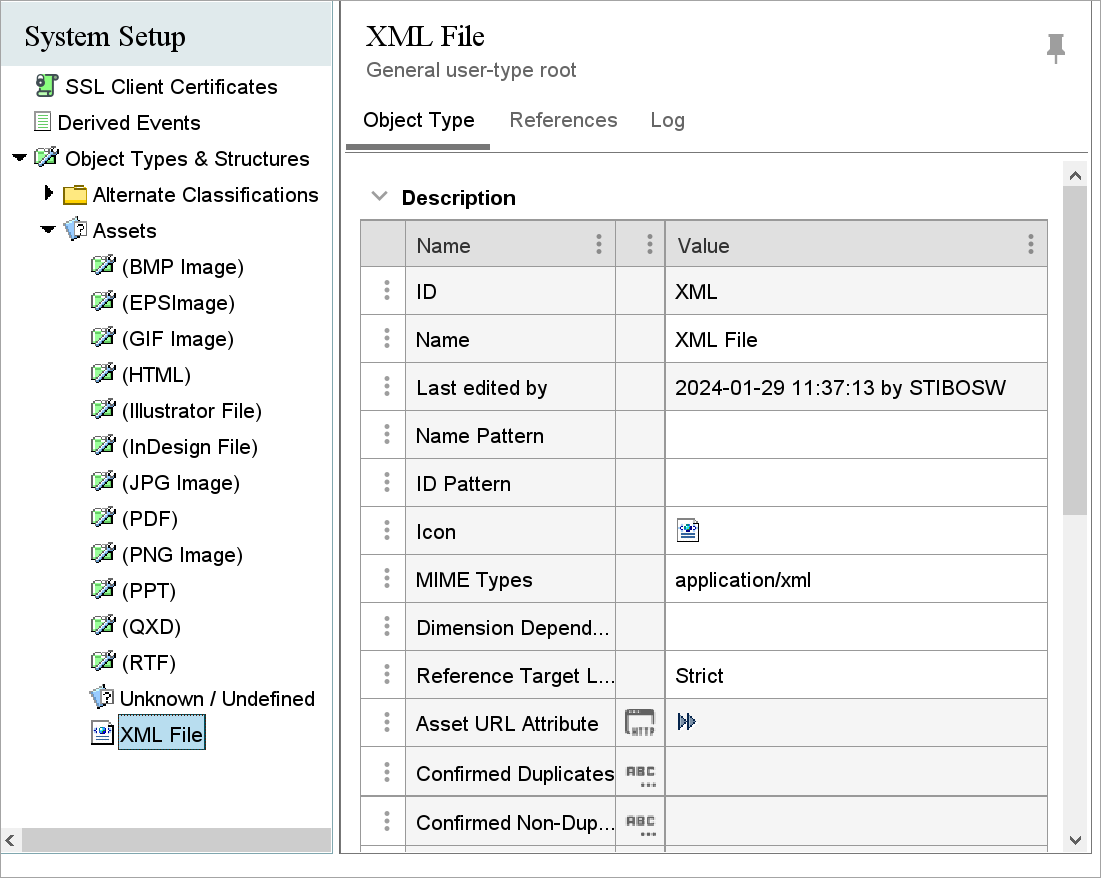
In System Setup, create one or more asset object types to support creating the XML assets stored in the assets folder. For information on creating the object type, Creating an Object Type topic in the System Setup documentation.
-
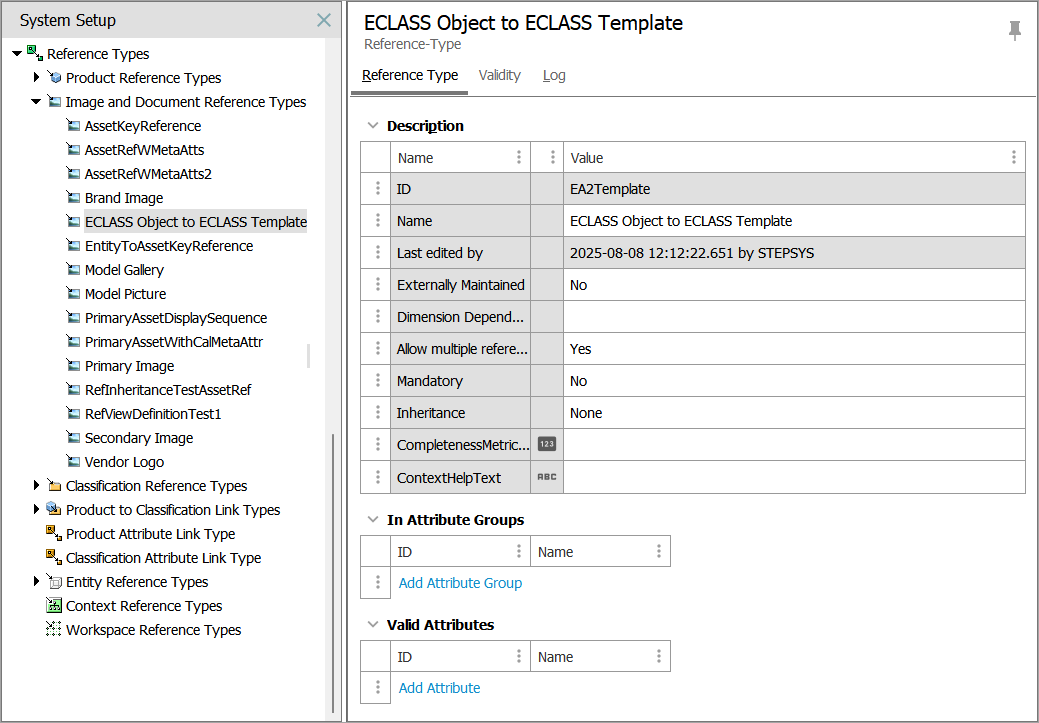
In System Setup, create a new asset reference type to hold the relation between product and the XML asset. For information on creating a reference type, refer to theCreating a Reference Type topic in the System Setup documentation.
-
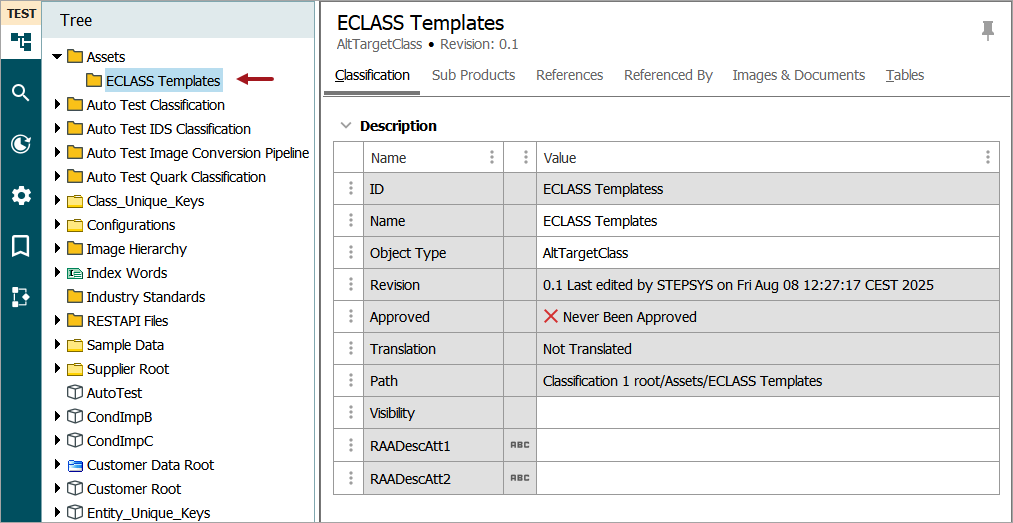
On the Tree tab, create a classification hierarchy to store assets in STEP. For information on creating a classification folder, refer to the Classifications topic in the Getting Started documentation.
Configure the ECLASS Advanced Template Model
Set the newly created asset object type, reference type, and product object type in the component model.
-
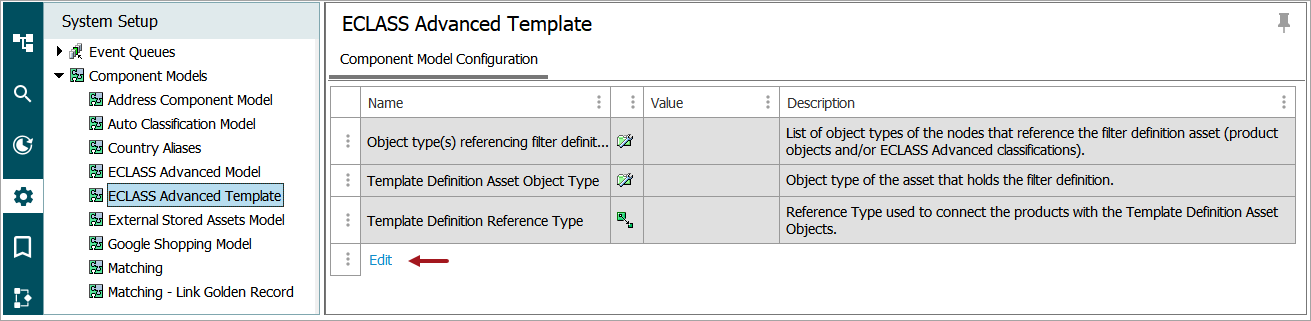
In System Setup, open the Component Models node, select the ECLASS Advanced Template node, and click the Edit link to open the editor.
-
Double click the plus button (
 ) to display a dialog to assign the required objects to the model.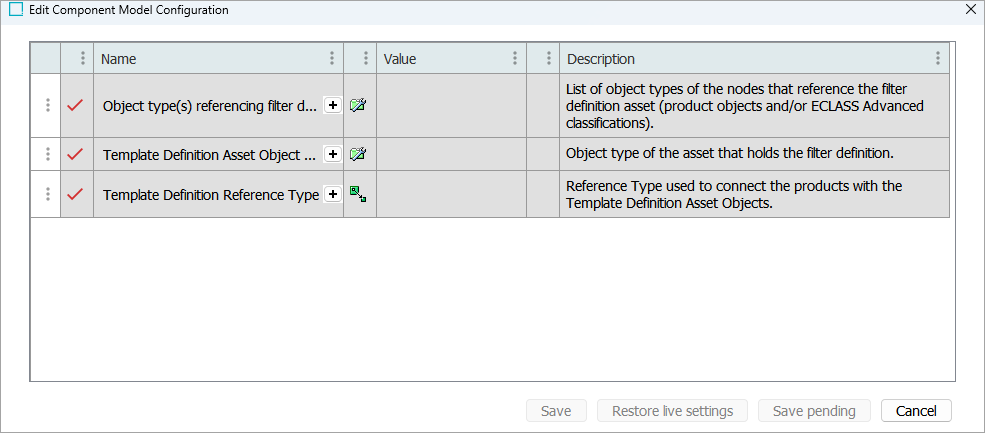
-
Object type(s) referencing filter definitions: Choose the object types of the nodes that reference the ECLASS Templates asset. This can be the object type of product objects and/or ECLASS ADVANCED classifications.
-
Template definition asset object type: Choose the asset object type(s) that represent the XML assets (ECLASS Templates) in STEP.
-
Template definition reference type: Choose the reference type that is used to connect the products with the ECLASS Template asset objects.
-
-
Make any required corrections:
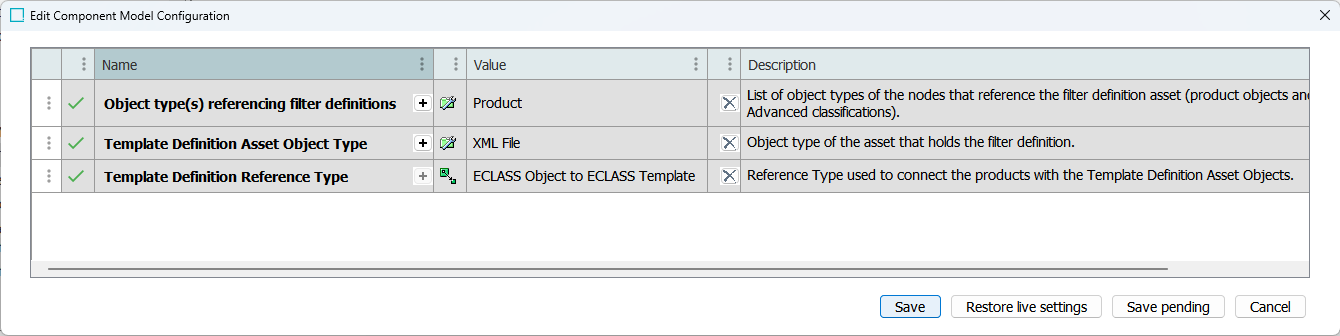
-
The plus button (
) remains active for parameters that allow multiple selections, such as the 'Template definition asset object type' parameter and the 'Object type(s) referencing filter definitions' parameter above. Select another object type if required. -
Double click the delete button (
 ) to remove a selection.
 -
The first column shows the status of the parameter. A green check (
 ) means the configuration has no errors; a red X (
 ) means additional setup is required.
 -
Click the Save pending button to save your work while error(s) exists.
-
Click the Save button to save a configuration once it has no errors.
-
Click the Restore live settings button to undo the changes made to a previously saved and error-free configuration.
-
Click the Cancel button to undo all changes made in this dialog.
-