The Matching Agent Recommendation is the merge / reject output generated by the Machine Learning Match Recommendations (MLMR). These recommendations are stored in a workflow variable with an associated attribute so they can be displayed in the clerical review task list to support decision-making. The variable links the matching algorithm to the clerical review workflow and is required for recommendations to appear on the list.
Prerequisites
Before the MLMR workflow variable can be configured, the golden record clerical review workflow must be configured. For more information, refer to the topic Creating a Merge Golden Record Clerical Review Workflow.
You must create an attribute to store the MatchingAgentRecommendation value on.
-
ID: MatchingAgentRecommendation (user defined)
-
Name: Matching Agent Recommendation (user defined)
-
Validation Base Type: Text
-
Multi Valued: No
-
Attribute Type: Description
-
Maximum Length: 100
-
Validity: None
-
Externally Maintained: Yes
Note: If you have already created the variable but not the attribute (e.g., if you upgraded from a previous STEP version to version 11.1 or higher), then once you add the attribute, you must initiate the 'Do Recommendations' action from System Setup to update all recommendations. For more information, refer to the topic Matching Agents for the MLMR.
Configuring the Workflow
The following steps show how to modify the clerical review workflow for the MLMR:
-
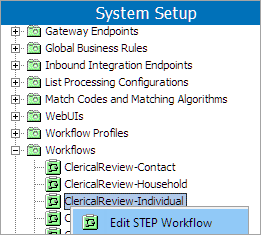
On the System Setup tab in the workbench, navigate to Workflows, then right-click on the desired clerical review workflow and select 'Edit STEP Workflow' to display the STEP Workflow Designer.
-
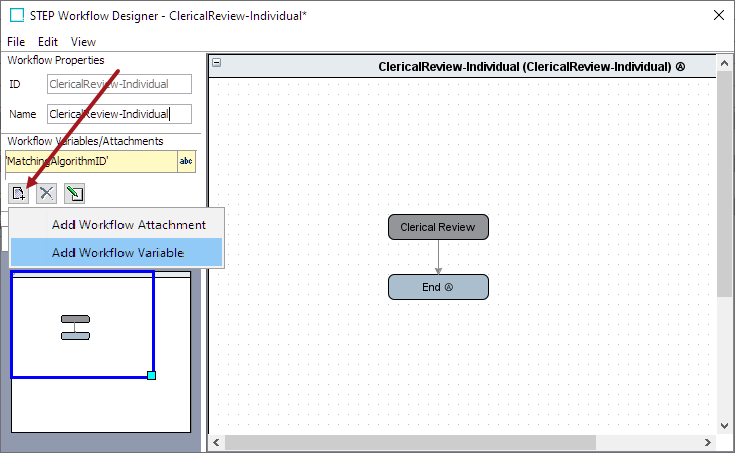
Click the add icon and select 'Add Workflow Variable.'
-
In the Add Workflow Variable dialog, type in 'MatchingAgentRecommendation' for the ID.
For the Attribute parameter, select the MatchingAgentRecommendation attribute created in the Prerequisites section.
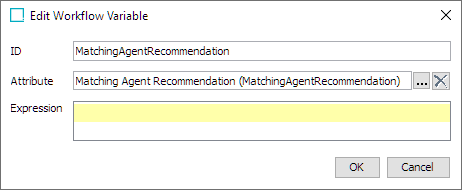
Click OK.
-
On the File menu, click Save and exit to close the STEP Workflow Designer dialog.