A clerical review workflow in Web UI allows data stewards to manually determine the match status of objects when the match score falls between the Auto Threshold and the Clerical Review Threshold. Optionally, a workflow status flag and a business condition allow a high priority setting when required. For details, refer to the topic Match and Merge Clerical Review - Merge.
Configuration
The workflow and thresholds are part of configuring a Match and Merge solution and are selected when configuring the Merge Golden Record match action as defined in the topic Configuring Merge Golden Record Match Action.
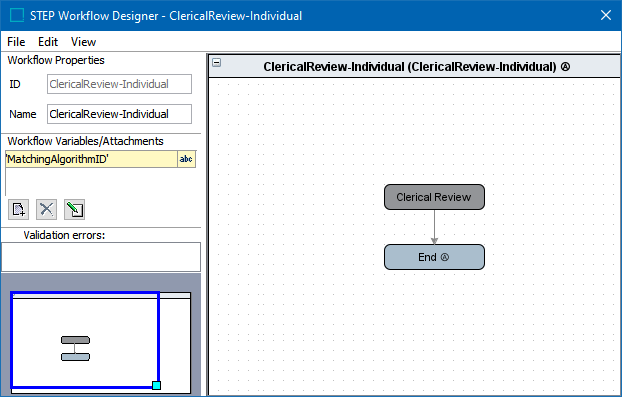
The following elements are available for the clerical review workflow:
-
Workflow - (required) create a workflow as simple or elaborate as needed. For more information, refer to the topic Creating a Workflow in the Workflows documentation.
Use a case sensitive Event ID to allow access to the Submit button on the Golden Record Clerical Review Task List in Web UI, as defined in the topic Golden Record Clerical Review Task List.
-
Matching Algorithm ID - add the required workflow variable used for linking the clerical review task to the specific matching algorithm. This variable is maintained by the event processor and is used in further handling of clerical review tasks.
-
Clerical Review High Priority Status Flag - (optional) if desired, create a workflow status flag used to designate high priority tasks in the clerical review workflow. No other status flags should be set on the clerical review workflow. For details on setup, refer to the topic Status Flags in the Workflows documentation.
- Clerical Review High Priority Business Condition - (required when the status flag is used), create a business condition to verify if a task is high priority. The business condition is evaluated on each potential duplicate object in the clerical review task in the context of the matcher and has access to the 'Current Object' bind. For details on setup, refer to the topic Creating a Business Rule, Function, or Library in the Business Rules documentation.
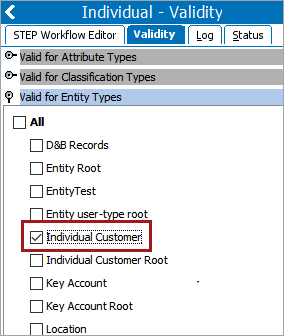
- On the Validity tab of the workflow, select the merge object type.
The high priority business logic can be added inside the Match Action configuration of the matching algorithm. To assign the 'Clerical Review High Priority Status Flag' and the 'Clerical Review High Priority Business Condition':
-
Open the matching algorithm, and under the 'Match Action' flipper, click 'Edit Match Action'.
-
Select the Merge Golden Record match action, and in the 'Match Action Configuration' dialog, click the selector button (
 ) to specify the status flag and the business condition.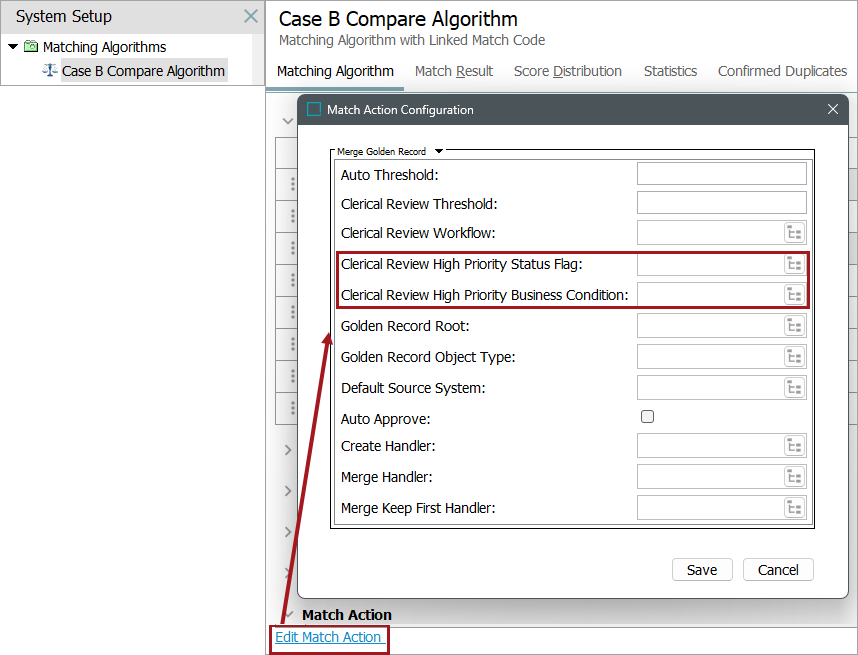
Considerations
The following rules apply when using a clerical review workflow to configure the Merge Golden Record match action:
-
If a status flag is configured, but a business condition is not configured, the status flag behaves as if a business condition evaluated to true.
-
If a business condition is configured and a status flag is not configured, the business condition is ignored.
-
Although the business condition runs as a part of matching and it involves a clerical review, no matching or workflow binds are available.
-
No additional status flags should be configured on the clerical review workflow since the matching algorithm in the Merge Golden Record match action determines which status flags are set (or not set).
For details about configuring the workflow, refer to the topic Configuring the Clerical Review Workflow for MLMR in the Matching, Linking, and Merging documentation.