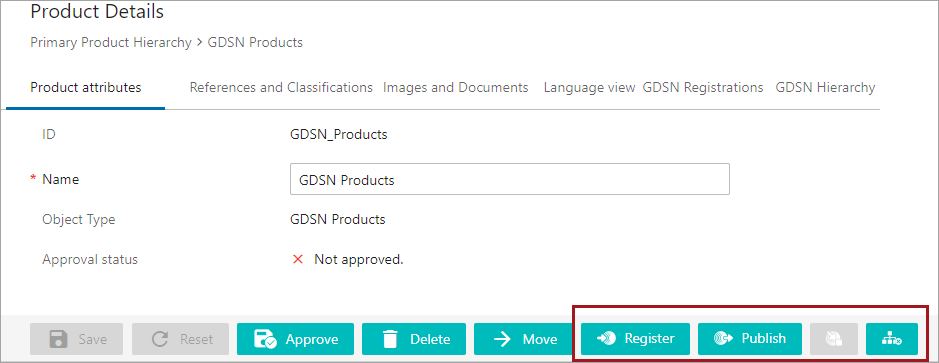
The following button components are available for use in a GDSN Web UI:
 , button registers the selected products with a GDSN datapool. For configuration details, see the GDSN Register Action Button section of the GDSN Provider documentation
 , publishes the selected products to a GDSN recipient. For configuration details, see the GDSN Publish Action Button section of the GDSN Provider documentation
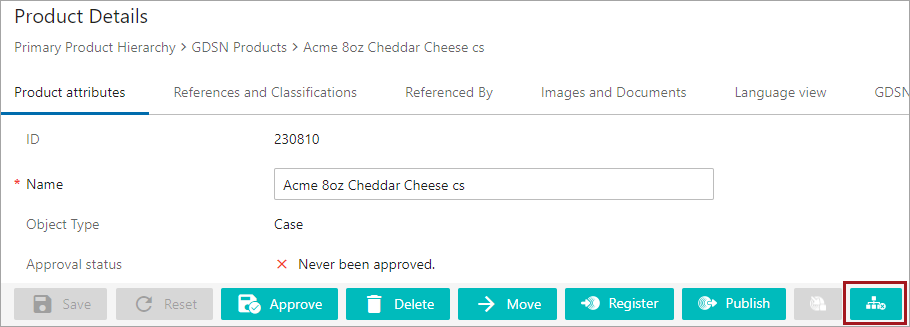
 , sends a hierarchy withdrawal command for the selected packaging hierarchy. For configuration details, see the GDSN Hierarchy Withdrawal Action Button section of the GDSN Provider documentation
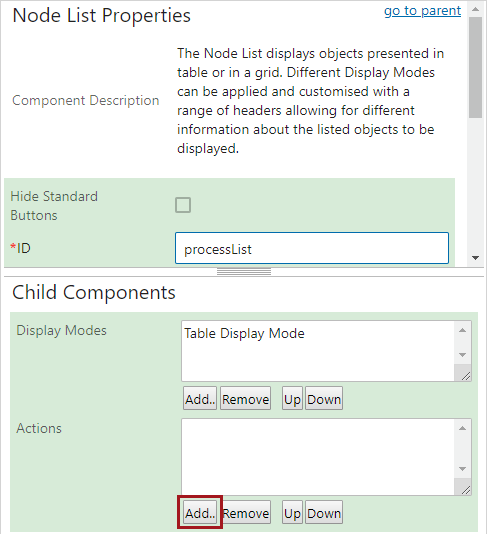
The GDSN Action buttons can be used on both NodeDetail and NodeList screens in either the Toolbar or ButtonPanel. The same set of configuration properties exist regardless of the location of the buttons.
The buttons are pre-configured in the following locations:
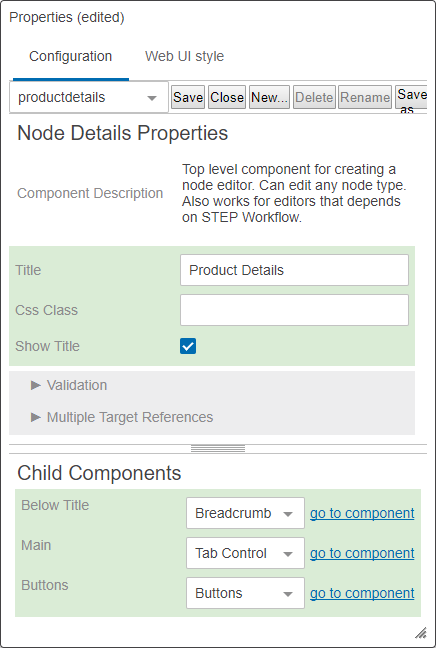
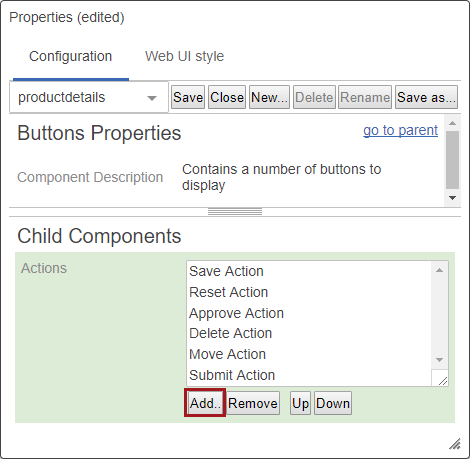
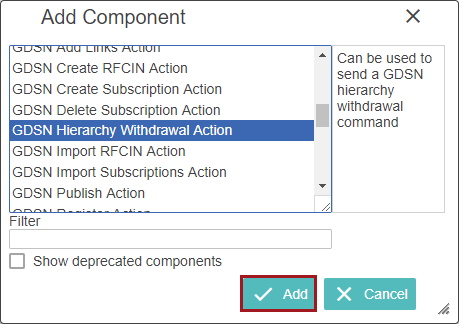
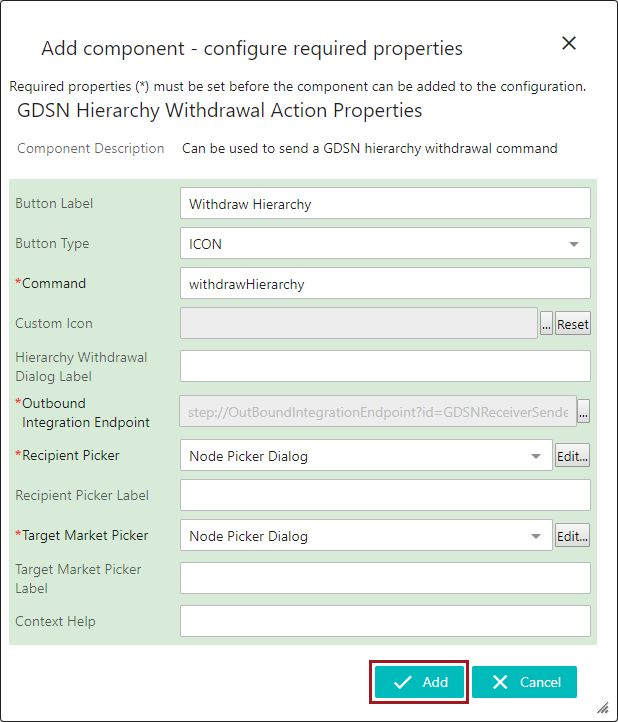
Use these steps to add the required buttons.

2020, Stibo Systems – Confidential