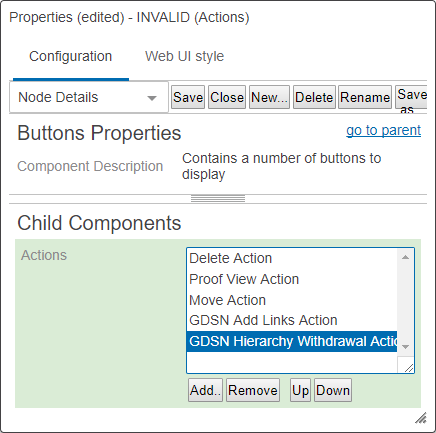
In the Designer, the Web UI component for the Hierarchy Withdrawal button is called GDSN Hierarchy Withdrawal Action. Each parameter is described in the following table.
Note: We can access the ‘GDSN Hierarchy Withdrawal Action’ button through Node List screen as well.
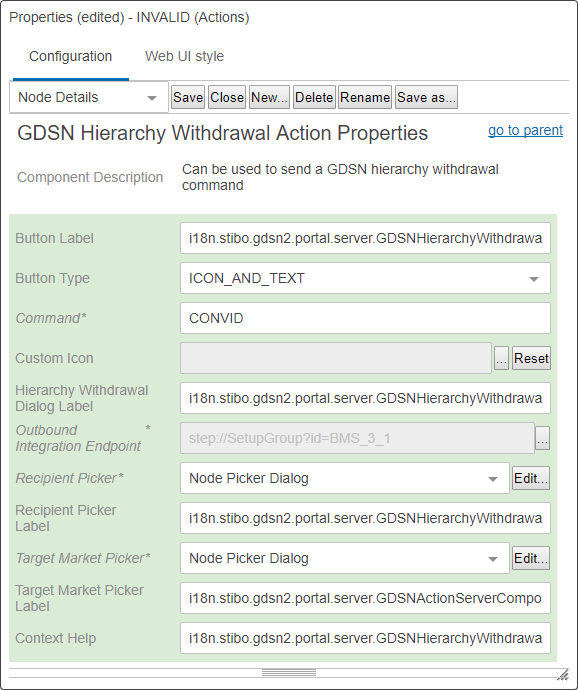
|
Parameter |
Description |
|---|---|
|
Button Label |
Optional Add a label for the Hierarchy Withdrawal button, displayed when the Button Type is Text or Both |
|
Button Type |
Optional Specify if the button should appear with an icon, text (the button label) or both. |
|
Command |
Mandatory Specify which GDSN command that should be executed when a user clicks the Hierarchy Withdrawal button. In the default GDSN configuration, the command is 'hierarchyWithdrawal.' |
|
Custom Icon |
Optional Adding a custom icon will overwrite the default icon displayed in the graphical interface. The recommended size of the icons is 20 (height) x 35 (width) pixels. The recommended colour of the icon in 'Jewel-toned' deep colours that fade well for the disabled state. *It should be noted that custom icons can only be used for actions configured as child components to a Node List screen. |
|
Outbound Integration Endpoint |
Mandatory Specify the Outbound Integration Endpoint that should be used to send the command to the data pool. |
|
Hierarchy Withdrawal Dialog Label |
Optional Add the Hierarchy Withdrawal Dialog Label to the dialog that appears when clicking the Hierarchy Withdrawal button. |
|
Recipient Picker
|
Mandatory Configure the pop-up dialog that enables the end user to pick recipients for the hierarchy withdrawal. |
|
Recipient Picker Label |
Mandatory Apply the label of the pop-up dialog used by end users to pick recipients for the hierarchy withdrawal. |
|
Target Market Picker |
Mandatory Configure the pop-up dialog that enables the end user to pick target markets for the hierarchy withdrawal. |
|
Target Market Picker Label |
Mandatory Apply the label of the pop-up dialog used by end users to pick target markets for the hierarchy withdrawal. |
|
Context Help |
Optional The name of the action will be displayed on mouse hover on the button when presented in the GUI. |
2020, Stibo Systems – Confidential