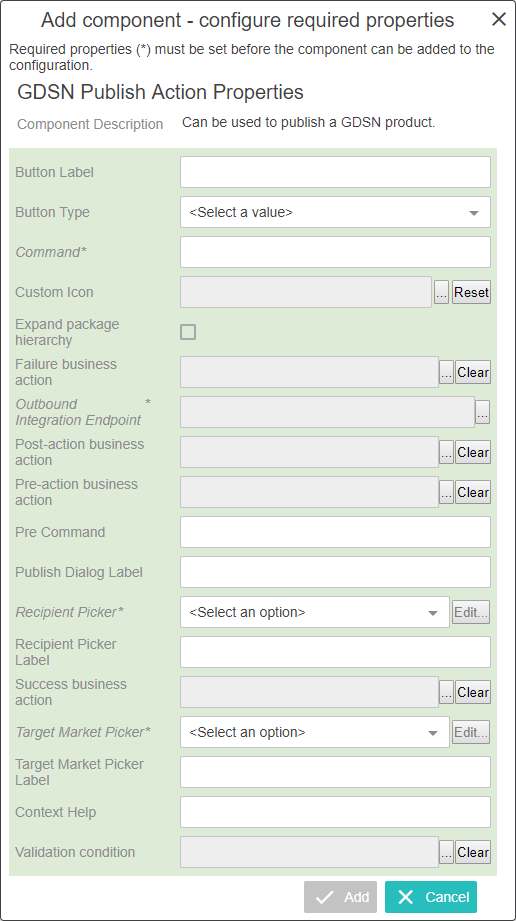
In the Designer, the Web UI component for the Register button is called 'GDSN Register Action.' Each parameter is described in the following table.
|
Parameter |
Description |
|---|---|
|
Button Label |
Optional Add a label for the Publish button, displayed when the Button Type is Text or Both |
|
Button Type |
Optional Specify if the button should appear with an icon, text (the button label) or both. |
|
Command |
Mandatory Specify which GDSN command that should be executed when a user clicks the Publish button. In the default GDSN configuration, the command is 'publish.' |
|
Custom Icon |
Optional Adding a custom icon will overwrite the default icon displayed in the graphical interface. The recommended size of the icons is 20 (height) x 35 (width) pixels. The recommended colour of the icon in 'Jewel-toned' deep colors that fade well for the disabled state. *It should be noted that custom icons can only be used for actions configured as child components to a Node List screen. |
|
Expand package hierarchy |
When checked, the publication also includes lower level objects in the packaging hierarchy. When unchecked, the publication will only include the selected product. |
|
Failure business action |
Optional Specify which business action to run if the Validation condition fails. |
|
Outbound Integration Endpoint |
Mandatory Specify the Outbound Integration Endpoint that should be used to send the command to the data pool. |
|
Post-action business action |
Optional Specify the Business Action that should run after clicking the Publish button. |
|
Pre-action business action |
Optional Specify the Business Action that runs first (before any other Business Rules) when clicking the Publish button. This could be used to determine which GDSN command should be sent (Change_By_Refresh or Modify). |
|
Pre Command |
Optional Specify the GDSN command that runs prior to the publishing of the product. This could be a register command that is configured to send an update document type to GDSN in order to ensure that the current attribute values in STEP are synched with the values that are stored in GDSN. |
|
Publish Dialog Label |
Optional Apply the label of the publish dialog that appears when clicking the Publish button. |
|
Recipient Picker
|
Mandatory Configure the pop-up dialog that enables the end user to pick recipients for the publication. |
|
Recipient Picker Label |
Mandatory Apply the label of the pop-up dialog used by end users to pick recipients for the publication. |
|
Success business action |
Optional Specify which business action to run if the Validation condition is successful. |
|
Target Market Picker |
Mandatory Configure the pop-up dialog that enables the end user to pick the target markets for the publication. |
|
Target Market Picker Label |
Mandatory Apply the label of the pop-up dialog used by end users to pick the target markets for the publication. |
|
Context Help |
Optional The name of the action will be displayed on mouse hover on the button when presented in the GUI. |
|
Validation condition |
Optional Specify which business condition is validated before the product is processed further. Depending on the outcome of the validation, the 'Success business action' or the 'Failure business action' is called. If no condition is configured, no validation is executed and the Success / Failure business actions are not used. If a condition is configured, a Preflight option is presented in the Publish dialog, enabling the user to run the Validation conditions and the Success / Failure business actions without actually publishing to the GDSN. |
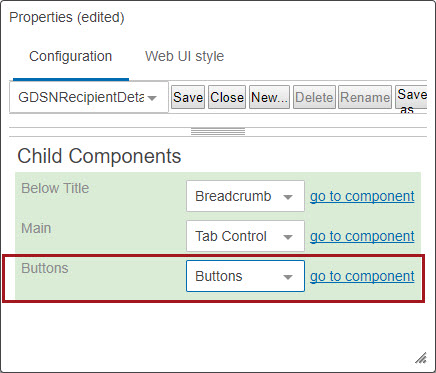
In the Child Components section, click the go to component link for the Buttons field.
GDSN Publisher Action Properties screen will be displayed.
Note: The ‘GDSN Publisher Action’ button can be accessed through Node List screen as well.
Note: The following business rules (business action and business condition) must be available in STEP system to add in GDSN Publisher Action properties screen, if required: Failure business action, Post-action business action, Pre-action business action, Success business action, and Validation condition.
After configuring the required fields, click on ‘Save’ and close the designer.
Navigate to the GDSN product to view the configured ‘Register Action’ button.
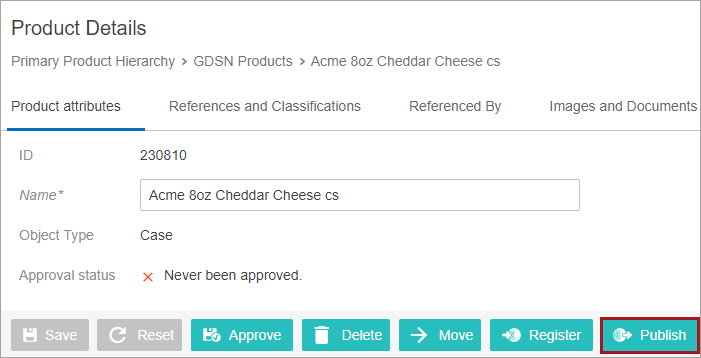
Clicking on the ‘Register’ button will display a pop up where the ‘Target Market’ needs to be selected.
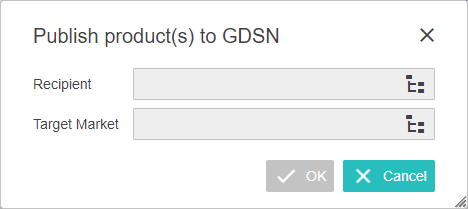
Select the required target market and click on the OK button. A confirmation message will display.

2020, Stibo Systems – Confidential