Action Title
Description
Screen / Component Configuration
Topics with additional Information
Add Autopage Items Action
This component adds items to an Autopage Publication.
Child Action component on a Node List
Node List Component here
Add Selected Items To Collection
This component adds selected nodes to the collection without query URL.
Child Action component on a Node List
Node List Component here
Add To Basket Action
When added to a PowerSearch screen, this action lets users add the selected items to the basket.
Child Action component on a Node List
Node List Component here
Add to Batch Action
When added to the Actions parameter of a Node List, this component allows the user to add the selected items to a batch.
Child Action component on a Node List
Node List Component here
Assign Toolbar Action
On the Task List screen, this component can assign and unassign tasks in bulk. The Assign toolbar action comes by default with two options: 'Release task' and 'Assign to.' Selecting the 'Release task' option will release the task to the user group to which the workflow is assigned. Selecting the 'Assign to' option results in a second dropdown that lists both the default user group to which the workflow has been assigned, and all users to which the task item can be assigned, including the user who has clicked the button.
Child Action component on a Node List
Node List Component here
Assigning Workflow Tasks in Web UI here
Attribute Add Valid Object Types Action
This component adds valid object types to an attribute. The user can browse or search for the desired product object type.
Child Action component on a Node List
Node List Component here
Attribute Management Screen here
Attribute Remove Valid Object Types Action
To remove a valid object type from a product, select the object types that need to be removed, then click on the 'Attribute remove valid object types.'
Child Action component on a Node List
Node List Component here
Attribute Management Screen here
Bulk Update Action
Allows the user to perform a bulk update of the selected items.
Child Action component on a Node List
Node List Component here
Bulk Update List Action
This component allows the user to perform bulk updates of the selected items using templates and root node parameters that house bulk update configurations.
Child Action component on a Node List
Node List Component here
Parameterized Business Actions in Web UI here
Bulk Update Template Action
Allows users to select items in a Node List and update them all at once according to a pre-configured Bulk Update configuration. The title, icon, and help text for the action are configurable.
- How the toolbar action button displays in the toolbar:
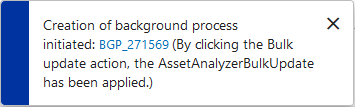
With this component, users can also configure the text that will display in the information popup when the bulk update action has been initiated. Background process popups can be configured to include not only a custom message, but also existing names and processes by adding braced words. The braced words are: {Action}, {Configuration}, {WorkflowID}, {WorkflowName}, {WorkflowState}, {StatusFlag}, {ItemCount} and {ImportFile}. Each of these will bring in the corresponding element name into the background process message.
Below is an example of a valid 'Process Description' message added in the designer:

And below is how the background process popup would display:
Child Action component on a Node List
Node List Component here
Bulk Updates here
Business Action with Web UI Bind
Enables users to execute a business rule when clicking a button in the Web UI. Can be used, for example, to streamline navigation through workflows in the Web UI. Because the Business Action with Web UI Bind component enables business actions to make changes in the Web UI, this component can be applied by admin users in a wide range of scenarios.
Toolbar action button on a Node List or a standard action button on a Node Details screen
Business Action with Web UI Bind Component here
Node List Component here
Node Details Screen here
Cancel Asynchronous Job Action
When added to a job list screen, this component allows the user to cancel the selected asynchronous job(s). Note that this action button is designed to cancel only asynchronous translation jobs, not all backgound process (BGP) jobs.
Child Action component on a Node List
Node List Component here
Change Reference Target Action
This component changes the target of the selected reference(s) in a table.
Child Action component on a Node List
Node List Component here
Confirm Duplicate From Grid Action
When performing a merge, this component confirms the selected items in a grid as duplicates. To perform a merge, choose which objects to merge with the selected node and click 'Confirm duplicate from grid.' In the message that pops up, provide a reason for why they are duplicates, then click OK. Navigate to the 'Confirmed Matches' component screen and select which match to merge the currently selected node with. Then, click the 'Navigate to merge nodes screen' button. On the merge screen, choose which attributes and references will survive the merge by clicking the arrows next to them. Select the surviving node via the radio buttons displayed above the Merge button.
Child Action component on a Node List
Node List Component here
Merging Confirmed Matches here
Create from Template
Allows users to configure product-based templates that can be used to create new products. When one or more templates have been created, users can click on the 'Create from Template' toolbar action to create a new product. A 'Create New Item' window displays with a series of template options, each indicated by an image. Once created and a new name assigned to the new product, the selected template's attributes, attribute values, and references are applied to the new product. This component allows users to configure the new object's object type and placement in the hierarchy to be different than that of the template. It is important to note that an auto ID configuration must be setup for the relevant object type to enable this action.
- How the toolbar action button displays in the toolbar:
Child Action component on a Node List
Node List Component here
Create Collection Action
Collections are containers for storing sets of objects. This action creates a collection from results of a search.
Child Action component on a Node List
Node List Component here
Status Selector Homepage Widget here
Create Collection Action Automotive
This action creates a collection from results of a search within the Application Manager Screen.
Child Action component on a Node List
Node List Component here
Results Table and Toolbar here
Create Confirmed Match From Grid
This action adds an additional confirmed match. Matches must be confirmed via the Potential Duplicates List or Deduplication List screens.
Child Action component on a Node List
Node List Component here
Confirmed Matches Component here
Create References Action
Enables the user to create a reference or link between selected objects and one or more targets for the configured reference or link type. The available reference and link types include Classification, Entity, Image and Document (assets), or Product reference types, or the Product to Classification link type.
The reference and link types applied can be displayed using the 'Reference Header' when configured as a Table Header in a table / grid Display Mode.
Child Action component on a Node List
Node List Component here
Create References Action Configuration here
Delete Confirmed Match From Grid Action
This action deletes a confirmed match.
Child Action component on a Node List
Node List Component here
Confirmed Matches here
Delete From Collection Action
This action deletes the selected item(s) from the collection.
Child Action component on a Node List
Node List Component here
Delete From Grid Action
This action deletes the selected item(s) in the grid.
Child Action component on a Node List
Node List Component here
Download Assets Action
Asset Download is an add-on component for STEP that enables users to provide a URL to an asset on a product and have STEP automatically download the asset. This functionality allows users—typically suppliers—to efficiently create and/or replace their business-critical assets in STEP, adding an additional layer of flexibility in how they can manage and store the assets and images that need to be linked to their products. The Asset Download component enables STEP to pull assets (e.g., images) from external URLs, store them in supplier asset classification structures, and link them to products in an automated operation.
Child Action component on a Node List
Node List Component here
Asset Download here
Duplicate Item Action
Enables users to duplicate a single item in a Node List. Once an object in a Node List (displayed in a tabular view style) is selected, this toolbar action button can be used to duplicate that object. The duplicated item is added to the same parent node as the original and retains all of the original object's information, including references. It is important to note that an auto ID configuration must be setup for the relevant object type to enable this action.
- How the toolbar action button displays in the toolbar:
Child Action component on a Node List
Node List Component here
Edit Collection Search Criteria Action
This action allows the user to edit the search criteria for a collection.
Child Action component on a Node List
Node List Component here
Experian Email Validation
Once all setup is complete, the Experian Email Validation integration allows users to perform email validations on a node list with one click of the 'Validate Emails' button. Users can choose one or more objects containing email account data that need to be validated, then click on the 'Validate Emails' button to run the 'Experian Email validation Job' background process.
Node List component
Experian Email Validation Integration in Web UI here
Export Action
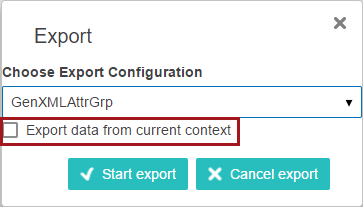
Downloads selected items using the selected export configuration.
- By default, STEPXML and Advanced STEPXML configurations export data from the current Web UI context.
- By default, non-STEPXML configurations export data from the context saved in the export configuration. To overwrite the configuration context and export data from the current Web UI context, check the 'Export data from current context' parameter.
Node List component on a:
- Task List screen
- Display Children screen
- Classification screen
- Collection Content screen
- Asset Basket screen
- Advanced Search screen
Node List Component here
Task List here
Advanced Search here
Export Action Automotive
This action can be added to a Node List within the Application Manager screen for downloading selected items in the current state using a saved export configuration.
Child Action component on a Node List
Node List Component here
Using Automotive Exporters here
Freeze Panes
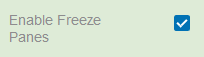
Allows Node List tables viewed in either the Multi Edit or Comparison View modes to be locked vertically and horizontally on a selected cell. The parameter that enables Freeze Panes is available in the 'Advanced' section of the Multi Edit view mode in the designer.
- How the toolbar action button appears in the toolbar:
- How the Enable Freeze Panes parameter appears in the designer:
Node List component in Multi Edit or Compare View
Node List Component here
Generate PDF
This component generates PDF files for the mounted pages in the selected publication(s), section(s), or page(s).
Child Action component on a Node List
Node List Component here
Golden Record Advanced Merge From Grid
This action, when added to a Golden Record Clerical Review Task List screen, opens the Golden Record Advanced Merge Dialog, which allows the user to edit the golden records merged result.
Child Action component on a Node List
Node List Component here
Golden Record Clerical Review Task List here
Golden Record Advanced Merge Dialog here
Golden Record Merge From Grid
In the Golden Record Clerical Review Task List, this action merges the selected task(s) into a single surviving golden record (for each task selected). Which values get promoted to the surviving golden record are determined automatically by the survivorship rules specified on the corresponding matching algorithm.
Child Action component on a Node List
Node List Component here
Golden Record Clerical Review Task List here
Golden Record Reassign From Grid
In the Golden Record Clerical Review Task List, this action enables the user to reassign chosen task(s) to another user or user group configured in the workflow. The new assignee can be selected from the 'Select assignee' dialog box that pops up.
Child Action component on a Node List
Node List Component here
Golden Record Clerical Review Task List here
Golden Record Reject From Grid
In the Golden Record Clerical Review Task List, this action confirms golden records as non-duplicates and removes them from the workflow.
Child Action component on a Node List
Node List Component here
Golden Record Clerical Review Task List here
Golden Record Submit From Grid
This action submits the configured event to the chosen task(s) in the Golden Record Clerical Review Task List.
Child Action component on a Node List
Node List Component here
Golden Record Clerical Review Task List here
Guided Data Entry
This action will move selected items into Guided Data Entry. The Guided Data Entry window displays configured attributes, attribute groups, and reference types for the selected objects. Users may then add attribute values or references to complete the Guided Data Entry 'stepper.'
Child Action component on a Node List
Node List Component here
Adding Guided Data Entry to Web UI here
Initiate Business Action
Once configured, the Initiate Business action component can be used to start a business action.
Below is an example of the Initiate Business Action button:

Child Action component on a Node List
Node List Component here
Using Asset Download here
Initiate Business Condition
Creates a button for initiating a business condition.
Child Action component on a Node List
Node List Component here
Initiate Business Rule Action
Action for invoking a business rule on a single selected entry.
Child Action component on a Node List
Node List Component here
Merge Confirmed Match From Grid Action
This action launches a screen where one can view and merge two nodes. In order to perform a merge, the user chooses which attributes and references will survive the merge, then select the surviving node via the radio buttons and clicks the Merge button.
Child Action component on a Node List
Node List Component here
Merging Confirmed Matches here
Move Action
This component can be used for moving products in the product hierarchy. If it is placed in the Buttons component, it will move the currently selected product. If it is placed in the Actions parameter on a Node List, it will move the products that are selected in the list.
Child Action component on a Node List
Node List Component here
New Item Action
This action can be added to a Node List inside the Children Of Types screen. This allows the user to create new children below the selected product.
Child Action component on a Node List
Node List Component here
Children of Types Screen here
Refresh Profile Action
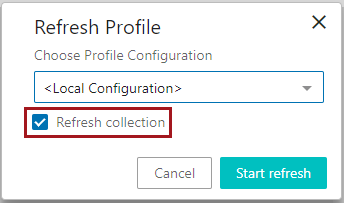
Allows the user to manually generate / update a data profile for the currently selected collection.
When clicked, the user is prompted to select a profile configuration. A 'Refresh collection' option is also available. Checking this box will refresh the collection before the profile is run:
A link to the background process is provided any time this action button is used.
Child Action component on a Node Lists screen
Node List Component here
Reject Duplicate From Grid Action
This component, which can be used while merging confirmed matches or confirming a deduplication via clerical review, rejects the selected items in grid as duplicates.
Child Action component on a Node List
Node List Component here
Merging Confirmed Matches here
Configuring a Deduplication Clerical Review here
Remove From Basket Action
This action can be added to the Basket screen. It allows the user to remove the selected items from the basket.
Child Action component on a Node List
Node List Component here
Remove References Action
This component enables users to remove one or multiple references from one or multiple objects in a Node List. Once properly configured, initiating this action brings up a window displaying a menu of all configured reference types for which there are references, along with the objects referenced using that reference type. Users may then select one or more of the referenced objects and remove all references to that object in all selected Node List items in one action.
- How the toolbar action button appears in the toolbar:
Child Action component on a Node Lists screen
Node List Component here
Select
This action can be added to a Planned Spread Navigator screen. This allows the user to choose the version for which to display the planned pages.
Child Action component on a Node List
Node List Component here
Simple Exporter Action
The Simple Export action can be added to a toolbar on a given screen a Node List or Task List, enabling the user to export a selection of products, classifications, or entities. Supported export formats for the simple export are Excel and CSV.
Child Action component on a Node List
Node List Component here
Simple Export here
Smart Sheet Export Action
Used alongside the Smartsheet Import action, the Smartsheet Export action maintains product data by allowing users to download Smartsheet maintenance files from products in a workflow. To access the Smartsheet Export action, the user must be a member of a supplier group and have appropriate privileges to access the Web UI Designer.
Child Action component on a Node List
Node List Component here
Smartsheet Export Action here
Start Workflow From Grid
When working with objects in Web UI, a Start Workflow Action button can be added to any Node Details screen. This allows users to work with object data and then initiate the object into a workflow with a click of a button. You simply click the 'Start STEP Workflow' button at the bottom of the screen. The button will only activate when initiation is possible. If deactivated, the object may already exist as a task in the designated workflow.
Note: The button label for 'Start STEP Workflow' can be configured in the designer.
Child Action component on a Node List
Node List Component here
Initiating Objects in a Workflow using Web UI here
Stateflow Filtering Action
This action, when added to a Planned Spread Navigator screen, allows the user to filter pages by stateflow assignee.
Child Action component on a Node List
Node List Component here
Submit From Grid Action
This action submits the selected item(s) in a grid.
Child Action component on a Node List
Node List Component here
Unlink Duplicate From Grid Action
This action unlinks the selected items in a grid. To use this action, select two source records and click the Unlink Duplicates button. This will unlink the two records and mark them as confirmed non-duplicates. Only one will survive and remain linked to the golden record.
Child Action component on a Node List
Node List Component here
Golden Record Linked Members Component here
Unlink Single Record from Golden Action
This action unlinks the selected record from the golden record. To use this action, select one source record and click the Unlink Single Record From Golden button. This will remove the source record reference from the golden record.
Child Action component on a Node List
Node List Component here
Golden Record Linked Members Component here
Update Profile Action
Allows the user to manually generate / update a data profile for the currently selected node.
When clicked, the user is prompted to select a profile configuration:
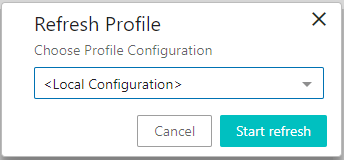
When updating a collection profile, a 'Refresh collection' option is also available. Checking this box will refresh the collection before the profile is run.
A link to the background process is provided any time this action button is used.
Child Action component on a Node Lists screen
Node Details Screen here
Upload Asset Action
The Upload Asset action, which can be added to a Folder screen or Asset Folder screen, allows the user to upload and create an asset in the current classification for the screen.
Note: An asset importer configuration must be selected before uploading an asset. The configuration will apply its rules against the imported asset and make any necessary changes (or reject if it fails to meet minimum requirements).
Child Action component on a Node List
Node List Component here
Asset Importer in Web UI here