The Asset Download component enables users to download assets from URLs and link them to supplier products by performing bulk updates or executing business actions on these products. By using the downloadAssetContent public API JavaScript method, users can perform any number of additional operations, such as downloading assets to non-supplier products, or executing an action on asset objects to replace their content.
Multiple assets can be downloaded onto multiple products in single actions, including, but not limited to: bulk updates; as part of a workflow; as part of an import; or executed based on events via an event processor. This functionality can also be used for non-image assets, such as owners manuals, MSDS sheets, and so forth.
The following examples describe a small selection of use cases and possible setups for using the Asset Download component.
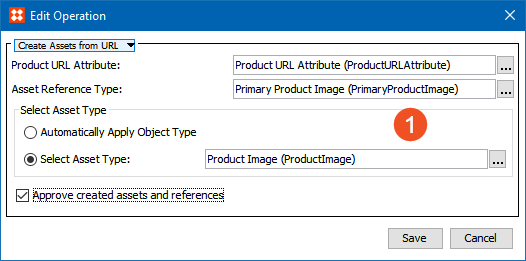
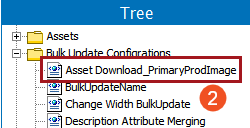
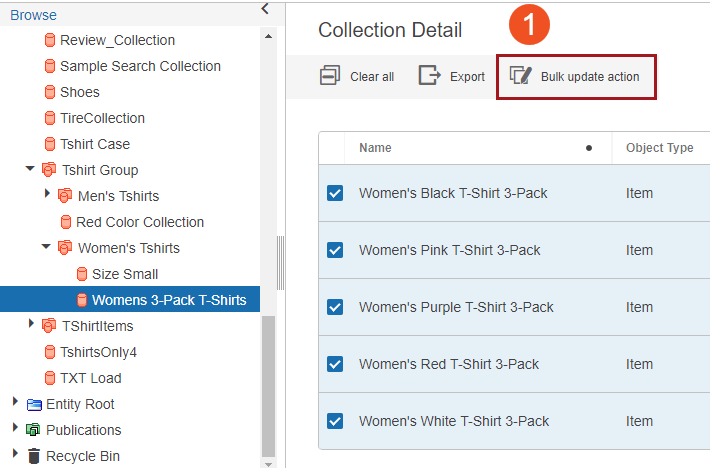
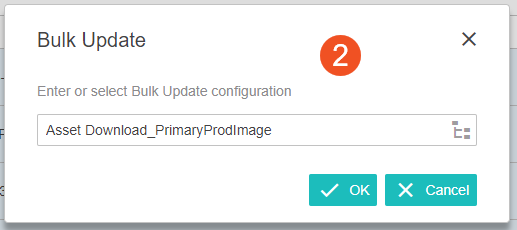
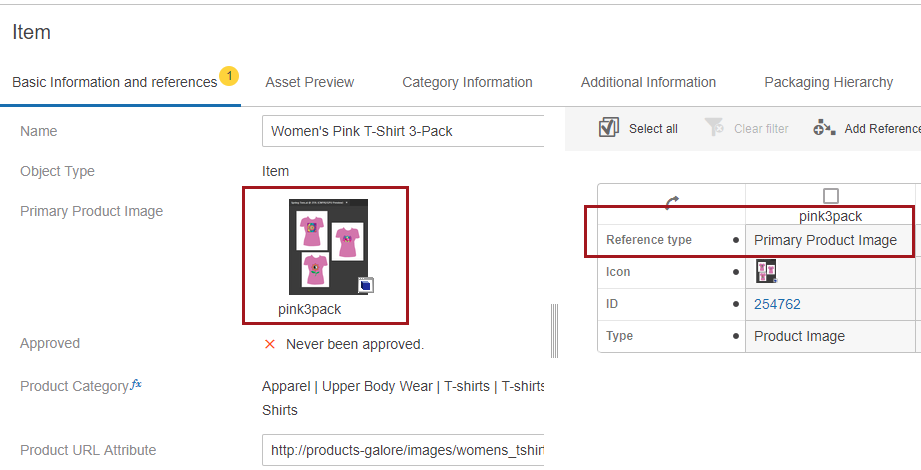
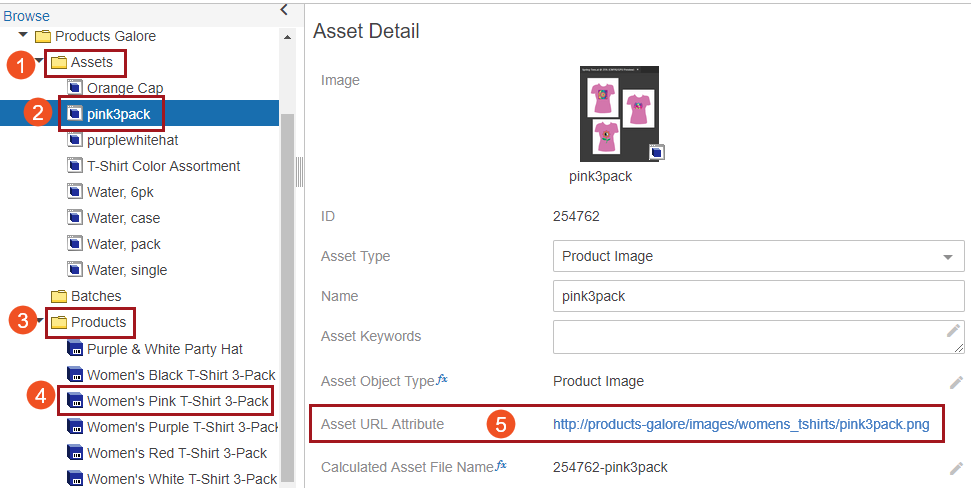
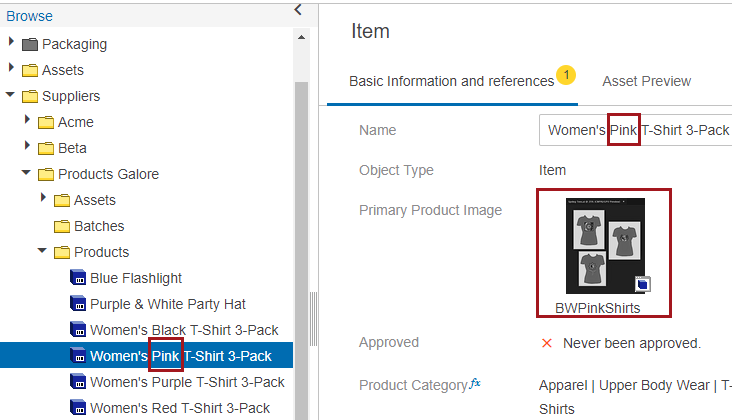
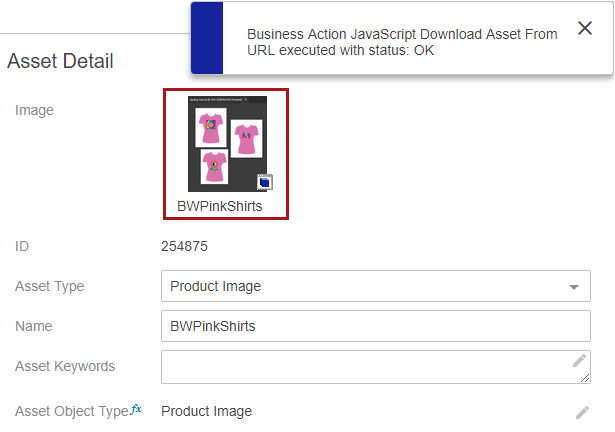
This example shows how assets can be downloaded and linked to products by performing a bulk update on a collection of T-Shirt products in the Web UI. This example will download images and link them to the products using the Primary Product Image asset reference type. Setups must be performed both in STEP Workbench and the Web UI to enable the solution. The same type of operation could also be used for scheduled bulk updates, which could be run overnight to enrich a larger number of products with images.
For more information on how to configure a 'Create Assets from URL' bulk update operation, see the Configuring Asset Download - Business Rules and Bulk Updates topic here. For more information on how to create a bulk update configuration, see the Bulk Updates documentation here.
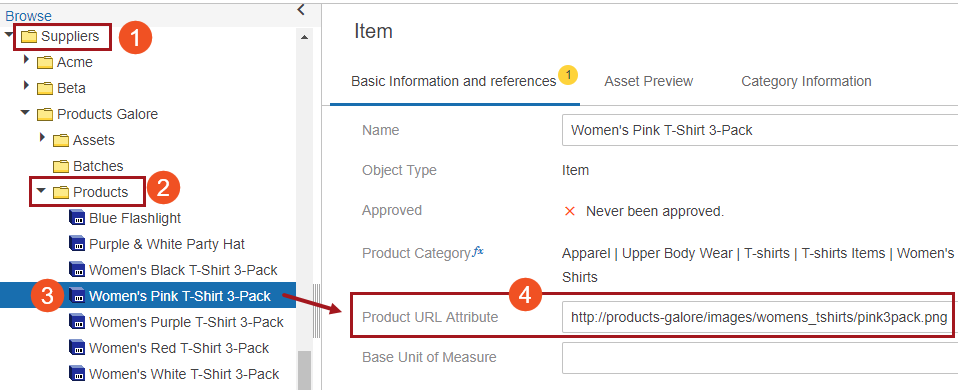
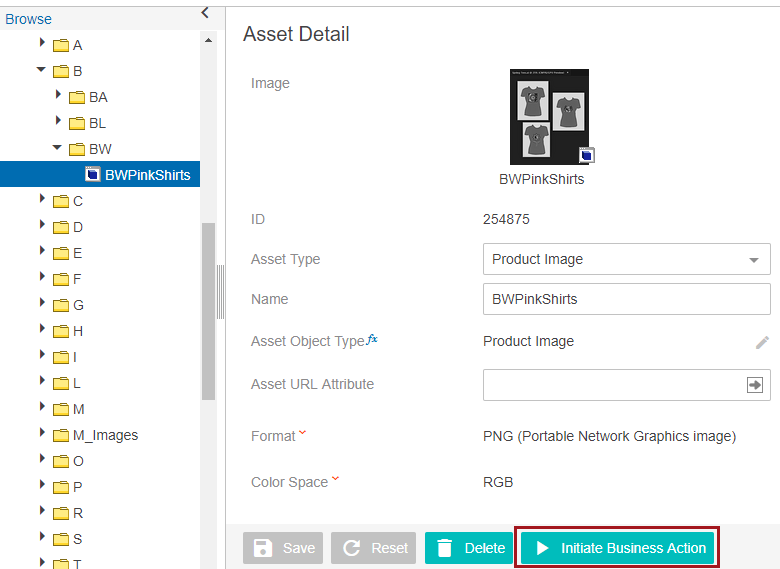
Note: This attribute is the user-created product URL attribute that is valid on products, not the Asset URL Attribute, valid on assets, that is automatically created when Asset Download is installed. It does not matter if this attribute is populated in the workbench or in the Web UI.
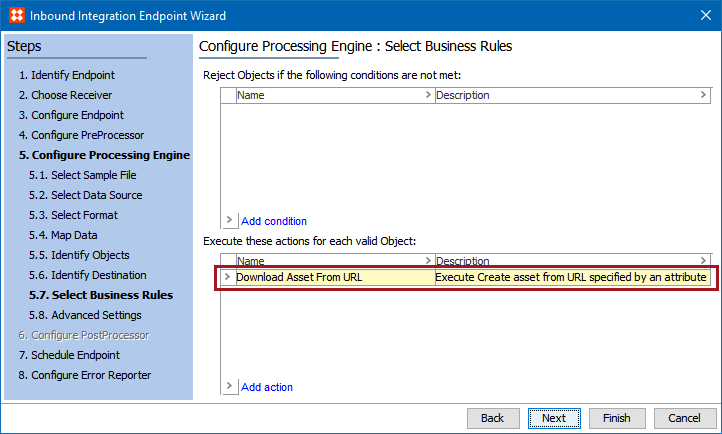
Another example of where a Create Assets from URL business action can be executed is when products are imported into STEP. The below screenshot shows a sample screen from the Inbound Integration Endpoint Wizard, where a business rule named 'Download Asset From URL' has been specified to execute for each valid object on import.
This method could, for example, be used as an alternative to the Asset Importer tool (detailed in the Asset Importer documentation here). By importing a spreadsheet containing supplier products and the attribute values for each asset URL, not only can the products be created, but the assets can also be created, linked to the products, and linked into the assets folder that exists alongside the product folder in the supplier classification hierarchy (both being located inside the same supplier root folder).
For more information on adding business rules to Inbound Integration Endpoints and using business rules on import, see the IIEP - Configure STEP Importer Processing Engine section of the Inbound Integration Endpoints documentation here and the Import Manager - Select Business Rules section of the Import Manager documentation here.
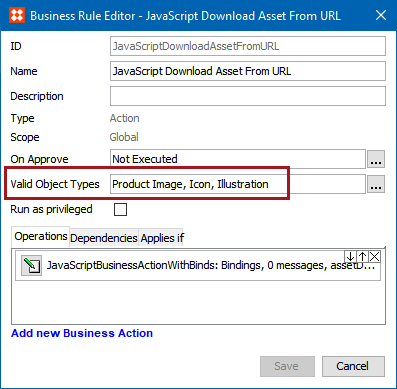
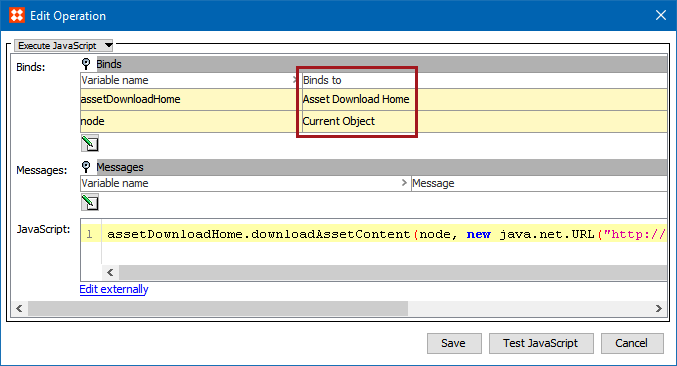
This example shows a basic Execute JavaScript business action that uses the downloadAssetContent public API JavaScript method along with the Asset Download Home bind, which is located under the Assets category for Execute JavaScript business actions.
assetDownloadHome.downloadAssetContent(node, new java.net.URL("http://products-galore/images/womens_tshirts/pink3pack.png"));
2019, Stibo Systems – Confidential