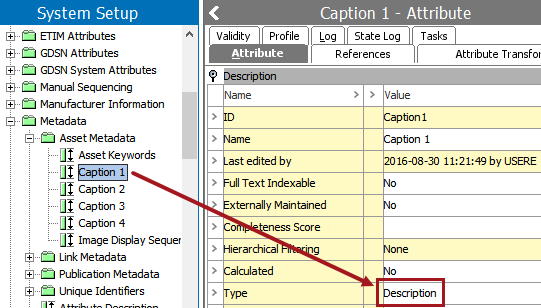
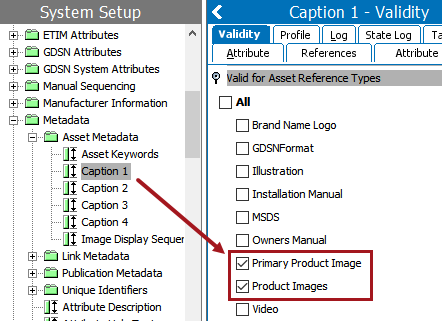
To keep the number of caption attributes at a minimum in STEP, image metadata captions are commonly used. Image metadata captions are description attributes that are made valid for Asset Reference types. As such, they exist on the link between products and assets. Grouped frames are used on product templates to mount these captions along with their corresponding images onto InDesign pages.
Using metadata captions for images keeps the number of caption attributes low because a single metadata attribute can be used, for example, on seven images that are linked to a single product, as opposed to needing seven different caption attributes. Another advantage to using caption attributes that are valid for an asset reference type, as opposed to using a description attribute that is valid on the asset type itself, is that the caption is not attached to the asset, and can change from product to product that the image is linked to.
Metadata image caption attributes are created and configured like any other description attribute that is made valid on an asset reference type. If your system does not already have attribute(s) that are being used for image captions, you can create them with the following steps.
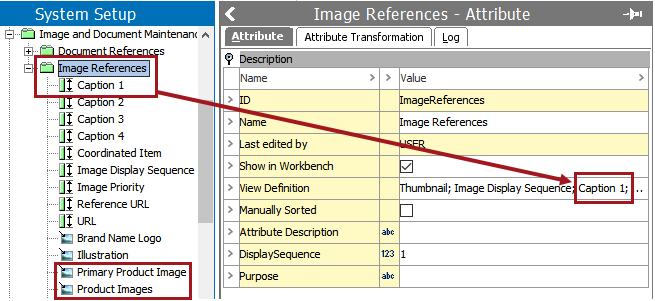
For details on how to configure a view definition for an attribute group, see the Attribute Groups topic in the System Setup / Super User Guide documentation here.
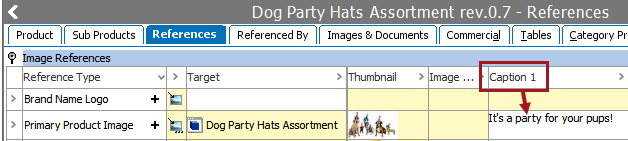
Once the image caption attribute has been created and configured, the next step is to configure a grouped frame on your product template that contains an image frame for the asset and a text frame for the caption. These configurations are applied using the STEP Template Frame palette.
The following steps assume that you have already created a product template with an image frame and a text frame (which contains the STEPXML tag for the caption attribute), the template is open in InDesign, and the STEP Template Frame palette is also open. For more detailed information on all available options on the STEP Template Frame palette for image frames, see the Image Frame Parameters topic here. For more detailed information on all available options on the STEP Template Frame palette for grouped frames, see the Grouped Frame Parameters topic here.
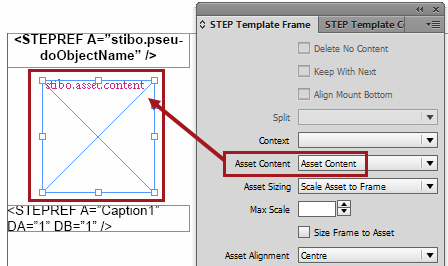
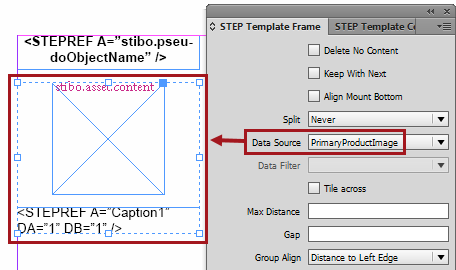

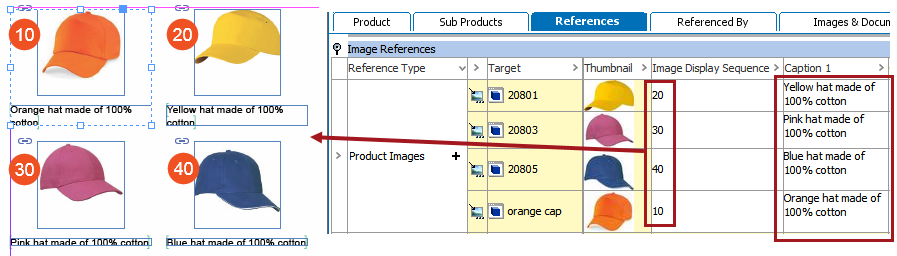
Image frames that are part of grouped frames can also be tiled and sequenced on the InDesign page when the product to which the images are linked is mounted. For information on sequencing images in InDesign, see the Sequencing Images in InDesign topic here.
2019, Stibo Systems – Confidential