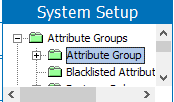
Attributes are maintained in System Setup, and are characteristics or detailed pieces of information that relate to a particular object, or show relations between objects (Reference / Link). To create an attribute, follow the directions below.
Attributes can also be created in bulk, using the export and import functionality and the Excel format. For details, see the Managing Attribute Parameters with Excel topic here.
Create an Attribute
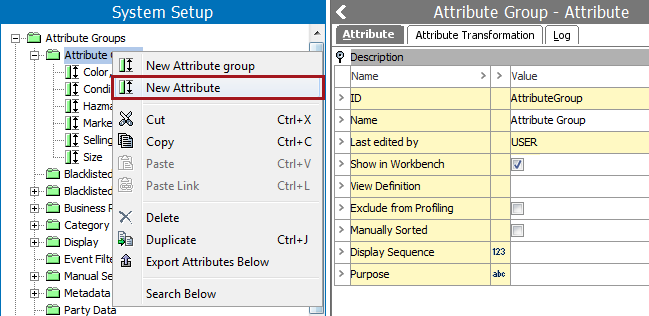
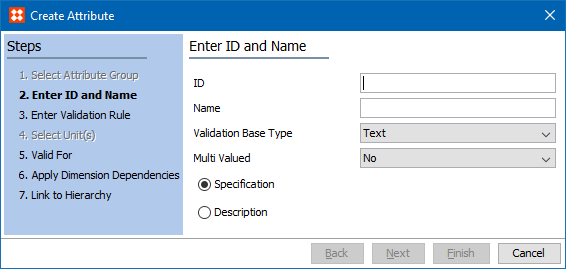
A Create Attribute wizard appears.
Select the sort of validation that the attribute should be based on from the list.
Select if the attribute should hold multiple values on each product or only one value per product.
Determine whether it is a specification or description attribute. Click Next.
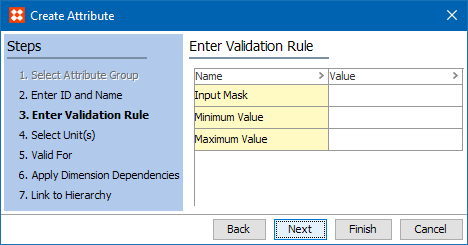
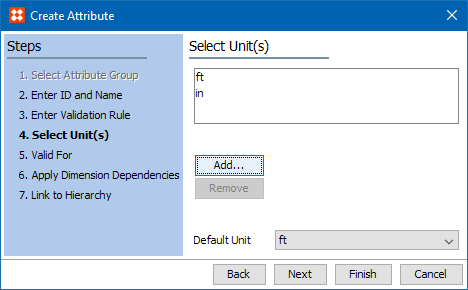
Search or browse to add one or more relevant Units or Unit Groups.
Select a unit to be selected as default unit. Click Next.
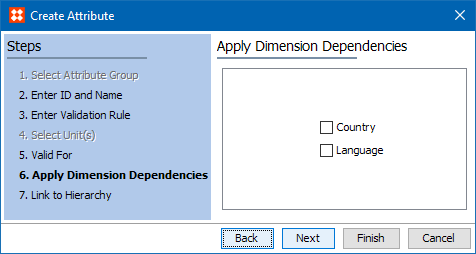
Note: If the attribute should be a description attribute or a Link Attribute, it is not necessary to link the attribute to a Product or a Classification.
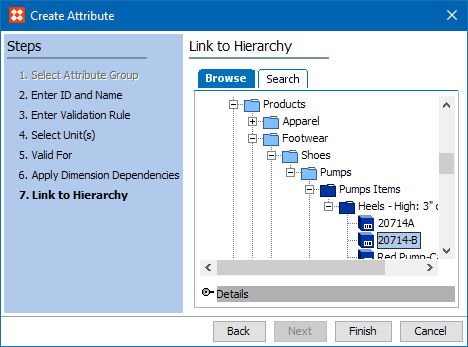
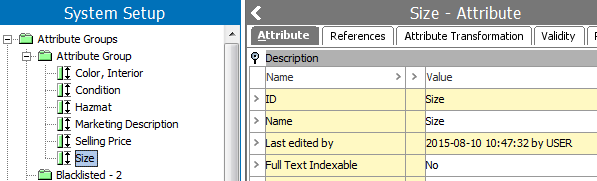
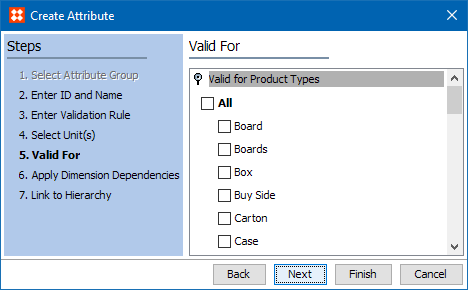
Note: Attributes are created as specification attributes by default. Specification attributes are only valid for Product Object Types. If an attribute should be valid for Classification Object Types, for example, it must be changed into a description attribute.
The next steps in attribute creation, as required, are to specify externally maintained, calculated, and/or specify the validity.
2019, Stibo Systems – Confidential