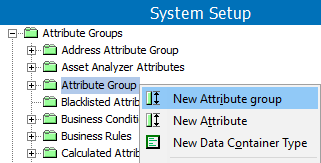
Using attribute groups, you can group attributes, reference types, link types, and data container types according to their characteristics. An attribute group can also consist of a number of attribute subgroups. This scheme provides a better overview on a larger number of attributes, reference types, and link types.
Note: It is recommended to limit the number of main attribute groups, and create attribute subgroups instead.
Examples of main attribute groups could be:
The following are examples of attribute subgroups:
|
Attribute Main Group |
Included Subgroups |
Included Attributes |
|---|---|---|
|
Technical |
Dimensions |
Length, Depth, Height, Width |
|
|
FrameColor |
FrameColor, SeatColor |
|
|
Temperature |
Minimum, Maximum, Outdoor, Indoor, Operating |
|
PriceGroup |
Stibo Systems Main |
Price Break 1, Price Break 2, Discontinued |
|
|
Stibo Systems UK |
Price Break 1, Price Break 2, Discontinued |
|
|
Stibo Systems US |
Price Break 1, Price Break 2, Discontinued |
Creating subgroups makes it easier to organize and view related attributes. Typically, you will need to link all (or most) of the attributes in a subgroup, which is done by multi-selecting and linking the selected attributes.
Note: Attribute groups can be specified in privilege rules. For example, specified users can change the values of attributes within the 'PriceGroup' attribute group.
Note: It is recommended to limit the number of main groups. Create attribute subgroups instead.
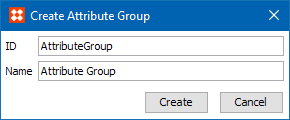
Attribute groups that contain reference types and product to classification link types can have their views defined. The customized view defines general aspects, meta data attributes and attributes on referenced objects. These referenced objects appear in the References editor on products, classifications, and assets.
Important: Approving a reference or product to classification link on a product, classification, or asset having a customized view defined will approve all general aspects and metadata attributes defined on the reference. Additionally, it also approves all general aspects and metadata attributes defined on the reference type or product to classification link type.
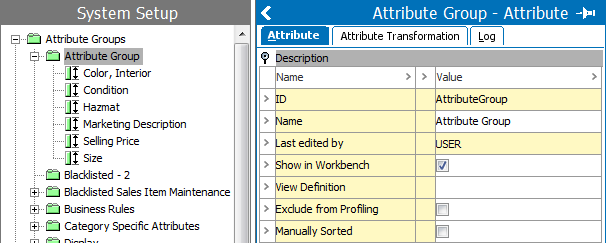
 ). Then click the ellipsis button () to specify the appearance of reference types and product to classification link types linked into the attribute group. The View Definition Dialog appears.
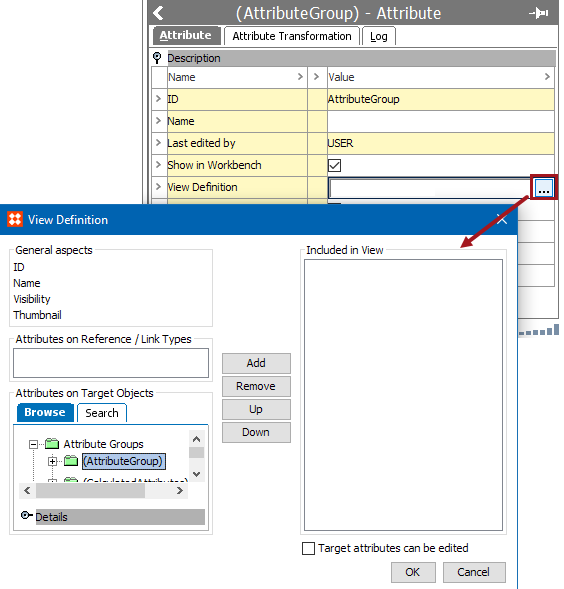
Note: A saved view definition does not influence attributes linked into the attribute group.
|
General Aspects |
Definition |
|---|---|
|
ID |
ID shows the ID of the referenced / linked object. |
|
Name |
Name shows the name of the referenced / linked object |
|
Visibility |
Visibility shows in which contexts a reference or product to classification link is visible. Reference types or product to classification link types that are dimension dependent are editable by users with the required privileges. |
|
Thumbnail |
For product to product References and product to image references, a thumbnail of the primary image of the target object is shown. |
|
Attributes on References / Link Types |
Definition |
|---|---|
|
Metadata Attributes |
This field lists the metadata attributes that have been applied to the reference types and product to classification link types linked into the attribute group. |
|
Attributes on Target Objects |
Definition |
|---|---|
|
Description Attributes or Specification Attributes |
In Attributes on Target Objects you can search or browse for attributes. When you add an attribute to the view from this field, it displays the attribute value in the reference editor. Each reference type establishes the hierarchical position among the referenced objects. The direction will identify one object as the master and the referenced object as the subordinate. A master object is the object that the reference is made from. A subordinate object is the object that the reference is made to. Attributes applied from this field are values from the subordinate object. Checking 'Target Attributes can be edited' enables maintenance of the values of the selected attributes from the reference editor. Editing is allowed in the reference editor if the user privileges allow maintenance of the attribute values. |
It is possible to manually define the order of attributes within an attribute group. To enable manual sorting, select the attribute group in System Setup below Attribute Groups. In the editor for the attribute group, select Manually Sorted. Note that attribute groups can only be manually sorted if they only have attributes as children—manual sorting of attribute groups, reference types, data containers, etc., are not allowed.
After the attribute group has been configured as Manually Sorted, drag and drop can be used for setting the order of attributes within the attribute group. This order will override any other attribute ordering used in various places where that particular attribute group is used, e.g., in the STEP Workbench, when viewing the values of a product below the attribute group flipper for this attribute group. If the attribute is used in another attribute group as well, the ordering inside that attribute group will be independent of the ordering within this group.
As per default, attribute groups shown in the Product Editor of a product are shown in alphabetical order. If an Attribute Display Sequence Attribute has been set on your STEP system, the attribute groups shown in the Product Editor are sorted according to the order set in the Display Sequence attribute.
Note: The Display Sequence attribute only has an impact on the attributes shown in the Product Editor. It does not affect the order in which attributes are exported.
The attribute groups shown in the Product Editor can be sorted according to the order set in the Display Sequence attribute. This can be done by setting a number in the Display Sequence field of the attribute itself.
2019, Stibo Systems – Confidential