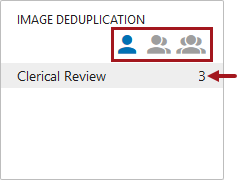
When the Auto-Handling Threshold parameter in the image deduplication configuration is set to 'Yes,' images that cannot be handled by auto-handling are sent to clerical review to be addressed manually. When the Auto-Handling Threshold parameter in the image deduplication configuration is set to 'No,' all images evaluated are sent to clerical review to be addressed manually.
Managing clerical review tasks in the workflow includes identifying duplicate images and then confirming or overriding the selected master image.
Prerequisites
Before you can use the clerical review workflow, you must:
Configuration
To ensure the best user experience in Web UI, the maximum number of images that can be included in a group for deduplication evaluation is limited to 250 by default. When the number of images exceeds the limit, a number of groups are created of approximately equal sizes. For example, with the default limit, if 500 images are being evaluated, two groups of 250 each are created, but with 251 images being evaluated, the two groups created will include 125 and 126 images.
The default can be changed via the sharedconfig.properties file on the STEP application server using the case-sensitive ImageDeduplication.ImageDeduplicationClericalReviewGroupMaxSize property up to a maximum size of 2,000. When this property is absent from the file, the default is used. Any number entered above 2,000 is ignored and the 2,000 max is used.
For example, you could use the following text to increase the limit to 300:
ImageDeduplication.ImageDeduplicationClericalReviewGroupMaxSize= 300
When a group of images is split due to the number of images being evaluated, an message is included in the execution report and in the logs beginning with the following text:
Group with master ID [Master ID] exceeds the group size specified in the ImageDeduplication.ImageDeduplicationClericalReviewGroupMaxSize property and has therefore been split into [Number of groups] groups. The IDs of the masters for the additional group(s) are: [Master ID], [Master ID]...
Use the following steps to address images that are sent to the image deduplication clerical review.
Important: To open the duplicate suggestions page you must click on the name, not the image itself.
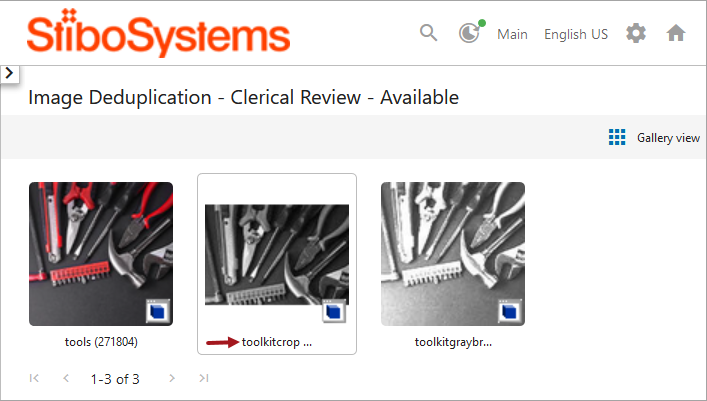
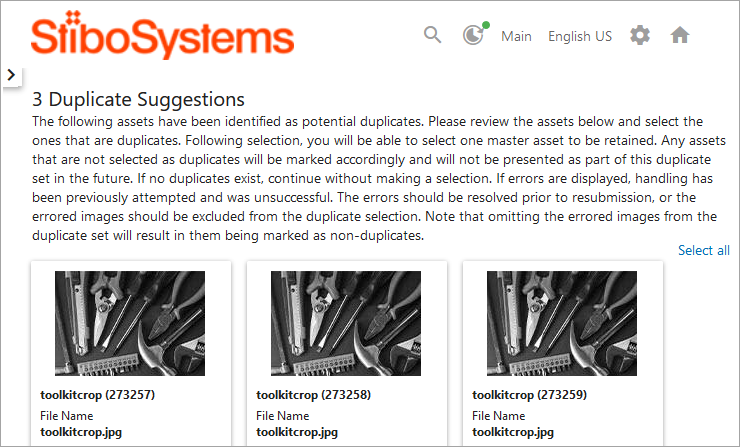
After performing the steps in the previous section Identifying Duplicate Images, use the following steps to complete the deduplication process.
Note: Text that exceeds the setting on the title and metadata attribute parameters is not displayed. To display more text, see the available 'Number of rows displayed' parameters in the Image Deduplication Clerical Review Screen topic of the Web User Interfaces / Web UI Setup and User Guide documentation here.
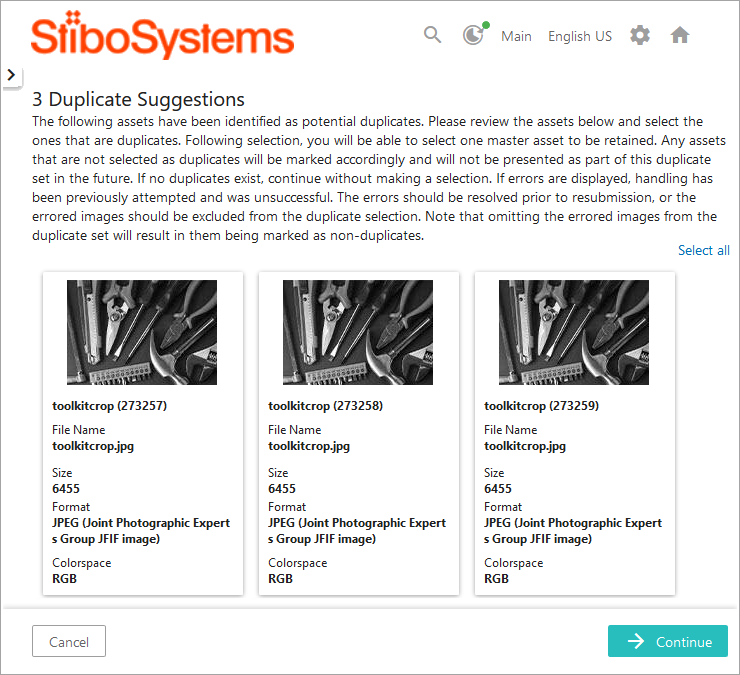
Perform one or more actions:
 ). Click with this pointer to view the image in a separate dialog that can be resized or moved. Multiple images can be displayed in this way at the same time for better visual comparison. Click the X to close the zoomed image.
 ), and a blue border on the image card. Click an image card with a check mark to remove the check mark. The absence of a check mark indicates that the image is not a duplicate and will be marked as a 'confirmed non-duplicate' of the master.
 Click the Select all or the Deselect all link to mark or remove the marks from all images displayed.

Note: It is expected that two or more images will be selected as duplicates, or none will be selected at all. Selecting only one results in only that image being available to select as the master in clerical review. Selecting no duplicates results in all being marked as non-duplicates of one another and removes them from future comparisons unless new assets are added that cause them to be reconsidered.
Note: If none of the images presented in the Duplicate Suggestions screen are duplicates, none will be selected. Clicking the Continue button and confirming that all images are non-duplicates skips the Select Master page and runs the image deduplication handler.
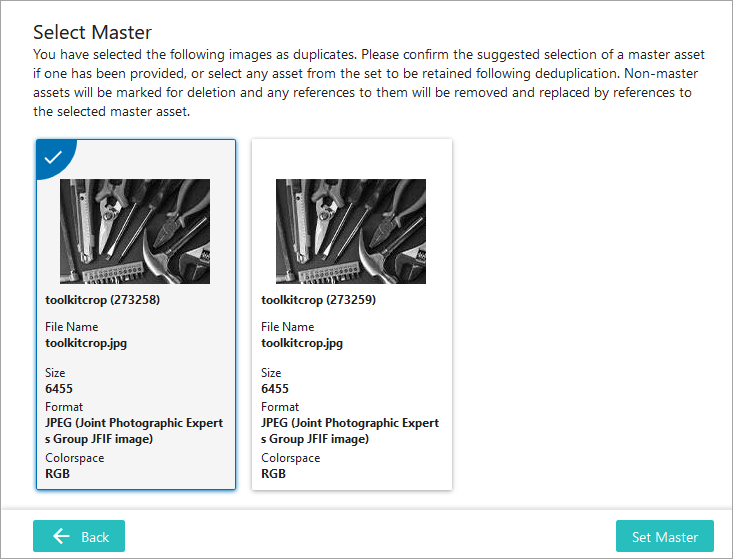
Perform one or more actions:
). Click with this pointer to view the image in a separate dialog that can be resized or moved. Multiple images can be displayed in this way at the same time for better visual comparison. Click the X to close the dialog. (Example image shown in the previous step.)) and a blue border on the image card. As necessary, to override the selection, click on any metadata attribute for a different image card to select that image as the master. If the system-selected master image was not selected as a duplicate in the Duplicate Suggestions screen, no images are selected for the master. One (and only one) image card must be set as master to complete the workflow task. The absence of a check mark indicates that the image is a duplicate and will be marked for deletion.
 ) and a red border is added to on the image card.
Click the error indicator to display details for resolving the problem.
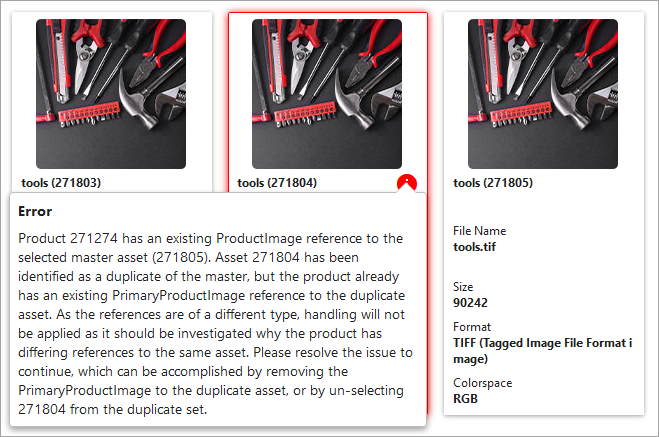
Once the 'Image Deduplication Run' handler finishes without error, the workflow task is submitted successfully, and the 'Deduplication completed successfully' message is displayed. This message indicates that the images in the group have been set as confirmed duplicates, confirmed non-duplicates, or the master. Additionally, references for confirmed duplicates have been moved to the master. For details, see the Updating Image Metadata section of the Handling Duplicate Images topic here.
A submitted workflow task is no longer displayed on the task list. Other groups found to be potential duplicate groups are displayed and can be evaluated by repeating the steps starting with step number 2 above.
Important: Once an image is marked as a duplicate (its 'Deduplication Delete Flag' metadata attribute is set to 'true') it is ignored by the deduplication functionality, and the final processing should be performed manually. That may include using a workflow to verify and then delete it from STEP, or move it to a hierarchy node outside of the one selected in the configuration, or searching to find all images marked for deletion and then deleting them from STEP as a group. The final processing should also include removing the IDs of the deleted images from the 'Confirmed Duplicates' metadata attribute.
2019, Stibo Systems – Confidential