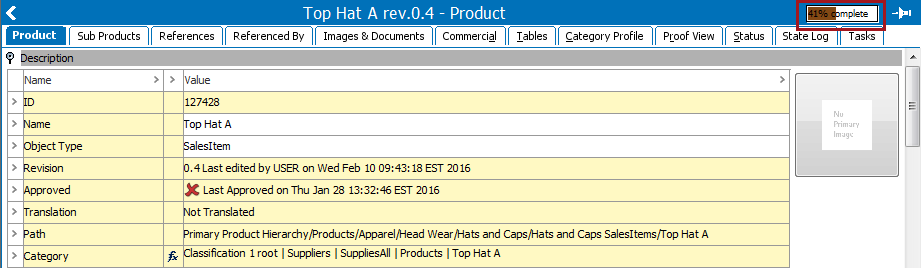
Object completeness indicators provide information about how complete an object is based on scores that you set for attributes, reference types, data containers, and product to classification link types. While it is possible to calculate a completeness percentage without settings scores for these individual data objects, it is recommended to do so, as you can weigh them based on relevance and outright omit those that should not apply to the overall completeness percentage.
Note: The object completeness functionality is not available on product overrides.
Note: If no indicator appears it is likely that no completeness scores have been set for the data valid for the object.
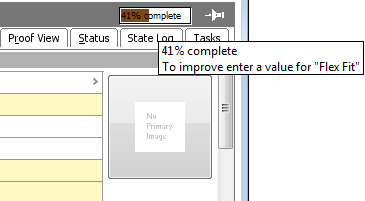
Object completeness indicators are also available in Web UI. See the Object Completeness in Web UI section of the Data Profiling documentation here.
The completeness of an object is always calculated and displayed as if the user had privileges to view and edit all relevant data. However, hints are only provided for data that the user is allowed to edit.
Additionally, this functionality is only accessible to users with the appropriate privileges. For more information, see the Setup Actions section of the System Setup / Super User Guide documentation here.
For a typical setup, in order to view completeness information, completeness scores must be configured on all relevant attributes, references, data containers, and product to classification link types. This score determines how much to weigh an element of the object when factoring the object's completeness percentage.
Note: For product reference types, images and document reference types, and product to classification link types, the scores are defined on the individual type's main editor.
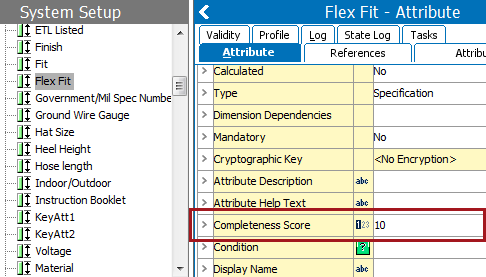
Note: You cannot specify scores for calculated attributes.
Alternatively, when setting the score on the link between a product or classification and a specification attribute, the completeness score of an attribute can be specified on the actual object in the Tree.

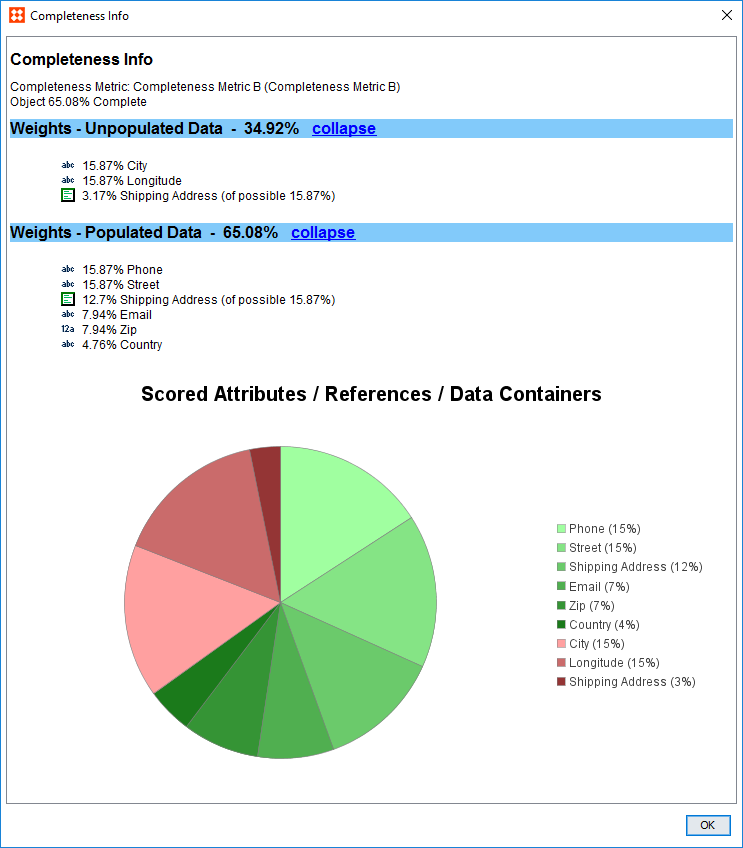
Unlike other data objects that contribute to the object's completeness percentage, a data container can be incomplete itself, making it possible to contribute only a fraction of its maximum score. The weight of the total possible score of the data container is set on the data container type (just like for attributes and reference types), and any values absent from the individual attributes that comprise the data container are reflected in its score. Additionally, the attributes within a data container can have their own varying scores. In a sense, a data container has its own completeness percentage, and contributes either 100% of its score to the object's completeness percentage, or, if one or more attributes within are missing values, it contributes a fraction of its total possible score.
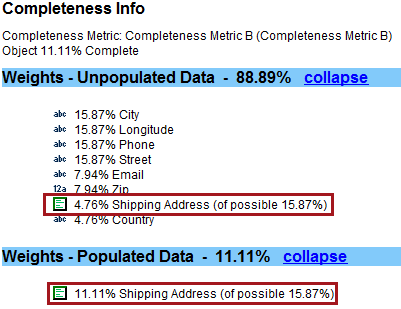
In the above example, the data container 'Shipping Address' can contribute a total of 15.87% completeness to the object's overall completeness percentage. However, because it has attributes with missing values, it is only contributing 11.11% completeness; roughly 70% of its maximum score.
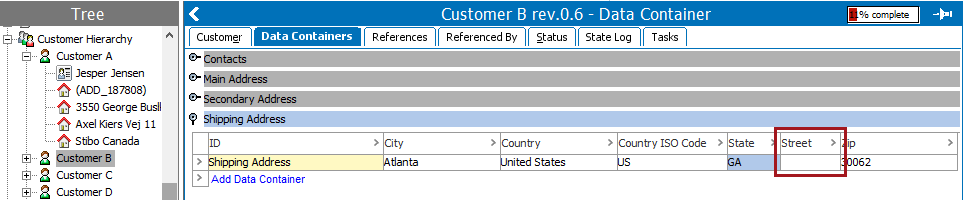
By viewing the data container itself (pictured above), you can see that the attribute 'Street' is missing a value, which explains why the data container is not contributing 100% of its score. Had all six attributes been weighted with a neutral score, each would contribute roughly 17% to the data container's score. However, based on the completeness breakdown, we know that the attribute 'State' is responsible for roughly 30% of the score. This is because 'State' has a higher weighted score than some of the other attributes.
Note: If a second 'Shipping Address' instance were added, its attributes would be factored in with those of the existing 'Shipping Address' when calculating the score, as they are both held within the same data container.
As with all attributes, the scores for attributes that comprise a data container are defined on the Completeness Score metadata field found on the attributes. The maximum score for the data container itself is defined by the same field on the data container type ('Shipping Address', in this example).
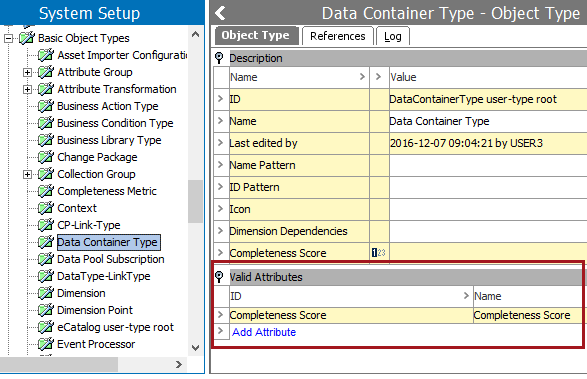
Before completeness scores can be applied to data containers, however, ensure that the Completeness Score attribute is valid for the Data Container Type object type.
Completeness values can be exported to Excel and CSV.
For more information, see the Calculated Attributes section of the System Setup / Super User Guide documentation
For more information, see the Creating a Data Export section of the Export Manager documentation here.
2019, Stibo Systems – Confidential