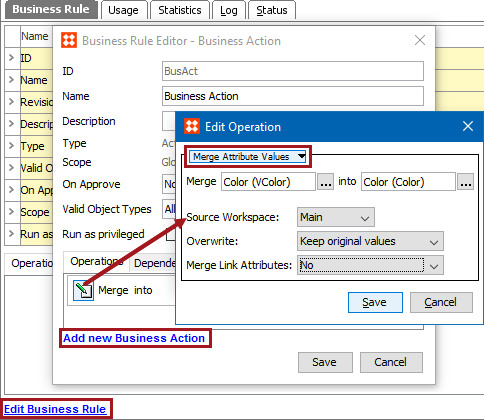
Business Action: Merge Attribute Values

This action copies the value of one attribute into another attribute. You can specify whether to keep or overwrite existing values. This action can also be used for local attribute link metadata values.

For example, while performing data cleanup activities, to consolidate duplicate attributes, this action can be used to copy values from the duplicate attribute to the attribute that should be used to store the value.

Prerequisites

Before using this action:

  1. Ensure the source and target attributes are valid for all of the same object types, and for the object on which the business action will be run.
  2. Ensure the source and target attributes are valid for all of the same product links and classification links.
  3. Ensure the source and target attributes are valid for all of the same reference types.
  4. Ensure the source and target attributes have the same dimension dependencies.
  1. Create a business rule as defined in the Creating a Business Rule or Library topic here.

Configuration

Note: The Merge Attribute Values operation does not delete any attributes, it can only update values. If desired, manually delete the source attribute once you confirm the merged data.

  1. On the Edit Operation dialog, select the Workflow > Merge Attribute Values option from the dropdown.
  2. For the Merge parameter, click the ellipsis button (…) to display the Select Attribute dialog, choose the attribute to copy values from, and click the Select button.
  3. For the into parameter, click the ellipsis button (…) to display the Select Attribute dialog, choose the attribute to copy values to, and click the Select button.
  4. For the Source Workspace parameter, use the dropdown to select the workspace that holds the values to be copied. Values are always pasted into the Main workspace.
  5. For the Overwrite parameter, use the dropdown to select one of the following options. Validation errors are displayed when a value cannot be modified. See an illustration of the results in the Merge Results section below.
  1. For Merge Link Attributes, use the dropdown to select one of the following options. If the selected attributes are both used as an attribute on a reference, a product classification link, or an attribute link, merging of those values are based on the Yes or No set in this parameter, as well as the other parameters on the operation. This option is not relevant when values do not exist on references for the selected attributes.
  1. Click the Save button to add the operation to the business rule editor.

Merge Results

As indicated in the following table, the source attribute value, target attribute values, and the overwrite setting together determine the end result of this action.

Source Attribute Value

Target Attribute Value

Overwrite Setting

Target After Merge

<empty>

OriginalValue

<any>

OriginalValue

NewValue

<empty>

<any>

NewValue

NewValue

OriginalValue

[Overwrite Existing]

NewValue

NewValue

OriginalValue

[Keep Original Values]

OriginalValue

For an example of merging attribute values with this action, see the Merge Attribute Values Operation section of the Attribute Values Operations for Bulk Updates topic in the Bulk Updates documentation here.

2018, Stibo Systems