Open topic with navigation
Running Bulk Updates
The bulk update functionality allows a user to easily update large amounts of objects in a single operation.
There are three possible ways to run a Bulk Update:
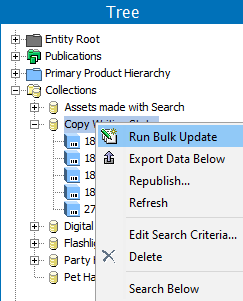
- It can be run on all objects in a single collection or multiple collections. To do so, right-click the relevant collection(s) in Tree and choose Run Bulk Update.
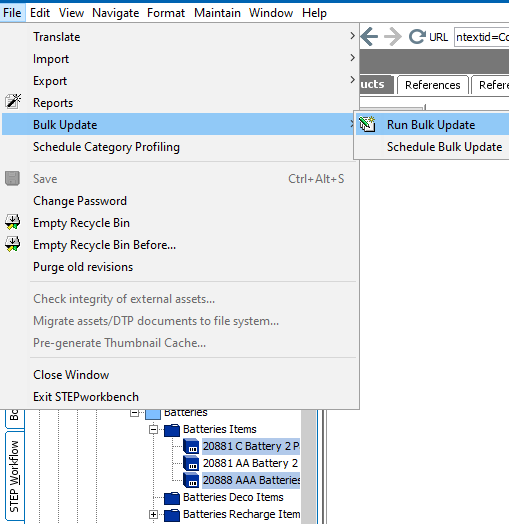
- It can be run on a single or multiple selected objects in Tree or System Setup. To do so go to File > Bulk Update > Run Bulk Update.
Objects that it can be run on in Tree are:
- Assets
- Classifications
- Collections
- Configurations
- eCatalogues
- Entities
- Index Words
- Products
- Publications
Objects that it can be run on in System Setup are:
- Attributes
- Attribute Transformations
- Asset Importer
- Change Packages
- Completeness Metrics
- Event Processors
- Event Queues
- Gateway Endpoints
- GDSN- Data pool- Receiver or publisher
- Global Business Rules (actions, conditions, and libraries)
- Inbound Integration Endpoints
- Keys
- List of Values
- Match Codes and Matching Algorithms
- Outbound Integration Endpoints
- Tables
- Tags
- Units
- Users and Groups
- Web UIs
- Workflows
- Workflow Profiles
- Reference types / link types
- Object type & structures (asset, classification, publication, setup group, etc.)
- Context -Dimension points
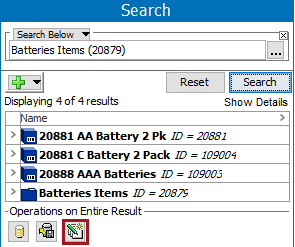
- Lastly, it can be run on search results. To do so, perform a search and then click on the Bulk Update button,
 , at the bottom of the Search pane.
For more on how to perform searches using the Search tab in STEP Workbench, see the Search Overview topic in the Getting Started / User Guide documentation here.
After selecting one of the three options above to run a bulk update, the Bulk Update wizard will appear. Steps for navigating through the Bulk Update wizard are described in the Bulk Update Wizard in the Bulk Updates documentation here.
2018, Stibo Systems