The Attribute tab page is one of the primary tab types used in the details view of the New UI. It provides the main workspace where users view and edit object attributes. Administrators can configure the tab to display specific attribute groups and associate it with an Info panel.
Configuring an Attribute Tab Page
To configure an Attribute tab page:
-
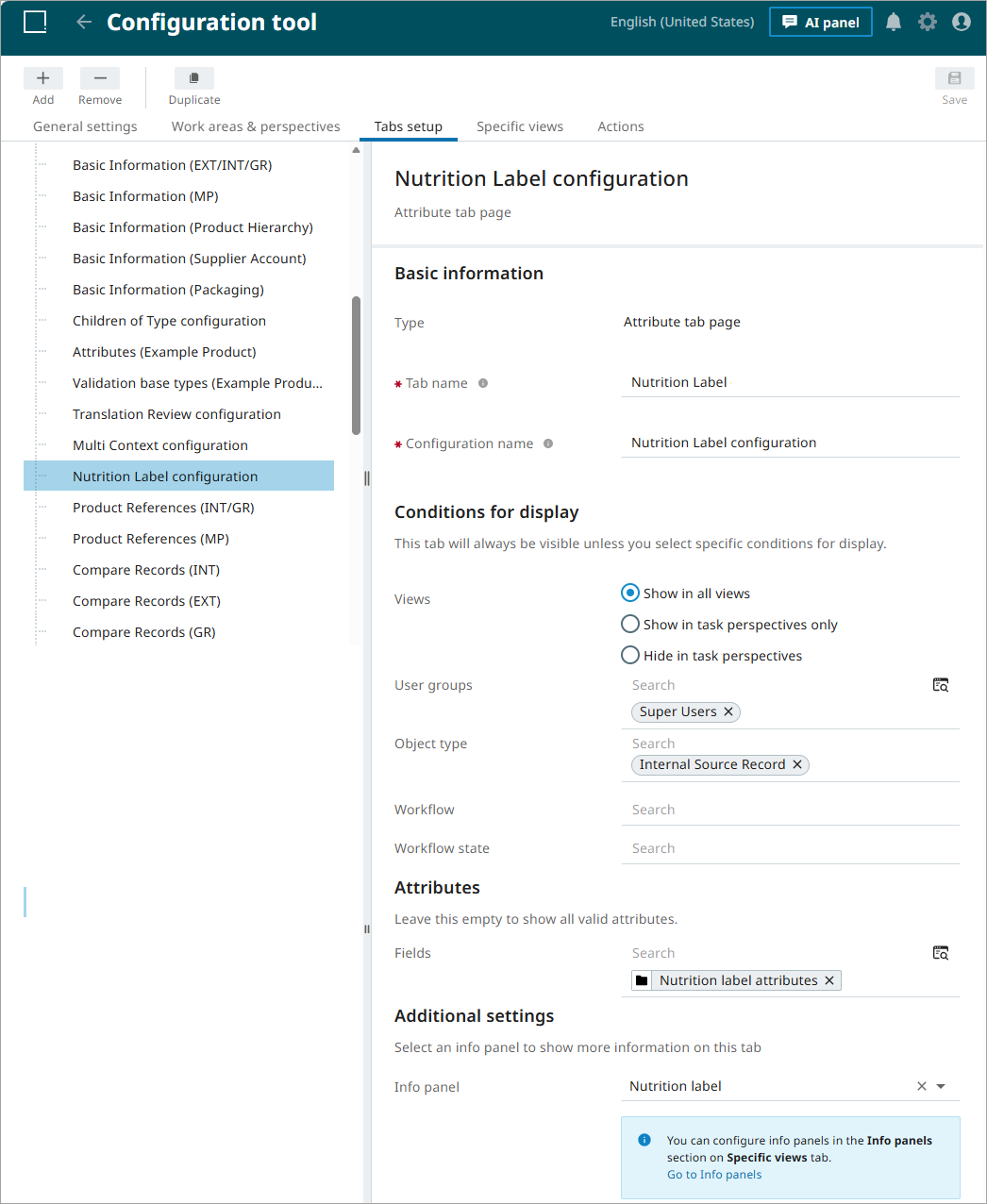
Add a new tab in the Configuration tool and select Attribute as the tab type. Specify a name and any required display conditions. For more information about these settings, refer to the Configuration Tool topic.
-
In the 'Attributes' section, select the attribute groups to display in the tab. If no attribute groups are specified, all valid attribute groups are displayed in the details view. For more information about these settings, refer to the Configuration Tool topic.
-
In 'Additional settings', select an Info panel from the configurations available under the Specific views tab. For more information, refer to the Creating an Info Panel Configuration in Specific Views topic.
-
Save the configuration.
Attribute Value History
Attribute Value History allows users to review historical changes to eligible attribute values directly from the Attribute tab, providing a trail for audits.
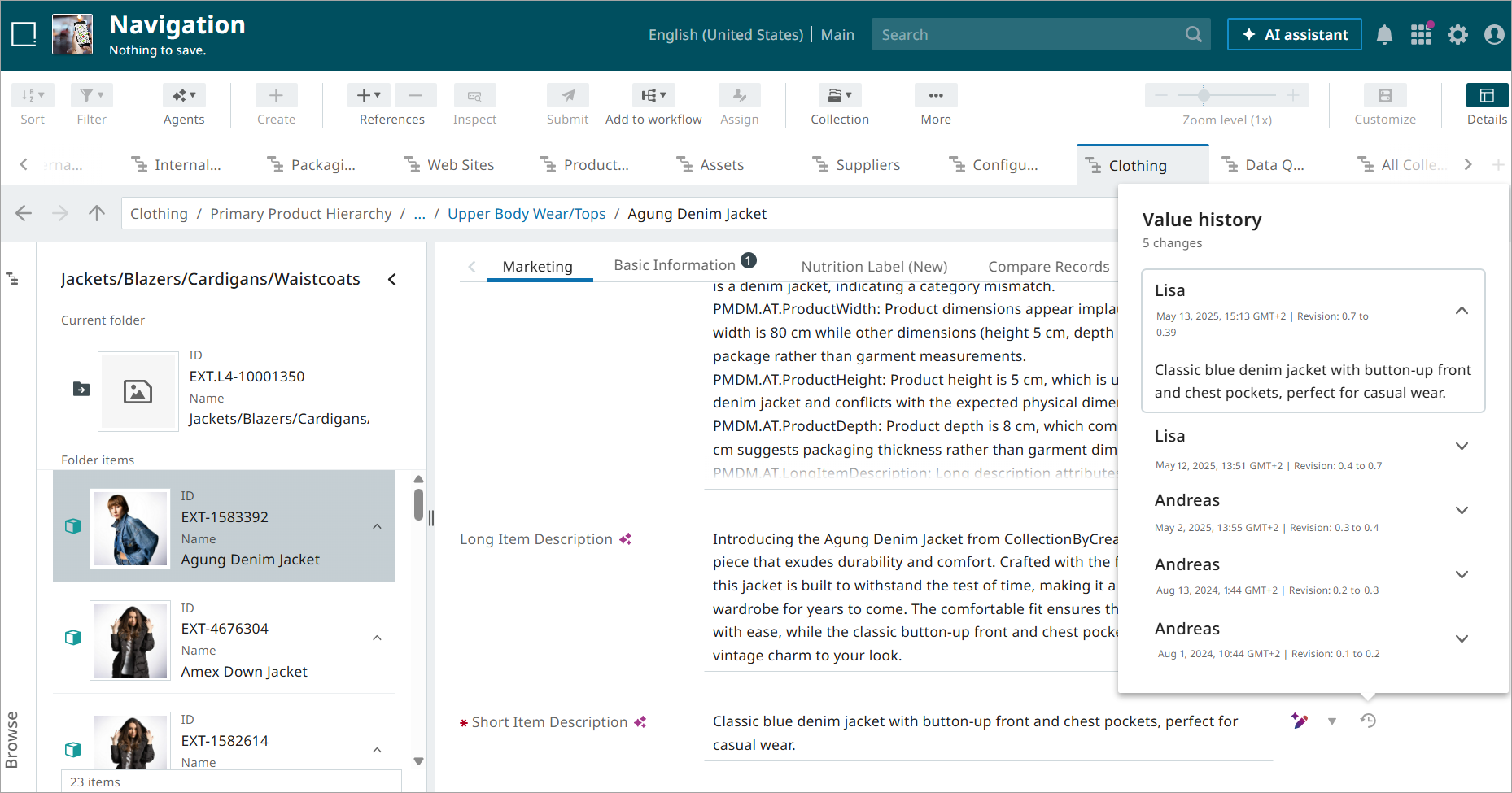
All attributes added will have attribute value history. A history icon provides access to a read-only history view showing the revision, date and time of the change, user who made the change, and attribute value.
History entries include only revisions where the attribute value changed and are displayed with the most recent change first. Users can expand individual entries to compare values across revisions, making it easier to understand how and when attribute data changed.
Attribute Value History uses existing attribute view permissions and is not available for externally maintained attributes. For more information on permissions, refer to the Action Sets topic in the System Setup documentation.