ETIM xChange is a JSON-based ETIM format that maps directly to the data model and supports all ETIM versions, classifications, and languages that the customer's ETIM license offers them.
For details about ETIM, refer to the ETIM Format and ETIM Taxonomy API Importer topics.
Important: To use ETIM xChange, the 'X.Export.xChange' license is required.
Mapping
This format requires creating a data map between STEP and the data being processed and may also include data transformations. For details, refer to Data Mapping.
For more information specific to mapping ETIM xChange data, refer to the ETIM xChange Initial Setup topic.
Format Availability
ETIM xChange format is available for selection in:
-
Export Manager - refer to Creating a Data Export
Exporting Data
Create Template
In order to export data using the xChange format, a JSON template file must be created. Template configurations are largely solution dependent, however, two general examples are provided below.
Packaging example:
{
    "Catalog": {
        "CatalogHeader": {
            "GeneratedBy": "STEP",
            "Format": "xChange-simple-packaging-v1"
        },
        "Products": [
            {
                "__type": "__record",
                "SupplierItemNumber": "__target",
                "ProductName": "__target",
                "ProductGTIN": "__target",
                "TradeItem": [
                    {
                        "PackagingUnit": [
                            {
                                "PackagingIdentification": {
                                    "SupplierPackagingNumber": "__target SupplierPackagingNumber",
                                    "PackagingTypeCode": "__target PackagingTypeCode",
                                    "PackagingQuantity": "__target PackagingQuantity",
                                    "PackagingUnitName": "__target PackagingUnitName"
                                },
                                "PackagingLogisticDetails": {
                                    "PackagingTypeLength": "__target PackagingTypeLength",
                                    "PackagingTypeWidth": "__target PackagingTypeWidth",
                                    "PackagingTypeHeight": "__target PackagingTypeHeight",
                                    "PackagingTypeDimensionUnit": "__target PackagingTypeDimensionUnit"
                                }
                            }
                        ]
                    }
                ]
            }
        ]
    }
}
Asset example:
{
  "__addAsFormField": [
    "CatalogueId",
    "CatalogueType",
    "GenerationDate",
    "CatalogueValidityStart"
  ],
  "CatalogueId": "SAMPLE-2026-01",
  "CatalogueType": "FULL",
  "GenerationDate": "2026-01-01",
  "CatalogueValidityStart": "2026-01-01",
  "Language": [
    "en-GB"
  ],
  "Supplier": [
    {
      "SupplierName": "Acme Electronics GmbH",
      "SupplierAttachments": [
        {
          "AttachmentType": "ATX014",
          "AttachmentDetails": [
            {
              "AttachmentLanguage": [
                "en-GB"
              ],
              "AttachmentFilename": "StiboSystems.png",
              "AttachmentUri": "https://www.stibosystems.com/assets/StiboSystems.png",
              "AttachmentDescription": [
                {
                  "Language": "en-GB",
                  "AttachmentDescription": "Supplier logo"
                }
              ]
            }
          ]
        }
      ],
      "Product": [
        {
          "__type": "__record",
          "ProductIdentification": {
            "ManufacturerName": "__target ManufacturerName",
            "ManufacturerProductNumber": "__target ManufacturerProductNumber"
          },
          "ProductAttachments": [
            {
              "AttachmentType": "ATX003",
              "AttachmentDetails": [
                {
                  "AttachmentLanguage": [
                    "en-GB"
                  ],
                  "AttachmentFilename": "__target PrimaryImageAttachmentFilename",
                  "AttachmentUri": "https://www.stibosystems.com/assets/AboutSTIBO_Document.doc",
                  "AttachmentDescription": [
                    {
                      "Language": "en-GB",
                      "AttachmentDescription": "About Stibo Systems - product document"
                    }
                  ]
                }
              ]
            }
          ],
          "TradeItem": [
            {
              "ItemIdentification": {
                "SupplierItemNumber": "__target SupplierItemNumber"
              },
              "Ordering": {
                "OrderUnit": "C62",
                "MinimumOrderQuantity": "1",
                "OrderStepSize": "1"
              },
              "Pricing": [
                {
                  "PriceUnit": "C62",
                  "PriceQuantity": "1"
                }
              ],
              "ItemAttachments": [
                {
                  "AttachmentType": "ATX014",
                  "AttachmentDetails": [
                    {
                      "AttachmentLanguage": [
                        "en-GB"
                      ],
                      "AttachmentFilename": "__target SecondaryImageAttachmentFilename",
                      "AttachmentUri": "https://www.stibosystems.com/assets/Stibo_logo.png",
                      "AttachmentDescription": [
                        {
                          "Language": "en-GB",
                          "AttachmentDescription": "Stibo Systems logo"
                        }
                      ]
                    }
                  ]
                }
              ]
            }
          ]
        }
      ]
    }
  ]
}
Export Manager
The ETIM xChange format is available for selection in the Select Formats step of Export Manager.
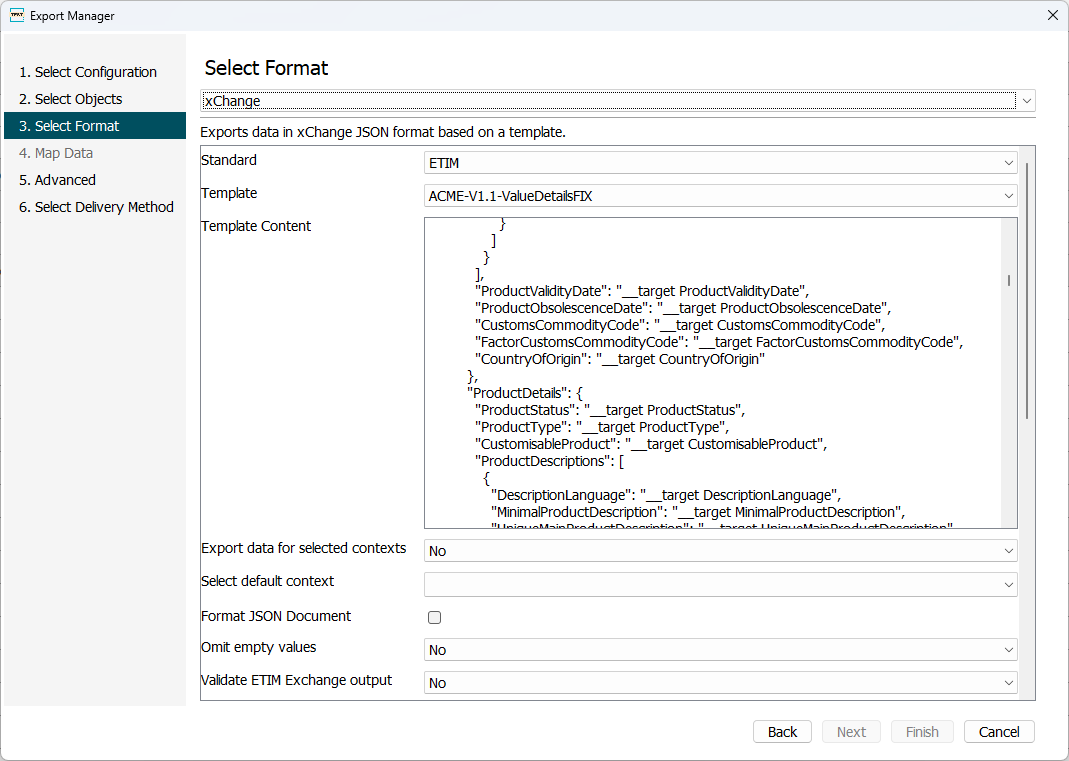
Select 'xChange' from the dropdown to open the format configuration.
-
Standard - Open the dropdown and select 'ETIM'.
-
Template - Open the dropdown and select the desired template file. Depending on the contents of the template, additional configurable parameters may populate on this screen. Refer to the example templates provided in the above section.
-
Template Content - This field displays the content of the template file selected above.
-
Export data from selected contexts - If data should only be exported from specific contexts, select 'Yes' from the dropdown, then click Select Contexts, which appears beneath the parameter. In the Select Contexts menu, check any contexts that apply, then click Select.
-
Format JSON Document - Check this parameter if you wish to make the JSON output easier to read.
-
Omit empty values - If you wish to omit attributes with empty values from the output, select 'Yes' from the dropdown. If set to 'No', the attributes will be included with "null" values.
-
Validate ETIM Exchange output - If you wish to validate the output file against the ETIM template schema, select 'Yes' from the dropdown.
-
Ensure any additional parameters generated by the template are set to the desired values, then select Next to proceed to the Map Data step.