Configuration of an asynchronous service can be used to communicate translation data outside of STEP.
Prerequisites
- Create an asynchronous service object type as described in the Create the Asynchronous Services Object Type topic here.
- Run the Asynchronous Service Configuration Wizard as described in the Configuring an Asynchronous Translation Service topic here.
For information about asynchronous file exchange services, see the Configuring an Asynchronous File Exchange Service topic here.
Set Up a Translation Configuration
After the wizard has been run, the Translation Configuration needs to be set up as described below.
- In System Setup, select the asynchronous service configuration (named 'SDL Translations' in the image below), and on the first tab open the Translation Configuration flipper.
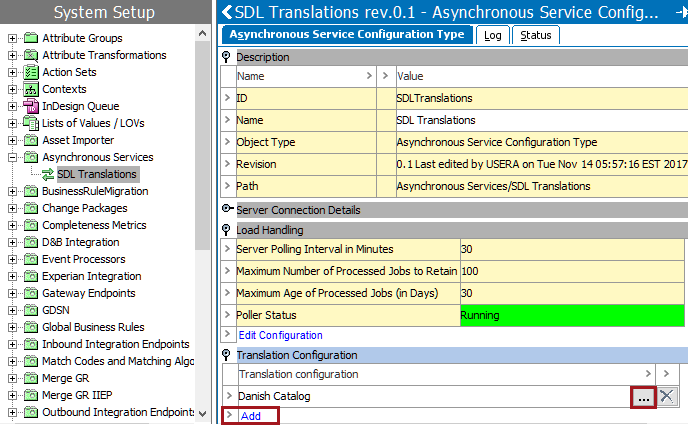
- Click the 'Add' link for a new configuration, or click the ellipsis button (
 ) for an existing configuration to display the Translation Configuration dialog.
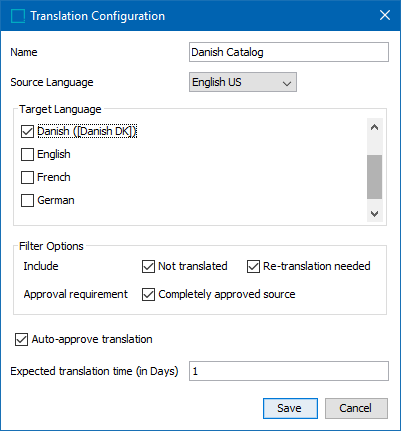
Important: If the expected source and/or target translations are not displaying in the Translation Configuration dialog, see below for a troubleshooting guide.
- Set the options in the dialog as follows:
- Name - Enter the name of the Translation Configuration.
- Source Language - Select the context from the dropdown to indicate the source language.
- Target Language - Check the language(s) that the content should be translated into.
- Filter Options: Include - select at least one option to enable the Save button:
- 'Not translated' includes untranslated values in the filter
- 'Re-translation needed' includes values that have been amended and are thus designated as needing re-translation
- Filter Options: Approval Requirement - Uncheck the 'Completely approved source' box to waive the requirement that all objects must be fully approved prior to being translated.
- Auto-approve translation - By default, this option is checked and inbound translation updates are automatically approved and moved to the Approved workspace. When unchecked, inbound translation updates remain in the Main (maintenance) workspace.
- Expected translation time (in Days) - Used to communicate the number of days the translation is expected back from the service. This is usually populated based on the service level agreement, assuming there is one, between the translation service and the partner.
- Click the Save button to complete the translation configuration.
- Right-click the asynchronous service configuration and select Start Polling to activate the process.
- Continue with the required setup, creating a business rule to trigger the translation as defined in the Business Rules for Asynchronous Translations topic here.
Troubleshooting Source and Target translation
If the source and/or target translations are not displaying in the Translation Configuration dialog like in the image below, then the Language and Country fields on the Contexts editor need to be configured.
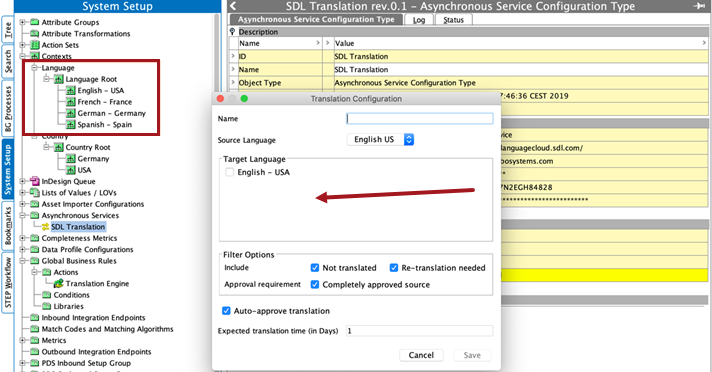
For more information, see the Maintaining Contexts topic here.
Language Codes for Asynchronous Services
When sending files to be translated, some services require that the ISO-639 language code needs to be sent, followed by the ISO-3166 country code. For example, if a file was being translated from English US to Danish Denmark for SDL Translation, the required language codes would be 'en-US' and 'da-DK.' As shown below, the language dimension point IDs follow the required format, so a transformation lookup table is not required.
Note: When the language and country codes are not in the correct format in the IDs of the language dimension points, a Transformation Lookup Table is required.
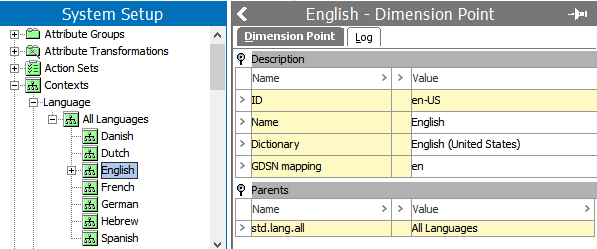
For Across translation, since the Windows language 'LCID' (Language Code Identifier) is required for the language code, a Lookup Table must be used.
Transformation Lookup Table for Language Codes
Use the following steps to create a Transformation Lookup Table that will convert the language ID in the language dimension point into ISO language / country qualifiers.
Important: Allowed languages are determined by the translation service or software. Attempting to translate for a language that is not allowed, even when both the target and source languages exist in the lookup table, results in an error in the BGP Execution Report. For example, this error is reported by Across when the target language was not allowed by the software: 'Failed to find target LCID: 1030. Supported target LCIDs are 10249, 10252, 1031, 1033, 1036, 11273, 11276...'.
- Create a Transformation Lookup Table. For more information, see the Transformation Lookup Tables topic in the Resource Materials online help here.
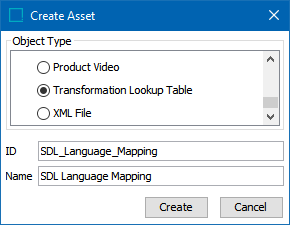
- Find the dimension IDs for the languages that need qualifiers set up.
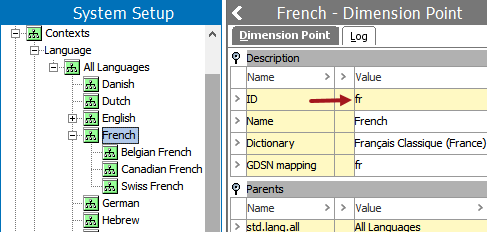
- In the Transformation Lookup Table, determine the type of transformation needed to convert the language ID in the language dimension point to:
- ISO language / country qualifiers - Enter the language IDs in the 'From' column and the corresponding ISO language / country qualifier in the 'To' column as shown below.
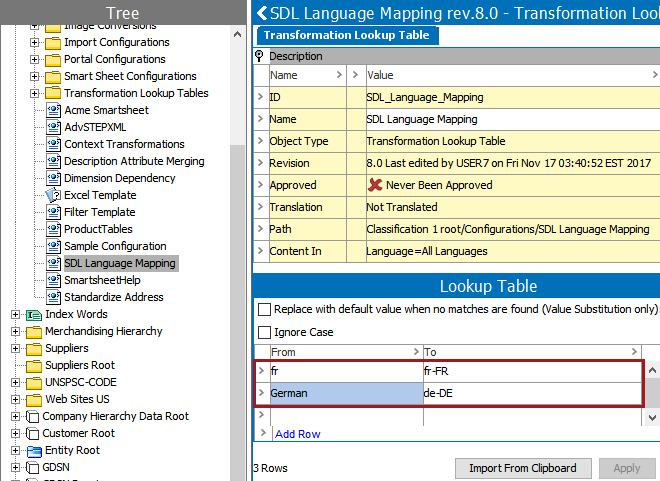
- Windows Language Code Identifier (LCID) - Enter the language IDs in the 'From' column and the corresponding ISO language / country qualifier in the 'To' column as shown below.
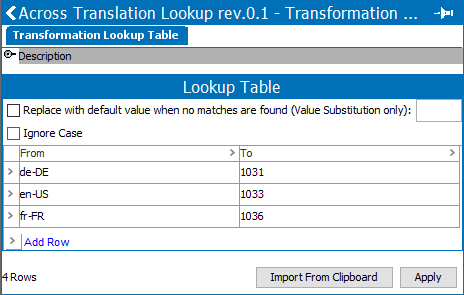
- Add one or more of the following case-sensitive properties to the sharedconfig.properties file on the STEP application server to identify one or more lookup tables for translations, and stop / start the server to apply the change.
- AsyncTranslation.TargetLanguageLookupTable.Across
- AsyncTranslation.TargetLanguageLookupTable.Lionbridge
- AsyncTranslation.TargetLanguageLookupTable.SDL
AsyncTranslation.TargetLanguageLookupTable.Across=AcrossLanguageMapping
In this property example, ‘AcrossLanguageMapping’ is the ID of the lookup table.
- AsyncTranslation.TargetLanguageLookupTable - This original property only allowed a single lookup table, even when multiple translation processes were used. Although it is deprecated, it still functions.
AsyncTranslation.TargetLanguageLookupTable=SDL_Language_Mapping
In this property example, ‘SDL_Language_Mapping’ is the ID of the lookup table.
Filtering Attributes for Translation
Within an asynchronous service configuration, users are able to select language-dependent attributes that they would like to be excluded for translation when the translation service is run; users are also able to select contextual attributes that they would like to be included for translation when the translation service is run. For more information, see the Attribute Filters for Asynchronous Translation Services topic here.