The File Exchange Service is an asynchronous translation add-on component that allows users that do not have a contract with any of the translation services that STEP supports, such as Lionbridge and SDL, a way to export and/or import translation files to folders instead of using a translation service API.
Note: In order to access the File Exchange Service, the 'file-exchange-translation' add-on component must be activated on your system. See your Stibo Systems representative for more information.
When initiated, the File Exchange Service exports translation files into an out folder. The user manually retrieves these files, makes desired changes to the text that needs translation, and places these files into the in folder. The updated files are then imported back into STEP during the asynchronous poller process.
For general information regarding Asynchronous Services, see the Asynchronous Translations topic here.
For information regarding configuring other asynchronous translation services, see the Configuring an Asynchronous Translation Service topic here.
For information regarding the use of the File Exchange Service component within the Web UI, see the Translation Status Widget Configuration topic here.
Configuring the File Exchange Service
The File Exchange Service must be set on an Asynchronous Service Configuration.
Important: Before an asynchronous service can be set up and configured, an Asynchronous Services setup group root node and object type must be created. For more information about creating Setup Groups in general, see the Setup Groups section of the System Setup / Super User Guide here.
Use the following steps to configure the File Exchange Service:
- With the workbench open and the System Setup tab selected, right-click on the Asynchronous Services root node, and select 'New Asynchronous Service Configuration.' The Asynchronous Service Configuration Wizard opens.
- On the Service step:
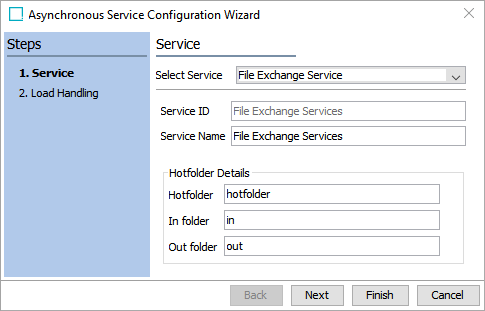
- For Select Service, select 'File Exchange Service' from the dropdown menu.
- For Service ID and Service Name, enter a name into the text fields.
- Hotfolder - enter the name of the parent folder that houses both the In and the Out folders. Use a descriptive name, like the name of the translation file exchange service.
- In folder - enter the name of the folder to hold completed translation file exchange service files. The translation file exchange service places files in this folder and STEP retrieves files from this folder to resume processing.
Note: Inbound hotfolders must be unique for each ASC. The ASC Poller monitors the inbound folder defined by the ASC and cannot resolve return files across multiple ASCs.
-
Out folder - enter the name of the folder to hold files pending translation files. STEP places files in this folder and the translation file exchange service retrieves files from this folder.
-
Click the Next button.
- On the Load Handling step:
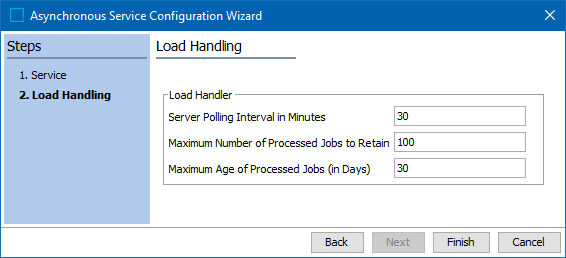
For information on a parameter, hover over the parameter field to display help text.
-
For Server Polling Interval in Minutes, update from the default of 30 minutes if needed. This is the time between attempts to poll the 'In folder' for an external file that has been processed. The minimum is 1 minute.
-
For Maximum Number of Processed Jobs to Retain, update from the default of 100 if needed. This is the number of BGPs to be retained. When the maximum is reached, the oldest job is deleted automatically.
-
For Maximum Age of Processed Jobs (in Days), update from the default of 30 if needed. A BGP is automatically deleted when its age reaches the maximum number of days.
Note: The processed jobs are retained until either the maximum number of processed jobs or the maximum age of processed jobs limit has been met, whichever comes first.
-
Click the Finish button.
- Continue with the setup as defined in Setting Up a Translation Configuration topic here.