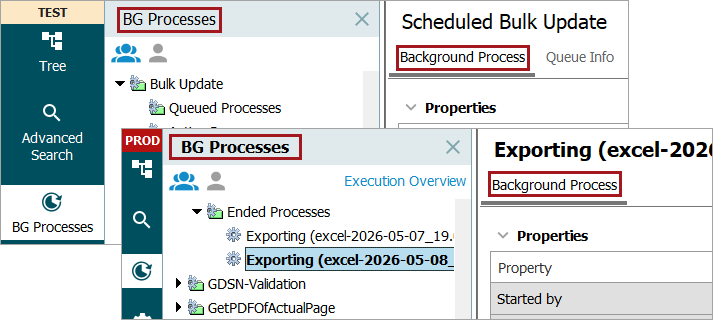
For both background process (BGP) execution mechanisms, the 'BG Processes' tab and the related 'Background Process' tab holds information about the state and status of a BGP.
-
The BGP state displays in the 'BG Processes' tab and indicates where the BGP is within the processing cycle: Queued, Active, Completed with Errors, and Ended.
-
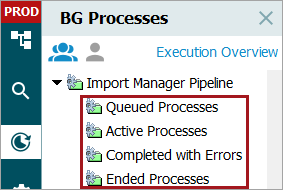
The BGP status displays in the Background Process tab and indicates the current processing phase or end state of the BGP: Aborted, Completed with Errors, Failed, Running, Succeeded, Suspended, Unexpected, and Waiting.
-
The BGP Quarantine Status parameter only displays when STEP is preventing a continuous loop that would otherwise negatively impact overall performance. The
Queued Processes State
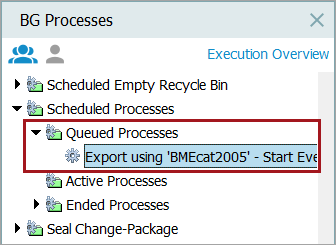
The 'Queued Processes' node includes background processes that are in the queue but have not yet started. When the queued process is started, it moves to the 'Active Processes' node.
Active Processes State
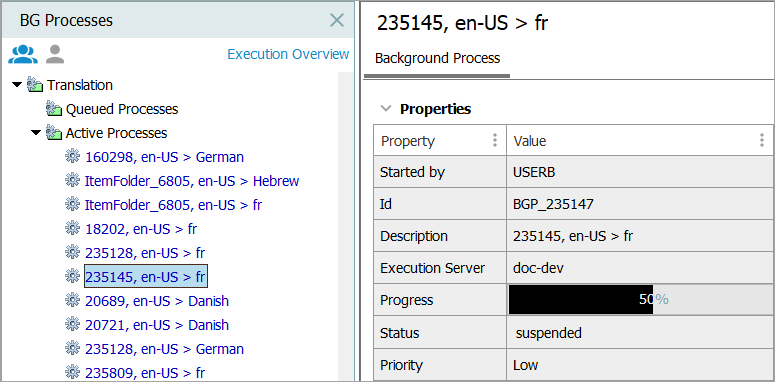
The 'Active Processes' node includes background processes that are currently in progress.
Failed active processes remain in the 'Active Processes' node, but display in red-colored text.
- For more information on failed IIEP processes and how to handle them, refer to the Handling Failed IIEP Background Processes topic in the Data Exchange documentation.
- For more information on failed OIEP processes and how to handle them, refer to the Handling Failed OIEP Background Processes topic in the Data Exchange documentation.
To abort an active BGP, select it, open the Maintain menu, and click Delete. The process is then moved to the 'Ended Processes' node.
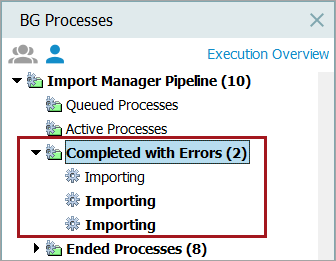
Completed with Errors State
The 'Completed with Errors' node includes processes that are partially completed but contain errors. Errors are reported with the details in the Execution Report, while the processing that can succeed will be completed. For example, while importing, objects without errors are processed successfully, while the objects with errors are skipped.
Note: The 'Completed with Errors' node is available only for processes generated in the following nodes: Asset importer process, Import Manager Pipeline, Match Code Processes, Smartsheet Import, and Stateflow Deadline.
Ended Processes State
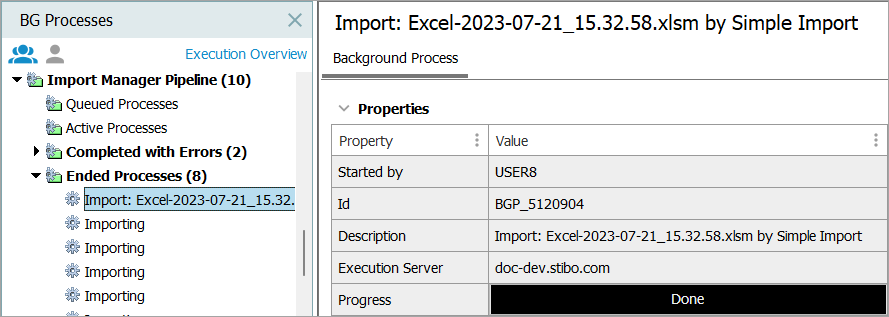
The 'Ended Processes' node includes background processes that have been completed without errors. For background processes tat have been scheduled but then manually ended, those will also display in the 'Ended Processes' node.
Quarantined Status
For all BGP execution mechanisms, STEP prevents repeated background process restarts for processes running on an application server / node that has crashed. This 'quarantine' fail-safe mechanism prevents the kind of continuous loops of server / node crashes that can negatively impact system performance and uptime. BGPs are not quarantined when the application server / node is intentionally shut down.
Execution reports state why a BGP was stopped or restarted, including when a process was canceled because a long-running script exceeded its execution limit. Restart information is logged to identify which processes were affected after a crash or shutdown and distinguish between crashes and intentional shutdowns.
Note: When a system administrator shuts down an application server, it is important to do so correctly, as simply cutting power or killing the application server JVM for STEP will be interpreted as a crash and may cause the quarantine mechanism to be triggered. Shutting down a STEP application server properly will not have this effect.
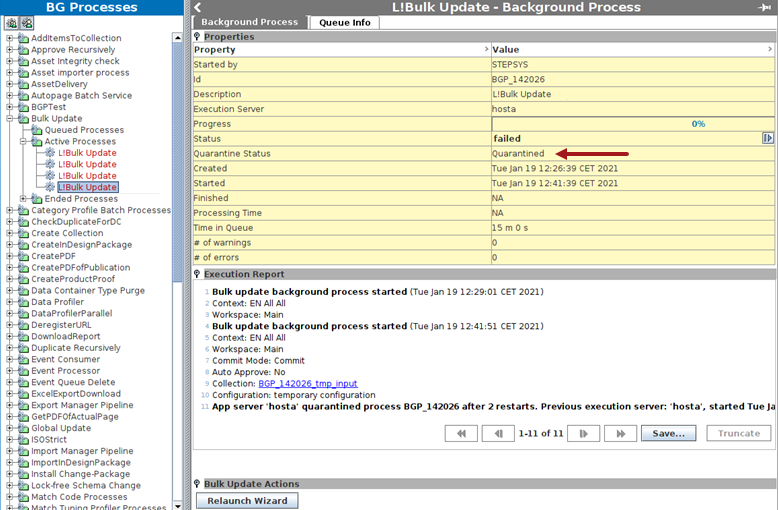
If a BGP seems to be a potential cause of an application server / node crash, STEP automatically moves the background process into a 'failed' state. Additionally, the BGP goes into a 'quarantined' status which requires user intervention.
To determine the next action to take, analyze the BGP's execution report and system logs to determine the reason why the BGP was quarantined. Not all quarantined background processes would have caused a crash. In some cases, timing makes it difficult to automatically detect the reason for quarantining.
In some instances, an application server / node crash was not caused by the specific background process that was quarantined. If the issue can be found and fixed, the quarantined background process can be restarted from the workbench. Alternatively, if you determine that the quarantined background process should not be started again, it can be deleted.
Integration Endpoints
An in-process integration endpoint will be halted if any of the endpoint's associated background processes are quarantined. This is to avoid starting background processes which could cause the same problem to recur. The execution reports of both the integration endpoint and the background process will indicate the connection between the two processes. To address a halted integration endpoint, it is strongly recommended you first address the integration endpoint's quarantined background processes before manually restarting the integration endpoint in the workbench. Resuming an integration endpoint will not resume any associated quarantined background processes.
Important: It is vital to monitor integration endpoints so they can be restarted after being stopped due to quarantined BGPs associated with the endpoint. Sensors for integration endpoints are available for this purpose. For information on sensors, refer to the Sensors for External Monitoring topic in the Administration Portal documentation.
Quarantined Status Values
The 'Quarantine Status' parameter only displays if a background process is or has ever been quarantined. If a background process is or has been quarantined, one of the following values displays for the 'Quarantine Status' parameter:
Quarantined - This value displays when the background process is currently in quarantine and, in most cases, the background process is also in a 'failed' state.
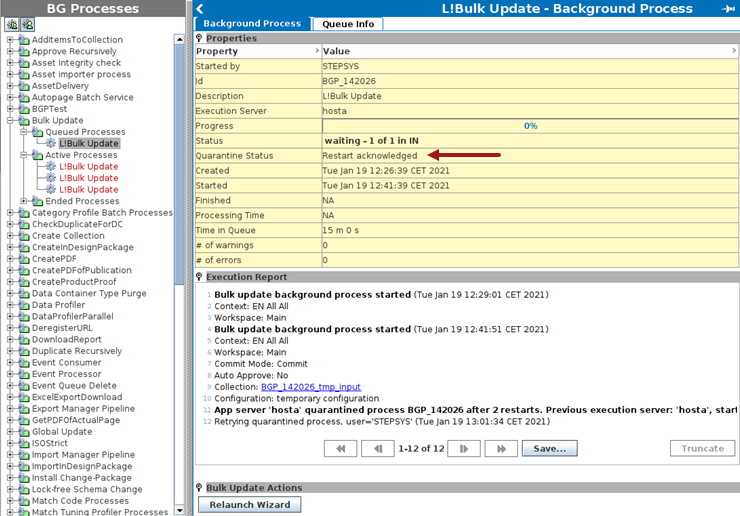
Restart acknowledged - This value displays when a quarantined background process has restarted, but is not yet being executed, e.g., because it just happened or it is waiting in the queue. Typically, 'Restart acknowledged' means the process is in a 'waiting' state.
Previously Quarantined - This value displays when a background process is no longer quarantined and can now be in any of the possible BGP states.
Searching for Quarantined BGPs
To find quarantined background processes:
-
On the Advanced Search tab, select the Background Process Search from the criterion dropdown.
-
In the Quarantined parameter, select Quarantined, Previously Quarantined, or Restart Acknowledged.
-
Click the Search button to view the results.
For details, refer to the Advanced Search: Background Process Search topic in the Getting Started documentation.