In the SSUI, for eligible sandbox environments, the 'Restore' tab allows users to generate or restore a full database backup. Combined with the 'Refresh configuration' features (importing configuration and/or data STEPXML files), it is targeted at facilitating repeatable test scenarios
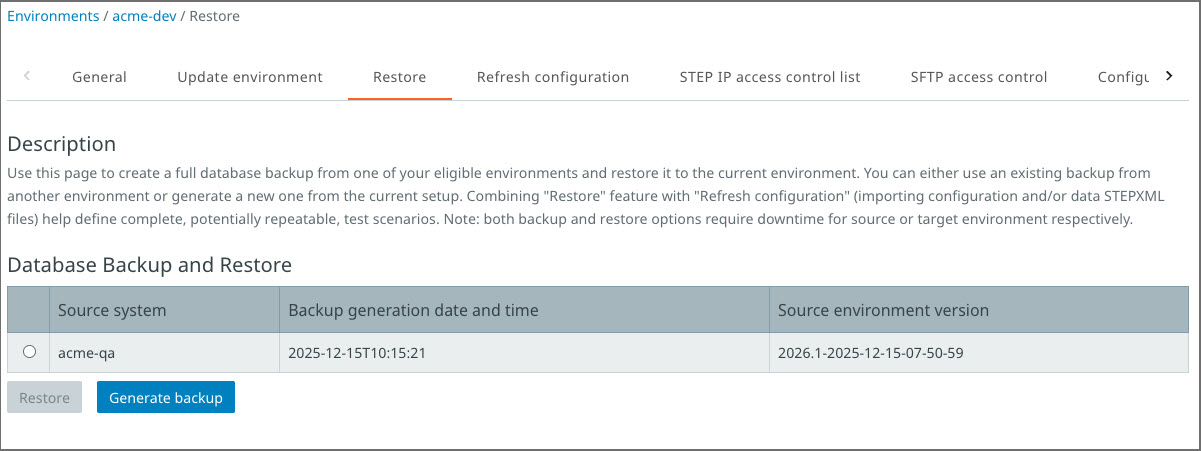
Click the ‘Generate backup’ button to generate a backup from current environment and overwrite any existing backup. Only one backup is allowed at a time per customer.
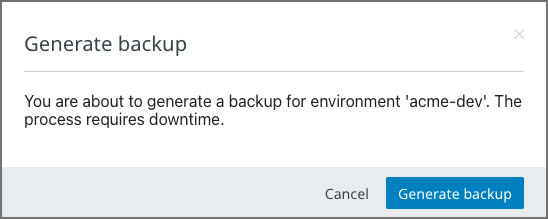
A confirmation dialog displays. Click ‘Cancel’ to cancel or click ‘Restore’ to proceed and generate a backup for the current environment.
Select the existing backup by clicking the radio button and click ‘Restore’ if you want to use the backup contents on the current environment.
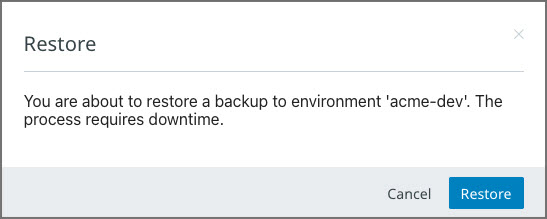
A confirmation dialog displays. Click ‘Cancel’ to cancel the restoration or click ‘Restore’ to proceed and restore the selected backup to the current environment.
Important: Both backup and restore options require downtime for source or target environment respectively. Only one operation (backup generation or restoration) can happen at a time.
Note: Restoring a backup generated from another environment that is running a more recent STEP image than the current (target) one is not allowed.
When restoring a backup, which includes only STEP data, review the following areas for potential 'out-of-sync' issues:
-
Configuration properties
-
SSUI IP and sFTP Access control configurations
-
Filesystem contents, such as hotfolders, Web UI localization files, images, and icons
-
Dependent functionality that may exist in the source environment but relies on additional infrastructure, for example:
-
Faceted Search (re-indexing is required)
-
Publishing (InDesign)
-
Audit Messaging Framework
-
-
Custom add-ons (Stibo customizations or SDK / API extensions) or Modular Service Platform modular services