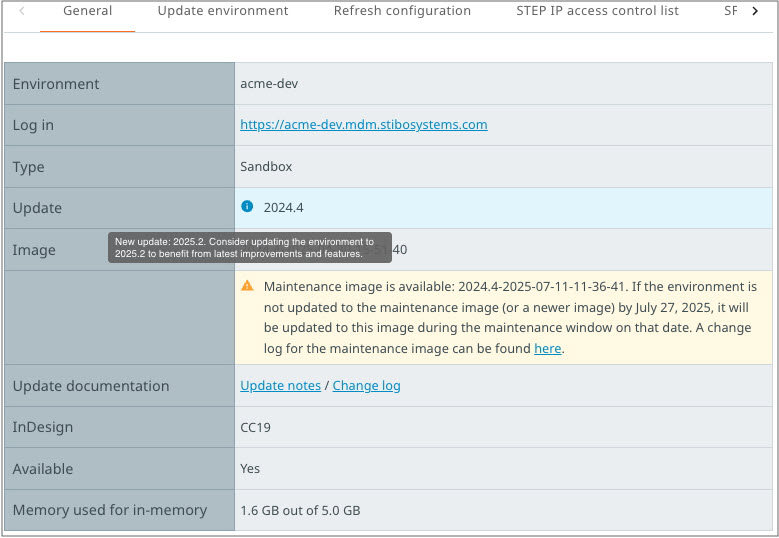
In the SSUI, the 'General' tab displays the same information available on the 'Environments' overview section but also includes links to 'Update documentation' and the amount of memory currently used for sandbox environments. When STEP server-side publishing through InDesign is in use, the current InDesign server version is displayed. Additionally, a 'Maintenance image' row may display below the 'Image' row, which can appear under the following conditions:
-
The current date is within four weeks of a Planned Maintenance window (or within two weeks of a Pre-Maintenance window).
-
A frozen maintenance image has been defined by Stibo Systems, which is newer than the current image used by the environment.
If the 'Maintenance image' row is displayed, it mentions the presence of a maintenance image for the current STEP version and the associated potential environment update date. The date matches the upcoming Planned Maintenance window date or Pre-Maintenance window date for lower-level environments. During the Pre-Maintenance window, lower-level environments will be updated with the frozen maintenance image. This allows testing of the updated STEP software in the lower-level environments before it is applied to the production environment(s).
It is also possible to choose to apply the maintenance image (or a newer image) to the environment via the 'Update environment' tab prior to the Pre-Maintenance or Planned Maintenance windows. This will exclude environments from Software Updates during the Pre-Maintenance & Planned Maintenance windows.
If enrolled in Continuous Updates, environments are excluded by default from receiving STEP updates during Pre-Maintenance and Planned Maintenance windows. Environments will still be restarted for the infrastructure updates during the Planned Maintenance window.
When available for the current image - target maintenance image pair, a specific change log link is available. The link opens a new tab that displays the changes between the current image used by the environment and the target maintenance image.
The 'Approve image' button ( ) is available below the information table.
The 'Approve image' button allows users to mark the image currently used on the environment as 'approved' and enables a procedure where images that have been approved on lower-level environments (i.e., sandbox environments) can be easily identified and then applied to higher-level environments.
Important: The 'Approved' status applied via the optional 'Approve image' button is a visual marker only. No validation process prevents a user from updating to an image that has not been approved.
Note: Sandbox environments can contain a full copy of the production schema but usually only contain a subset of the data, max 5 GB, which is approximately 100,000 data objects. Digital asset contents are shared across environments and do not count in the 5 GB.
Login screen
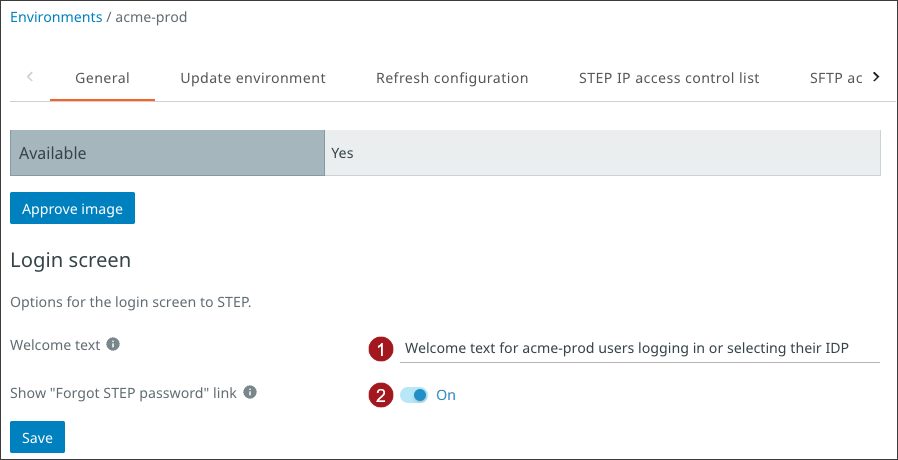
The following options are available to customize the login screen, where STEP-managed users log in and / or where externally managed users select their Identity Provider (IDP) by clicking on one of the IDP links.
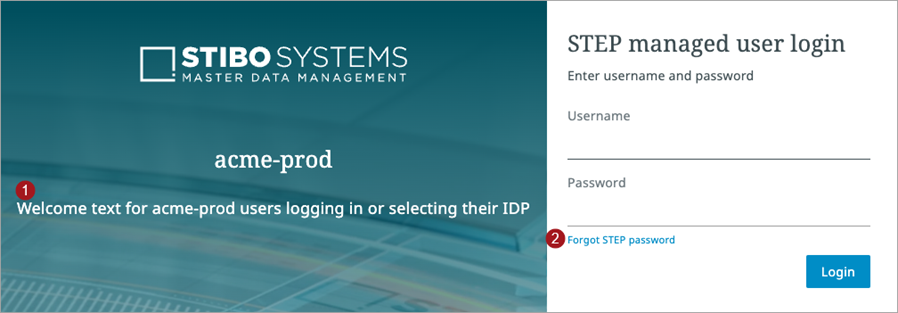
On the login screen:
-
The welcome text displays below the environment name and can be customized to ensure users know where they are authenticating.
-
The 'Forgot password' link displays below the password field and is only relevant for STEP-managed users. Click the toggle to change the setting.
After changing either option, click the 'Save' button to apply changes.