In the SSUI, the 'Configuration properties' tab is available for environments on STEP 11.1 and later and allows users to maintain a select set of STEP configuration properties.
Configuration properties are used to control a variety of elements, such as values in a delivery method's dropdown parameter, the location of a secret key used for an SSH connection, defining legal file name characters for assets, and announcement messages for Web UI.
STEP configuration properties that are available in the SSUI are defined in online help within the relevant topic. For example, the configuration properties that control the color and text on the environment badge in workbench are defined in the STEP Workbench UI topic within the Getting Started documentation.
Considerations
-
Some changes may require you to restart the user interface (i.e., the workbench or Web UI) before they take effect.
-
If the properties you need are not shown in the SSUI, submit an issue within the Stibo Systems Service Portal to complete the configuration.
Working with Configuration Properties
The properties are grouped by category (e.g., Asset, BlobStorage, ChangePackageGitDelivery, DaaS, etc.), and can be added, removed, or edited, as the implementation requires. The properties list can be filtered via the 'Search configuration property' field. The 'Collapse all' and 'Expand all' buttons apply to the visible properties. The number of properties in the group is displayed after the group heading. When properties are collapsed, only the number of properties that meet the filter are displayed for each group heading. Individual groups of properties can be collapsed by clicking the group heading or clicking the up / down arrow to the right of the group heading.
The 'All properties' / 'Set properties only' toggle can be used to display all properties or only the properties that have been set manually.
For an individual property, the Value column displays the default value in light gray (ghost) text. A value that is set manually displays in standard text.
Changing a property
-
To modify a property's existing value, click the pencil button (
 ) and confirm the change.
-
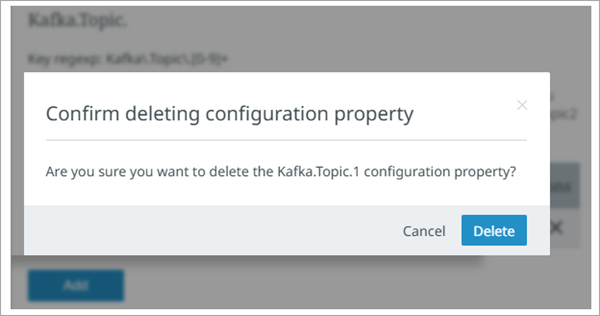
To delete a property's existing value, click the delete button (
 ) button and confirm the deletion.
Types of properties
Properties can be static or dynamic, as defined below.
-
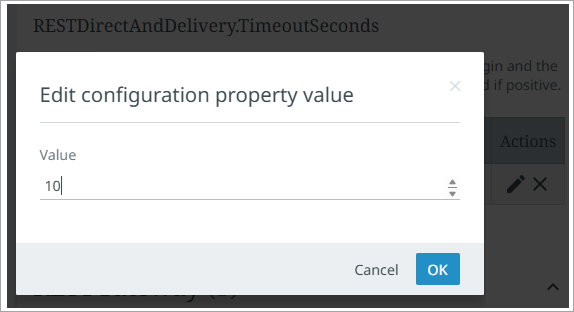
For static key / name properties with a configurable value, like 'RESTDirectAndDelivery.TimeoutSeconds', the user can set a new value or edit an existing value.
-
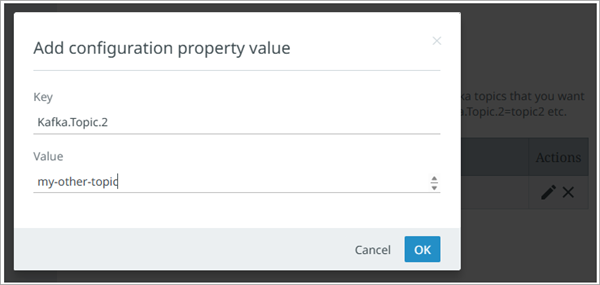
For dynamic key / name properties with a configurable value, like 'Kafka.Topic.[n]', click the 'Add' button to create a new key-value, click the pencil button (
) to edit the value for an existing key-value, or click the delete button () to delete a key-value.
Saving a changed property
Modified and newly added properties display in bold text and an asterisk ('*') displays to the left of the value in the 'Key' column. Click the 'Save' button at the top of the page to save the changes.
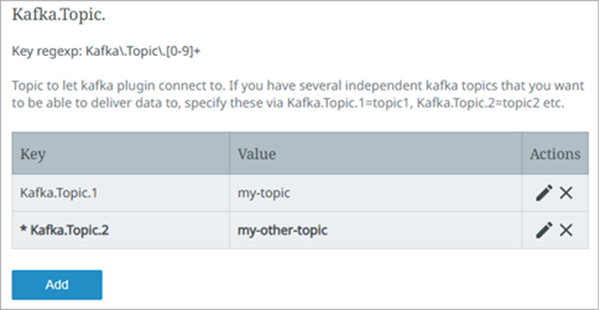
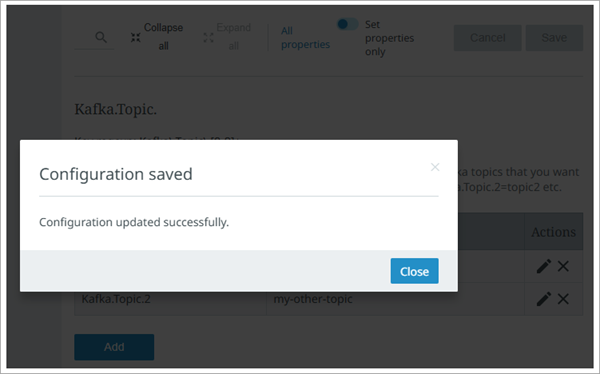
Clicking the 'Save' button validates all changes made to all properties. If the validation succeeds, the changes are saved and a confirmation dialog displays. It may take up to 10 minutes for the saved changes to take effect on the STEP environment. Because many properties are cached in the STEP Workbench, a relaunch of the workbench may be required to view updated values.
Key / trust store file properties
For the following configuration properties that all point to key / trust store files stored securely on the 'Configuration files' tab, use the variable ${CUSTOMER_SECRETS_ROOT}/{referenceID} in the value:
SFTP.SshPrivateKey.Location.[n]
ChangePackageGitDelivery.SshPrivateKeyUri.[n]
GitDelivery.SshPrivateKeyUri.[n]
BlobStorage.Google.Secret.ConnectionKeyPath.[n]
SQSCredentialsPath
Kafka.SSLKeyStoreLocation.[n]
Kafka.SSLTrustStoreLocation.[n]
This variable automatically resolves to the directory identified on the 'Configuration files' tab.
As an example, if you upload two private key files named 'gitdeliveryssh1' and 'gitdeliveryssh2' into the 'Sensitive files' table with the intention of making the keys available for Git Delivery outbound integration endpoints, you can point to the private keys using:
${CUSTOMER_SECRETS_ROOT}/gitdeliveryssh1
${CUSTOMER_SECRETS_ROOT}/gitdeliveryssh2
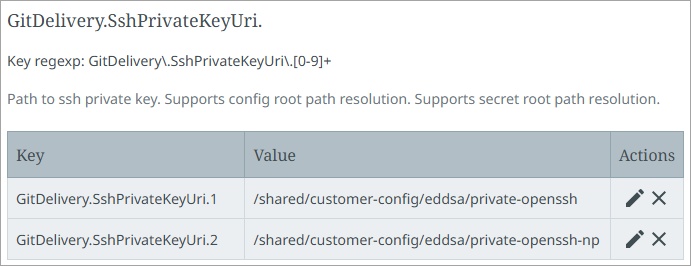
Alternatively, the following configuration properties all point to key / trust store files and can use the variable ${CUSTOMER_CONFIG_ROOT} in the value:
Kafka.SSLKeyStoreLocation.[n]
Kafka.SSLTrustStoreLocation.[n]
SFTP.SshPrivateKey.Location.[n]
ChangePackageGitDelivery.SshPrivateKeyUri.[n]
SSL.[conf-name].KeyStore.Location
GitDelivery.SshPrivateKeyUri.[n]
BlobStorage.Google.Secret.ConnectionKeyPath.[n]
SQSCredentialsPath
This variable automatically resolves to the 'customer-config' directory accessible via sFTP.
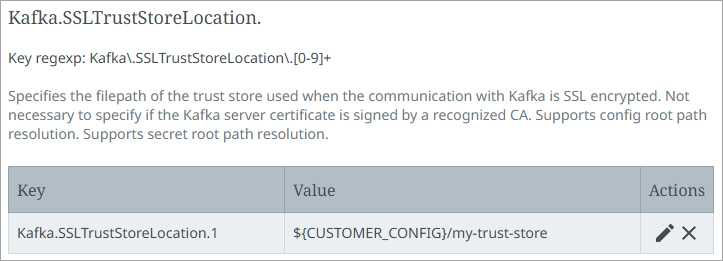
As an example, if you place a trust store file named 'my-trust-store' into the 'customer-config' directory with the intention of making the trust store available for SSL encrypted communication with Kafka, you can point to the trust store using:
1=${CUSTOMER_CONFIG_ROOT}/my-trust-store
FixSpecific configuration properties
Configuration properties with the 'FixSpecific' designation control functionality related to a particular support issue. Setting a FixSpecific property to 'true' allows a customer to test a fix in their own environment with the ability to remove the functionality by setting the property to 'false'. Once a fix is fully tested and approved for general release, the FixSpecific property is no longer required, and the next SaaS update will automatically include the fix.
For example, a customer creates a support issue, and the engineering support team fix requires testing in the customer's environment. The engineering support team will provide the details of the SaaS image that includes the fix and the name of the FixSpecific property (such as 'FixSpecific.ISSUE12345') that needs to be set. The customer can update their environment in the SSUI to use the provided SaaS image, and afterwards the FixSpecific property is displayed in the 'Configuration properties' tab for the environment. By setting this property to ‘true’, the fix is active on the environment and can be tested. Successful testing confirms the fix, and the next SaaS update image automatically includes the fix, and the FixSpecific property is no longer required.
Other configuration properties
To modify additional configuration properties or request to have properties made available in the Configuration properties tab, create an issue for Stibo Systems Support in the customer support portal.