In the SSUI, the Data as a Service (DaaS) page allows you to provision a DaaS instance for each STEP environment and to access the DaaS management key, user guide, and the API.
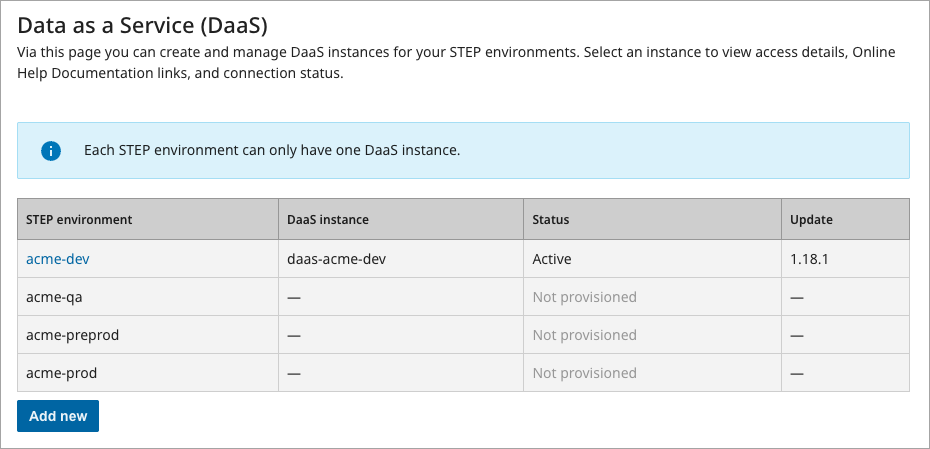
The Data as a Service (DaaS) table identifies your STEP environments and the state of DaaS for each one. Only one DaaS instance is allowed for each STEP environment.
-
STEP environment – When DaaS is already provisioned, a link to the 'Access credentials' page for the STEP environment is available. The environment name is displayed as static text if DaaS is not yet provisioned.
-
DaaS instance – The name of the current DaaS instance.
-
Status – Not provisioned, Provisioning, Blocked, or Active.
-
Update – The DaaS version for the STEP environment.
The 'Add new' button is only available when at least one STEP environment has not been provisioned.
Provision a DaaS Instance for a STEP Environment
To provision a DaaS instance for a STEP environment:
-
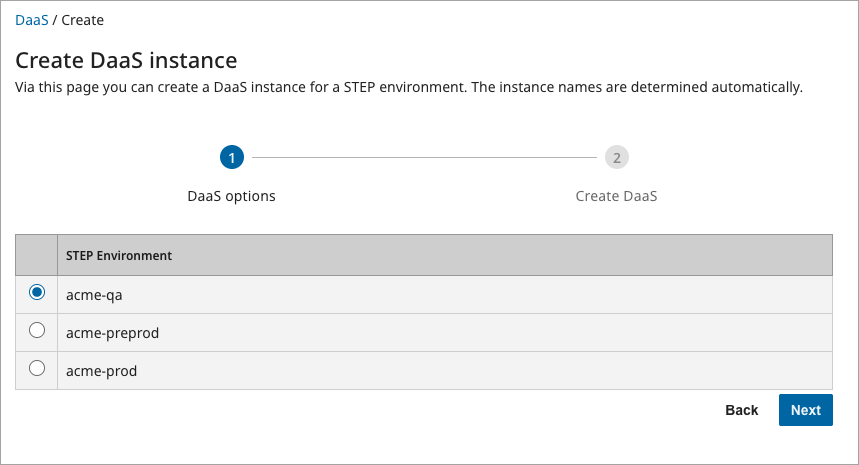
Click the 'Add new' button to display the 'Create DaaS instance' page and the DaaS options step.
-
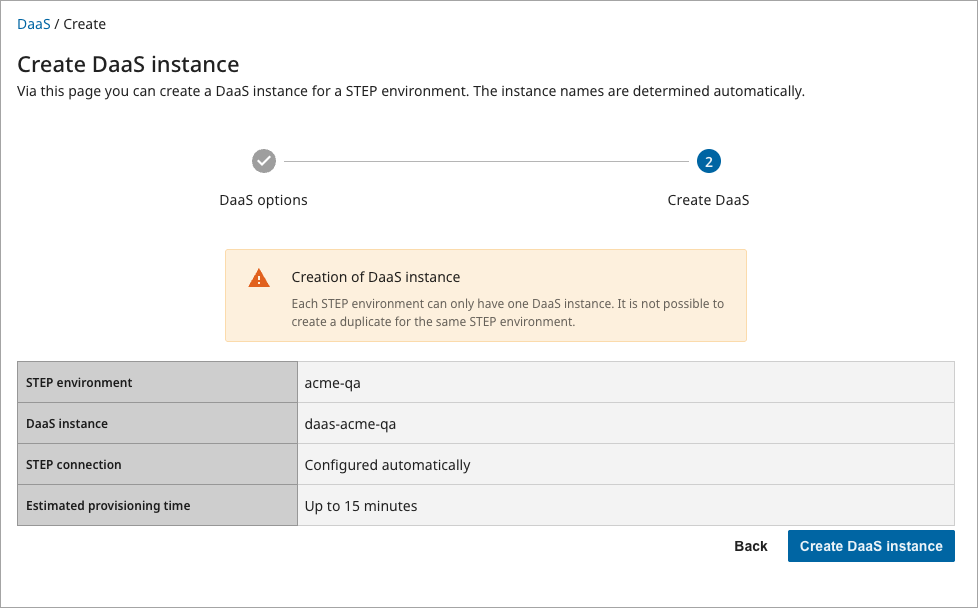
Click the 'Next' button to display the 'Create DaaS instance' page and the Create DaaS step.
-
Review the information in the table.
-
Click the 'Back' button to return to the previous step.
-
Click the 'Create DaaS instance' button to proceed.
-
-
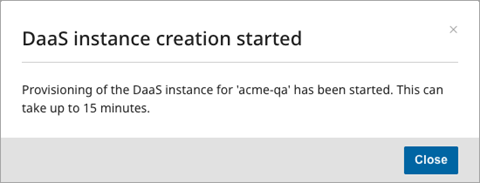
Begin the provisioning process by clicking the 'Close' button on the 'DaaS instance creation started' dialog.
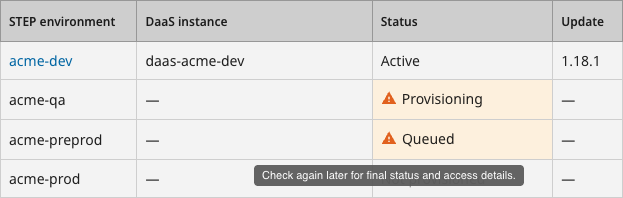
The STEP environment 'Status' column displays the following:
-
'Provisioning' indicates the DaaS instance is being created. The process can take up to 15 minutes.
-
'Queued' indicates that a DaaS instance is already being provisioned. When a 'Provisioning' environment becomes 'Active', provisioning for the queued environment will begin automatically.
Important: An environment cannot be updated while its DaaS instance is being provisioned.
-
-
Review the table to confirm the creation is complete:
-
STEP environment – displays a link to the DaaS instance details page
-
DaaS instance – displays the name of the instance
-
Status – displays 'Active '
-
Update – displays the DaaS version
-
Note: To delete a DaaS Instance, submit a ticket in the Stibo Systems Service Portal to request removal.
Access Credentials and Online Help Documentation
To review and manage DaaS access credentials and online help documentation links:
-
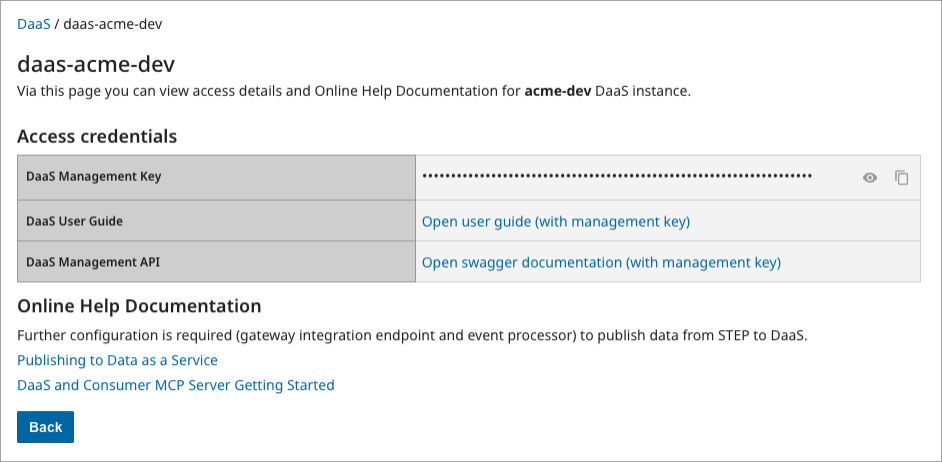
On the Data as a Service (DaaS) table, click the relevant 'STEP environment' link to display a page for the environment.
-
In the 'Access credentials' table:
-
In the 'DaaS Management Key' row, take the following actions as needed:
-
Click the 'show' button (
 ) to display the management key.
 -
Click the 'hide' button (
 ) to conceal the management key.
 -
Click the 'copy' button (
 ) to copy the management key to the clipboard.
-
-
In the 'DaaS User Guide' row, click the link to use the management key and open documentation specific to the current DaaS Update version in a separate tab.
-
In the 'DaaS Management API' row, click the link to use the management key and open Swagger UI in a separate tab.
-
-
In the 'Online Help Documentation' section, click a link to open a topic from the 'Data as a Service' section of STEP Documentation in a separate tab.
-
Click the 'Back' button to return to the 'Data as a Service (DaaS)' page.