Note: NAPA: The commercial license has been discontinued for this functionality.
The NAPA Application Exporter is used to export application data that resides in a NAPA product hierarchy. Users can select an object from the NAPA product hierarchy, and the NAPA Application objects beneath the selected object (both child objects and linked objects) will be exported. The export file is then available in the NAPA Application format.
Prerequisites
- NAPA Data Model Requirements: The exporter requires applications be stored in the standard NAPA data model.
- NAPA Product Requirements: The NAPA Product MPCC is expected to have an ID structure prefixed with NAPA_MPCC_, and the NAPA Product is expected to have the following ID structure: NAPA_Product_[Line Abbrev][PartNumber] (i.e., NAPA_Product_FIL1515). When a NAPA Product is created, the NAPA Part Number attribute (NAPA_PartNumber) must be populated with the Part Number value, as this attribute value is used to the determine the Part Number in the NAPA Application Exporter.
Important: Because some Product Lines only have two characters, the NAPA Product Number, if used without the overlying ID structure, might create an inconsistent pattern when trying to use the Product Number for the ID.
- Object Type Requirements: The following object types must exist within STEP: ExportBaselineRoot (Alternate Classification) and ExportBaselineAsset (Assets). As of the Automotive 8.3 release, these object types are created automatically when Easy Setup is run via System Setup > Component Models > Automotive - NAPA Model > Right-click Automotive - NAPA Model > 1. Configure NAPA Data Model.
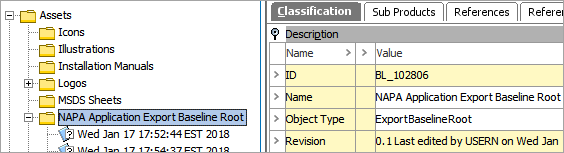
- Classification Requirements: Additionally, a new classification using the alternate classification object (ExportBaselineRoot) must be manually created to hold the delta baseline assets. In the example below, NAPA Application Export Baseline Root has been created below the Assets root node.
Using the NAPA Application Exporter
The steps below describe how to use the NAPA Application Exporter.
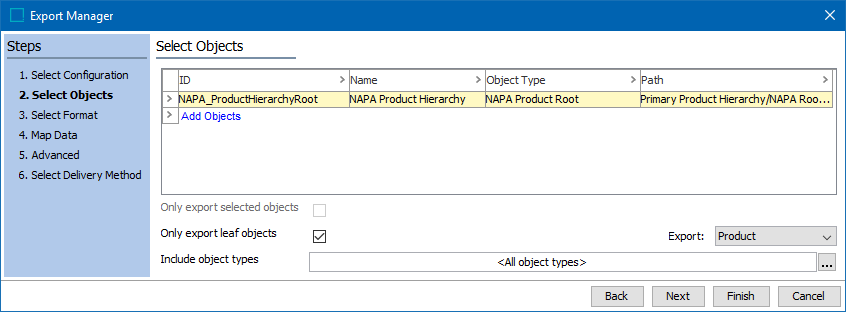
- Go to the NAPA product hierarchy parent folder of the application(s) to be exported, Right-click, and select Export Data Below. The Export Manager will display with the parent folder object automatically added. In the example below, the 'NAPA Product Hierarchy' was selected, and has been automatically added. Optionally, add additional objects.
- Click the Next button, and the Export Manager will display the Select Format options. Use the dropdown to select the NAPA Application Exporter, and the Export Manager will display as shown below.
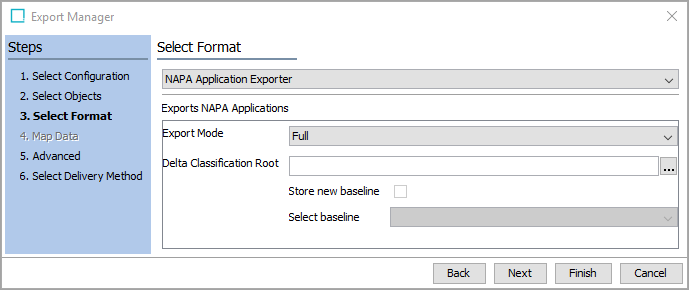
- Select the one of the following Export Modes from the dropdown:
- Full: This export mode will export applications linked to and/or beneath the objects selected in the previous step.
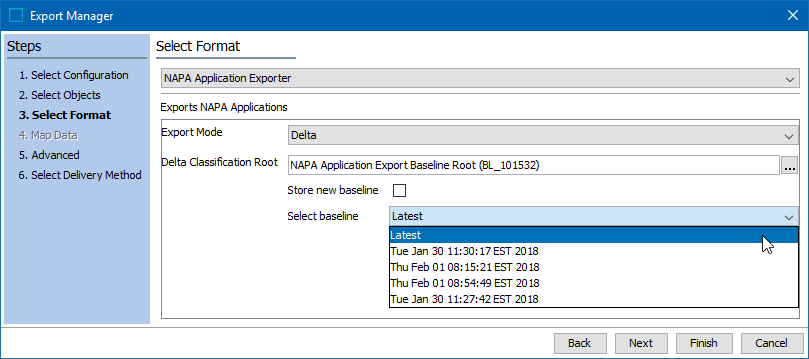
- Delta: This export mode will export only applications changed in comparison to the baseline selected below. A baseline must be selected, otherwise the delta file will be blank. Within the exported delta file, values that have changed will be marked with a 'D' Update Type for the old value on the record, and a separate line in the exported file will contain an 'A' Update Type for the new value.
Important: Before the Delta option can be used, at least one baseline must be stored by generating a FULL export and enabling the 'Store new baseline' checkbox. Otherwise the exporter has nothing to reference.
- Within the Delta Classification Root parameter, click the ellipsis button (
 ) to find and select the alternate classification object (ExportBaselineRoot). Once the Delta Classification Root is populated, the Select baseline parameter dropdown will be enabled.
 - Select the desired baseline from the dropdown list. In the example below, four previous baselines and the 'Latest' baseline can be selected. (Optionally, the 'Store new baseline' checkbox can be enabled to create a new baseline).
- Click the Next button and/or Finish button to complete the Export Manager wizard. For more information on the core parameters within the Export Manager, refer to the Export Manager topic within the Data Exchange documentation.