Configuration of extensions on SaaS environments can be done using the Remote System Administration API or Swagger UI.
Remote System Administration API
SaaS environments are equipped with a system administration API for configuring extensions. This topic covers the steps required to configure customizations maintained by Stibo Systems or developed using the Extension API.
-
Go to your system management URL (https://[customer]-[environment].mdm.stibosystems.com/system-management/swagger-ui) and sign in. You must have the 'System Administration' user privilege to successfully log in.
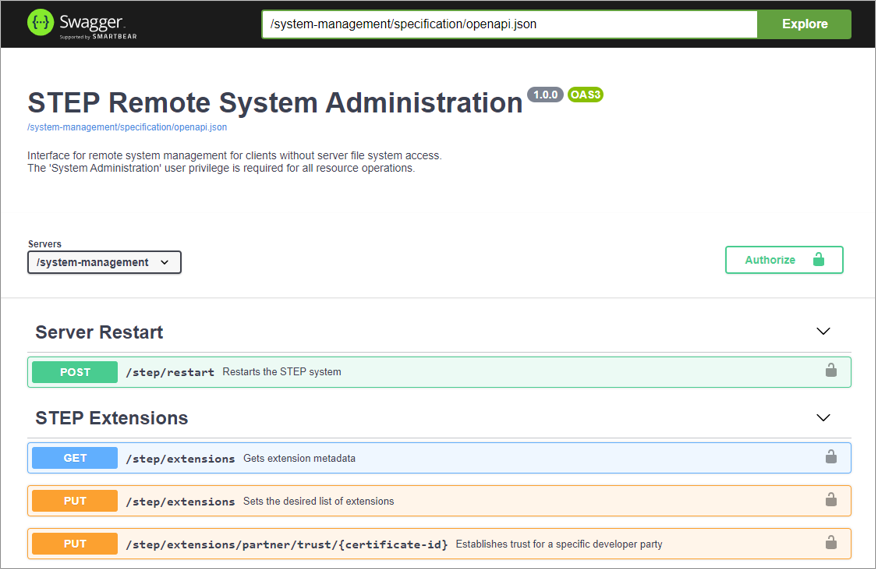
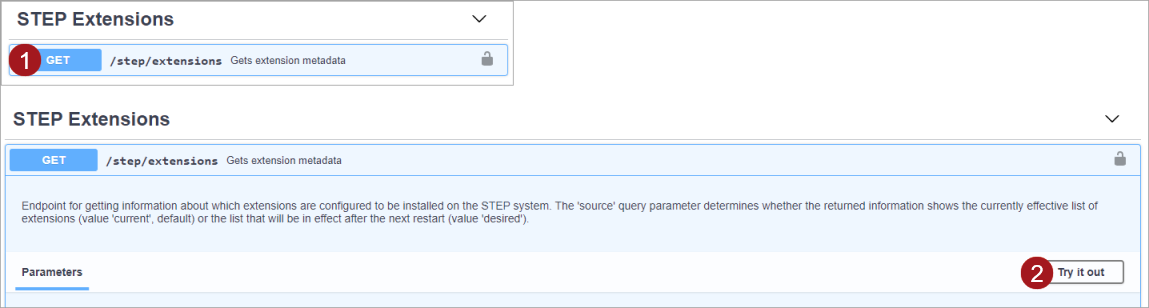
The Remote System Administration Swagger UI has multiple REST API request endpoints available. To execute a request, the request can be expanded by clicking it and then clicking the 'Try it out' button to execute the request.
The following API endpoints are available in the Remote System Administration Swagger UI:
-
POST /step/restart: Restart the STEP environment, which is required when changes have been made to the extension configuration.
-
GET /step/extensions: Retrieve the current list of configured or installed extensions on the STEP environment.
-
PUT /step/extensions: Add, update, or remove extensions on the STEP environment.
-
-
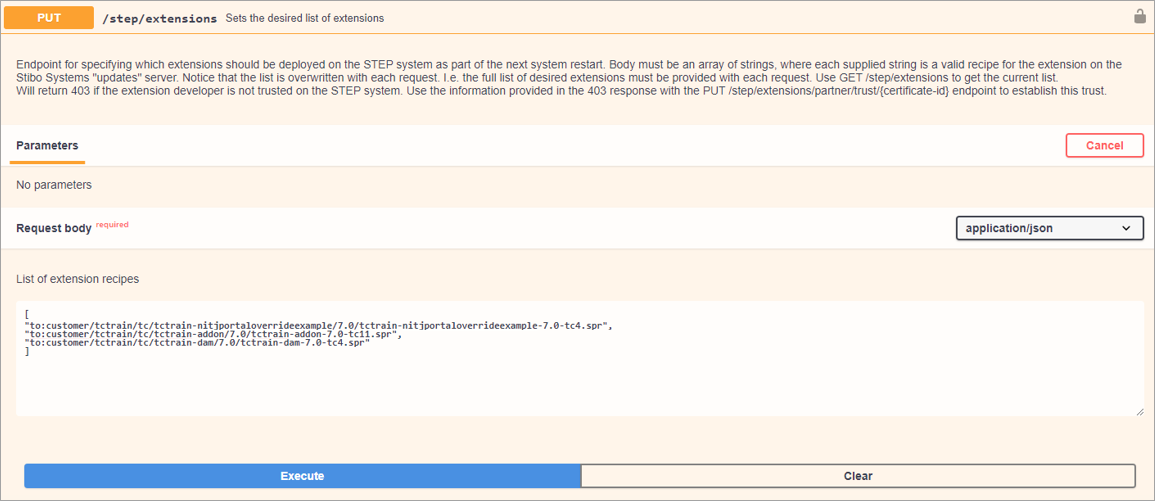
For adding or updating extensions on a designated STEP environment, initiate a PUT request on the /step/extensions API endpoint. Ensure that the request body contains all necessary extensions within the recipes list.
Important: Include all extensions required to be present on the environment in the list, regardless of their current availability on the STEP application.
The extension list may consist of customizations maintained by Stibo Systems, for which the recipe URL will be provided by Stibo Systems. Additionally, it may include extensions developed using the Extension API, for which the checkout URL must be used.
Request body must be formed with the following format:
[
“url-of-recipe1-maintainedby-stibo”,
“url-of-recipe2-maintainedby-stibo”,
“url-of-recipe1-developed-using-extensionAPI”,
“url-of-recipe2-developed-using-extensionAPI”,
]
-
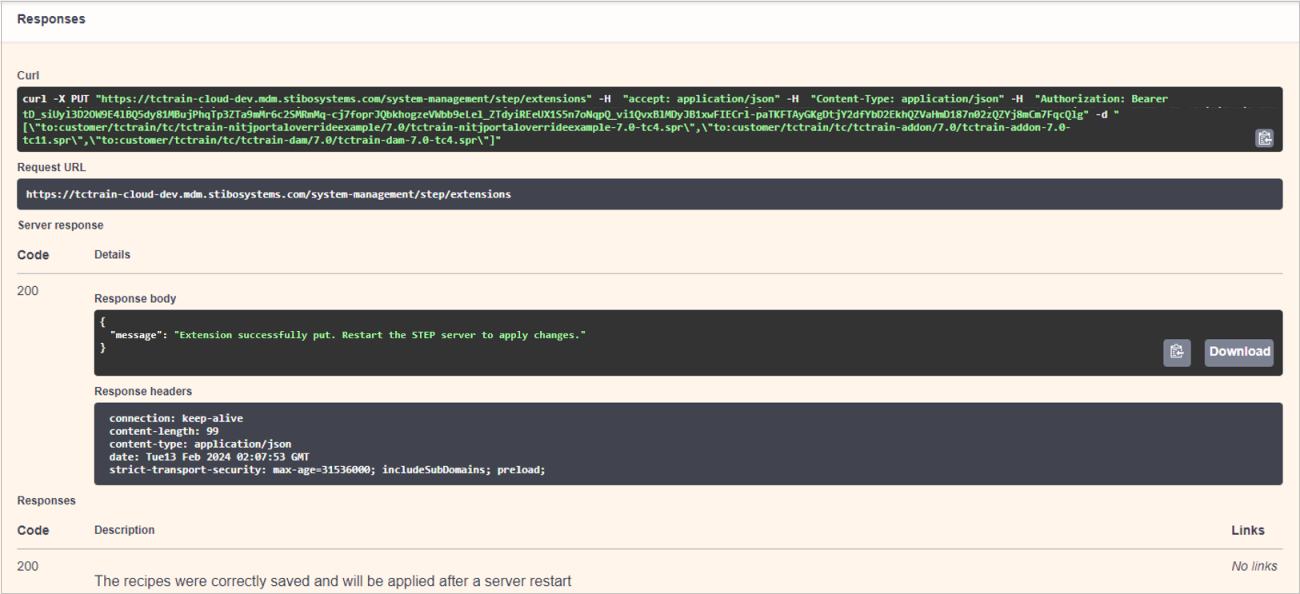
Perform the PUT request and ensure that it is successfully executed. Upon successful completion, the response should state, 'Extension successfully put. Restart the STEP server to apply the changes.'
-
Restart the STEP environment using POST /step/restart API endpoint available in the Remote System Administration Swagger UI. Once the application is successfully restarted, you are able to verify the extensions patched on the environment.
Note: For eligible non-production environments, an additional endpoint POST /step/restart-app is available. This endpoint allows an application-only restart to be performed, eliminating the need for In‑Memory synchronization and thereby significantly reducing the overall restart time. This endpoint can only be used when there are new desired extensions applied to the system; it cannot be used for other purposes.
-
Verify the installed extensions by going to the 'About STEP' detail page for your STEP environment. This page is accessible by going directly to https://[customer]-[environment].mdm.stibosystems.com/about/version or access the About STEP information for your system via the Start Page using the About STEP link under Resources.